+1-802-778-9005
Home>>QuickBooks Error Codes List How To Fix QuickBooks Script Error While Accessing QB Desktop?

Submit Your Details to Continue Reading

Navigation

QuickBooks Script Error is a common technical issue that occurs when the accounting software attempts to access web-based features. The error, which manifests as an “An error has occurred in the script of this page” message and slows PC performance, does not damage company data but hinders online functionality. Expertise is demonstrated by connecting the script failure to specific Internet Explorer settings, which QuickBooks Desktop uses internally for web tasks. The recommended fixes prioritize addressing root causes, including excess browser cache, disabled script debugging features, corrupted ActiveX components, and issues with SSL certificates. Following these detailed, step-by-step procedures is essential for users seeking to restore seamless operation and stability to the software’s online features.

Highlights (Key Facts & Solutions)

  • The QuickBooks Script Error takes place while accessing a web page from the QuickBooks program, often displaying a message that an “error has occurred in the script of this page” or “Internet Explorer Error.”
  • The error does not break company files or cause damage or loss of necessary data, affecting only online functions and system responsiveness.
  • Possible causes include excess cache and temporary files in Internet Explorer, disabled script debugging features, damaged Active X components, or corrupted Windows files.
  • Identification signs include sluggish functioning of Internet Explorer, difficulty downloading QuickBooks Desktop updates, and inability to perform tasks due to the mouse and keyboard becoming unresponsive.
  • Key solutions involve resetting Internet Explorer as the default browser and resetting its default options, which forces QuickBooks to use reliable web components.
  • Other important fixes include enabling the Internet Explorer’s Script Debugging feature and subsequently disabling it after the fix, and adding all QuickBooks related websites to the Trusted sites list in the Internet Explorer browser.
  • Advanced troubleshooting steps detail removing the default browser’s cache data, clearing SSL certificates from Internet Explorer, and verifying/uninstalling the Active Scripting and Active X components.

What is a QuickBooks Script Error Message?

Script error in QuickBooks may appear on the screen while launching a web page from QuickBooks. This error message indicates that ‘An error has occurred in the script of this page.’ Or, you may get the error status as ‘Internet Explorer Error’. Due to this, your PC starts running slowly or might become unresponsive. But you don’t need to worry as we are here to resolve this issue on your behalf.

A message quoting, “Stop running this script? A script on this page is causing your web browser to run slowly.” will most likely appear on your screen.
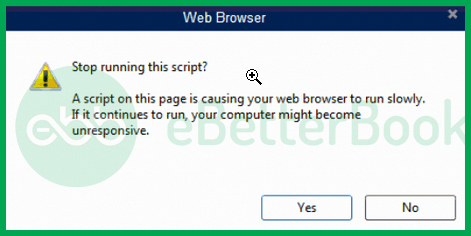
Screenshot showing a typical QuickBooks script error message with a prompt detailing the error

You can also notice the following error messages on your screen:

Script Error: An error has occurred in the script on this page. Line 22 char 2 error


Script Error: QuickBooks script error for line 7 char 5

Script Error: QuickBooks script error unable to get property length of undefined or null reference.

Script Error: Script error when using payments account applications or websites. 

You should keep in mind that the QuickBooks script error will never break your company files or cause any damage or loss of your necessary data. In case, you are also going through a QuickBooks script error, check out the following post.

What Are The Possible Causes of the QuickBooks Script Error?

Corrupted Windows, damaged data files, disabled script debugging feature, Internet Explorer settings, and many more factors can be at play when a script error occurs in QuickBooks.

The following are possible reasons for this situation:

  • Excess Cache and Temp Files: When the cache or temps files in Internet Explorer use too much space and have not been removed for a long time, the performance of the QuickBooks desktop slow and may eventually crash or stop working.
  • Disabled Script Debugging Feature: The disabled script debugging feature could be another potential trigger for this error.
  • Damaged Active X Component: Active X components may be damaged due to some unknown reason, resulting in a script error.
  • Request from Non-Existent Account: Trying to import data from an account that does not exist can result in a script error as you are sending an invalid request.
  • Corrupted Windows: A corrupted version of Windows or corrupt Windows can cause script errors as it interferes with the functioning of QB.
  • Damaged Data File: Data files may be damaged due to some unknown reasons, and as long as they are not attended to, they will pose problems with the functioning of the application. 
  • Malware: The presence of malware on your operating system can also be the cause behind script errors, as they might be causing hindrances in multiple ways.

How to Identify QuickBooks Desktop Script Error?

Underneath are some indications of QuickBooks Desktop enterprise error:

  • You may face script errors while loading QuickBooks Online due to the slow performance of the Internet to the keyboard and mouse inputs.
  • Sluggish functioning of Internet Explorer, unable or difficulty while updating QB, etc., are some typical identifiers of script error despite many people having reported no early indications. To further understand, go through the following to learn about early indications of script error: 
  • The Windows Firewall forbids your internet activity even after manually enabling it.
  • Quickbooks stop functioning, and the mouse and keyboard can become unresponsive. This becomes less challenging at first, and eventually, you won’t be able to perform any task at all.
  • Downloading any kind of QuickBooks Desktop update will become challenging, and the update might even get stuck mid-process or abort itself.
  • At the time of entering bank feeds from the online bank website.

After looking at the causes, you need to move on to the solutions to fix the script error.

eBetterbooks: Quick Fixes

Issue: Excess IE cache or temp files, resulting in conflicting versions and cookies.
Quick Solution: Delete all the Internet Explorer cache and temp files, which can be cleared from the browser’s settings or the control panel.

Issue: The QuickBooks website isn’t added as a trusted site in the Internet Explorer browser.
Quick Fix: Add the QuickBooks website-related sites to the trusted sites list in the Internet Explorer browser from the Internet Options option found in the Tools section.

Issue: The browser script debugging feature is disabled. 
Quick Fix: Internet Explorer’s script debugging feature is usually disabled by default and can cause script errors. Enable the Windows script debugging feature from the Internet Option to rectify this error.

Issue: The SSL Certificates of Internet Explorer are causing this issue. 
Quick Fix: To Clear the SSL Certificates from Internet Explorer, click on the Gear icon and select the Internet options, and from under the Content tab, click the Clear SSL state option.

Issue: Internet Explorer isn’t set as the default browser.
Quick Fix: Make sure Internet Explorer is set as the default browser, and if it’s not, set it as the default browser for QuickBooks.

Issue: The Internet Explorer has been corrupted due to some reason, causing the script error.
Quick Fix: Uninstall and reinstall the Internet Explorer browser by navigating to the Control Panel and using the Add/Remove Program section.

Benefits of QuickBooks Script Error

Here are the four key benefits of QuickBooks script errors:

  1. Improved Functionality: Fixing script errors ensures that QuickBooks operates smoothly, without interruptions or error pop-ups. This enhances overall user experience and boosts productivity.
  2. Accurate Data Entry: Script errors can disrupt data entry, potentially leading to mistakes in your records. By resolving these errors, you can minimize the risk of accounting issues and ensure accurate data entry.
  3. Time Savings: Troubleshooting and finding workarounds for script errors can be time-consuming. Fixing these issues allows users to focus on their core tasks without the need for temporary solutions.
  4. Enhanced Stability: Script errors can cause QuickBooks to crash or behave unpredictably. Addressing these problems improves the software’s stability, reducing the likelihood of system crashes and data loss.

Best Possible Solutions for QuickBooks Script Error

The QuickBooks script error can be resolved by clearing excess cache data, enabling the script debugging feature, clearing the SSL certificate from IE, reinstalling Internet Explorer, and many more depending on the cause of the error.

Follow the steps provided below for detailed instructions:

Solution 1: Reset Default Browser to Internet Explorer 

You may be accessing QuickBooks using a web browser other than Internet Explorer as your usual web browser. This could also result in such an error. As a result, you should be sure to designate Internet Explorer as the default browser.

  1. Firstly, open Internet Explorer.
  2. Click the Gear icon at the upper right corner or select Tools. 
  3. Go for Internet Options and hit the Advanced tab. 
  4. Now, choose the Reset to default option.
  5. Press Apply and OK to end the process and check whether the script error in QuickBooks is fixed.

Set Internet Explorer as your Default Browser

  1. Make sure the Internet Explorer must be opened. 
  2. Navigate to Settings and then click the Programs tab. 
  3. Under Default Web Browser, select Make Default.
  4. Then, press OK and tickmark the checkbox next to the Tell me if Internet Explorer is not the default web browser option.
  5. Now, make Internet Explorer the default web browser. 

Solution 2: Enable the Internet Explorer’s Script Debugging feature

To enable the script debugging feature in Internet Explorer, follow the below instructions:

  1. Navigate to the Tools option in Internet Explorer.
  2. Select the “Internet Options” and then the “Advanced” tab option.
  3. Verify the setting available under the Advanced option.
  4. Select the “Browser” option from the menu—Set Internet Explorer’s Script Debugging feature to on.
  5. Press the OK button.

Restart Internet Explorer after closing it.

Solution 3: Disable Add-ons on Internet Explorer

  1. Initially, choose the Tools option.
  2. After that, go to the Internet Options.
  3. Tap on Programs to proceed further.
  4. Select Manage add-ons in the new tab.
  5. Lastly, disable add-ons and tap OK to confirm.

Solution 4: Remove the Default Browser’s Cache Data

  1. Firstly, choose Tools in your Internet Explorer.
  2. Secondly, select Internet Options and then tap on the General tab.
  3. Next, you need to tap on Delete under the Browser History.
  4. Before confirming the selections, make sure you have tickmarked all options such as Cookies and website data, History & temporary internet files that you need to delete.
  5. Click Apply and press OK.
  6. Finally, check whether QuickBooks Script Error is appearing or not.

Solution 5: Add Intuit as a Trusted Site in the Internet Explorer Browser

The QuickBooks’ default browser is Internet Explorer. The app uses Internet Explorer to display the issue when you encounter it when using QuickBooks to view a webpage.

There is a good likelihood that the error is connected to the browser or website if you get a message that says the following:

“Line 36 Char 2 Error “$” Code 0 URL https://[email address removed]/sgn-rs/api/v1/lpd/las_box?param1=25&param2=las”

You can’t access the website you’re trying to reach right now, either because of a bug in the browser or a limitation on the website itself.  You will need to set up Internet Explorer regardless of the situation here.

So, follow these instructions to make the necessary adjustments in Internet Explorer:

If you are facing script errors frequently on the screen, you need to try to open a web source as a trusted site.

Here are the steps to do so:

  1. The first step is to launch the Internet Explorer browser.
  2. And then choose Tools > Internet Options.
  3. Go to the Security tab.
  4. Finally, add all QuickBooks-related websites to the list of trusted websites.
  5. Uncheck the checkbox “HTTPS: Require server verification.” 
  6. (Repeat for each website in the window zone titled Trusted sites.)
  7. Once finished, dismiss the window for Trusted sites.
  8. Uncheck the box next to “Enable Protected Mode.”
  9. After finishing the tasks above, shut down the Internet Explorer.

Restart your OS, then attempt to launch QuickBooks.

Solution 6: Run Internet Explorer in Compatibility View Mode

  1. Launch Internet Explorer and select the Tools option from Settings.
  2. Access the Compatibility View options to open the Compatibility View window.
  3. Mark the checkboxes that read “Display all websites in Compatibility View.”
  4. To preserve the changes, click the Save Changes option.

Solution 7: Clear SSL Certificates From Internet Explorer

Deleting Internet Explorer’s SSL certificates from the settings menu follow the following instructions:

  1. Launch the Internet Explorer browser.
  2. Choose the Internet settings option from the Settings menu.
  3. Select the Content tab.
  4. Click the “Clear SSL state button” button from under the Content tab.
  5. Click OK to save changes and Exit.

Solution 8: Verify the Active Scripting and Uninstalling the Active X Component

To disable Active X controls from Internet Explorer’s high-security mode, Follow the quick instructions below:

  1. Navigate to the Internet options after launching Internet Explorer.
  2. Select the Tools menu, then select the Security tab.
  3. Look for the ActiveX controls and plug-ins option under Custom Level.
  4. Click the OK button after choosing the Default level.

Steps for removing the ActiveX component from Internet Explorer

You must first navigate to the settings in IE before you can uninstall and delete the ActiveX file from your PC:

  1. Go to the Settings tab.
  2. Select the View Objects tab.
  3. Check every checkbox before the ActiveX file currently installed on the computer.
  4. Look for files with names beginning with qboax, for example qboax11 or qboax11.dll.

You must also remove the file from the system and make sure that no instances of Internet Explorer windows are operating on the OS.

Solution 9: Reactivate Internet Explorer 11 on Windows 10

  1. Press and hold Windows + R and write the Control Panel in the search box.
  2. After that, choose Enter and select Add/Remove Program option.
  3. Now, you need to select the Turn Windows Features on or off option and delete the checkmark next to the Internet Explorer 11 option.
  4. Reboot the Windows.
  5. Enable the Internet Explorer 11 again and restart the Windows PC.
  6. Finally, perform the aforementioned steps again to fix the script error QuickBooks.

Solution 10: Turn the Script Error Notification Off

  1. Initially, launch the Internet Explorer.
  2. After that, choose the Tool option and go to Internet Options.
  3. Click the Advanced tab and remove the check-box that shows the ‘Display a notification about every script error’ option.
  4. Finally, choose OK.

Solution 11: Locate the URL to the Restricted Websites

  1. Firstly, launch QuickBooks.
  2. Choose the Help option from the Internet Connection Setup.
  3. After that, click Next and choose the Advanced Connection Settings.
  4. Meanwhile, go to the Security option on the Restricted sites tab.
  5. Next, you need to copy the URL and paste it.
  6. Choose the Add option and then click the close option.
  7. Finally, press Ok to save the changes.

Alternate Solutions to Resolve QuickBooks Script Error

Sometimes, you may face script errors under three conditions. We have described all of these conditions along with their solutions.

Condition 1: When the Error Appears While Exporting

  1. The first step is to choose ‘Tools’ present in the right corner of your IE browser.
  2. After that, select the ‘Safety & Security’ option and tap on ‘Delete history’.
  3. Click the ‘Cookies’ and ‘website data’ checkboxes.
  4. And then choose the Delete option. This may take a few seconds.
  5. Lastly, close the Internet Explorer browser and launch it again.

Condition 2: When the Error Appears While Importing

  1. Firstly, choose Internet Explorer.
  2. After that, select the Tools menu and click Internet Options.
  3. Next, press the Alt key when you can’t open the table menu.
  4. Choose the Advanced tab.
  1. Remove the display of notification of each script error box.
  2. Finally, choose OK.

Condition 3: When the Error Occurs While Launching Desktop

  1. The first step is to choose Internet Explorer.
  2. Select the Command bar and then tap on Tools.
  3. After that, select Internet Options and choose the Security tab.
  4. Next, you have to add .intuit.com as your trusted website by following these steps.
  1. Open the Trusted Sites windows and unmark Require server verification.
  2. In the Zone field, type Intuit.com in Add this Website.
  3. Delete all other websites.
  1. Shut down the Trusted Sites window.
  2. Here, you need to unmark the Enable Protected Mode option.
  3. Finally, close Internet Explorer.

Wrapping-Up!

One of the above-discussed solutions will surely help you in fixing Script errors in QuickBooks. If you are new to handling such technical errors, it is suggested to take the assistance of QB experts.

Implement the solutions given above to resolve the error; if you still need help, contact +1-802-778-9005, or you can mail us at: support@ebetterbooks.com

FAQs

  1. Why does the QuickBooks Script Error specifically mention “Internet Explorer Error” or require me to change Internet Explorer settings when I use a different browser like Chrome or Edge?

    The QuickBooks Desktop application relies on Internet Explorer components and settings to render internal web-based content, such as certain bank feeds, online services, or login screens, even if your default operating system browser is Chrome, Edge, or Firefox. The Script Error is often a result of an issue with the way Internet Explorer’s security settings, cache, or ActiveX controls handle the JavaScript/scripting used by QuickBooks’s internal web pages.

  2. Can the Script Error corrupt my actual QuickBooks company file (QBW), or does it only affect online functions?

    The QuickBooks Script Error is generally a client-side display issue related to the web browser components within the QuickBooks application. The article correctly states that a script error will never break your company files or cause any damage or loss of your necessary data. Your company data is safe and stored locally or on a server, separate from the script handling the visual display of online features.

  3. I am getting a message that says, “Stop running this script?” Will choosing “Yes” or “No” help fix the error?

    Choosing “Yes” (Stop running the script) or “No” (Continue running the script) is only a temporary choice for the current session and will not fix the underlying cause of the error.

    1. Selecting “Yes” usually allows the rest of the page or application to load, but the specific functionality tied to the failing script will be disabled or incomplete.
    2. Selecting “No” attempts to run the script until it times out, potentially making your system sluggish or causing the application to hang.

    To truly resolve the issue, you must apply the detailed solutions, such as clearing the Internet Explorer cache or enabling script debugging (as outlined in the guide).

  4. What is the difference between clearing the IE Cache (Solution 4) and clearing the SSL Certificates (Solution 7)? Are both necessary?

    Yes, both are distinct and often necessary troubleshooting steps:

    1. Clearing IE Cache/History (Solution 4): This removes temporary internet files, including cookies and browser history. An overly full or corrupted cache often causes conflicting versions of web data to load, resulting in script failures.

    2. Clearing SSL Certificates (Solution 7): This specifically removes the Secure Sockets Layer (SSL) certificates stored by the browser. These certificates ensure a secure connection (HTTPS). If an outdated or corrupted certificate is stored for an Intuit site, the browser may fail to establish a secure connection, leading to a script error when attempting to access financial services.

  5. Why is enabling Script Debugging (Solution 2) sometimes disabled, and should I leave it enabled after fixing the error?

    The option to Display a notification about every script error (Script Debugging feature) is usually disabled by default in browsers like Internet Explorer because:

    1. It prevents non-technical users from being constantly interrupted by minor script warnings that do not affect core functionality.
    2. It improves general browsing performance.

    It is generally recommended to revert this setting to its default (disabled) once the QuickBooks Script Error has been resolved, to ensure a smoother, less interrupted user experience.

  6. The article suggests removing the ActiveX component (Solution 8). What is this file, and will removing it affect my other computer programs?

    The ActiveX component referenced, likely a file like qboax11.dll (or similar QuickBooks-related name), is an essential Microsoft technology used by QuickBooks Desktop to enable interactive web content within the program.

    1. What it is: This file is a specific add-on or control used only by QuickBooks to manage its online connections and features.
    2. Impact: Removing a QuickBooks-specific ActiveX control will not affect other computer programs, but it is a necessary troubleshooting step if the file has become damaged or corrupted, as it will force QuickBooks to re-download and register a fresh, clean version upon the next launch.

  7. The guide mentions “Request from Non-Existent Account” as a cause. How do I fix this specific cause?

    This cause often occurs when you are attempting to import bank feeds or data from an account that was previously linked to QuickBooks but has since been deleted or deactivated on the bank’s website or within QuickBooks itself, creating an invalid request loop.

    To fix this specific issue:

    1. Check QuickBooks Account List: Navigate to your Chart of Accounts in QuickBooks and ensure the account you are trying to import/connect is active.
    2. Review Bank Feed Setup: If the account is deactivated, you may need to re-connect the account to the correct bank feed using the current credentials.
    3. Clear Bank Feed Errors: Sometimes, resetting the Bank Feeds settings (often found in the Banking menu) is required to clear the faulty connection request.

.
