Excerpt:
Managing credit card charges in QuickBooks Online requires adhering to precise accounting workflows to maintain accurate financial records and ensure successful reconciliation. While bank feeds automate the entry of posted charges, users must manually record pending charges for real-time accuracy and month-end closing, taking care to match the two entries later to avoid duplication. A key bookkeeping distinction is correctly recording a charge as an Expense (affecting P&L) and a payment as a Transfer (affecting the Balance Sheet). Ultimately, achieving financial control relies on monthly reconciliation to verify statement accuracy and utilizing advanced tools like the Audit Log to track all modifications for compliance and internal accountability.
 Add As A Preferred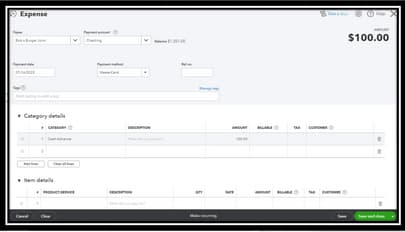
Highlights (Key Facts & Solutions)
Overview
QuickBooks Online allows you to record credit card charges using both traditional and manual methods to stay updated with your expenses and maintain accurate financial reports. A credit card gives you the option to borrow funds for purchases or for paying bills. You can set up your credit card account to track the charges and payments you’ve made.
Managing credit card charges in QuickBooks Online helps you to ensure every transaction is accurately recorded and categorized. Whether you’re manually entering charges, uploading receipts, or using automated tools, QuickBooks provides different ways to keep your finances organized and up-to-date.
Before entering credit card charges in QuickBooks Online, you’re recommended to follow some steps to streamline your cash flow and keep track of the expenses you’ve made.
Here’s a checklist you need to follow:
Entering your credit card purchases into QuickBooks Online and then matching that transaction to the bank feed is the best method, at least from a bookkeeping standpoint. Bank feed allows your banking and credit card transactions to be reconciled and reported more accurately and efficiently.
The QuickBooks Online bank feed is a QuickBooks feature that connects your online business bank account securely to your accounting software. It syncs your banking transactions with your QuickBooks Online records, so you don’t have to input every check, charge, transfer, Expense, or deposit manually.
Traditionally, bookkeepers entered transactions into ledgers from source documents like receipts and then reconciled these ledgers to the bank or credit card statement every month. But now, using the bank feed feature, you can make all banking and merchant account transactions, whether you have cash deposits or withdrawals, online payments, credit or debit card charges, transfers, or loan payments.
When your bank data flows directly into your QuickBooks Online account, every transaction is instantly synced and sorted for you. As you add data and approve transactions, QuickBooks recommends categories for your expenses and gets smarter over time.
In QuickBooks Online, you can enter your credit card charges as Expenses. From there, you can choose a category to post the amount individually.
Let’s see how:
QuickBooks Online offers the ability to manually enter transactions associated with a credit card. This will help you get the most accurate and up-to-the-minute financials. Bank feeds allow your credit cards to sync to QuickBooks Online, making transactions instantly viewable in the register. There’s a time lag between the actual credit card transaction and when the transaction shows as pending before it posts to your credit card statement.
If you need up-to-date financials due to end-of-period accounting reports, pending charges cannot be imported through QuickBooks Online bank feeds. Only an actual payment that has been processed via your credit card and appears on your statement will transfer to your bank feeds. To get the most accurate real-time view of your finances, you need to manually enter credit card charges in QuickBooks Online.
Here’s how:
Efficient financial tracking goes beyond just entering expenses. To truly stay in control, you need to master every layer of credit card charge management in QuickBooks Online. From correcting mistakes to reconciling monthly statements, each task affects your books directly. In this section, we’ll cover five critical workflows—all designed to help you edit, monitor, reconcile, and safeguard your credit card records with precision. If you’re aiming for error-free accounting, smarter oversight, and full compliance, this is where you start.
QuickBooks Online lets you edit or delete charges in just a few steps, giving you full control over your records. To edit a charge, go to the Expenses tab, locate the transaction using filters like vendor name, amount, or date, and click Edit. Make your changes and hit Save. To delete a charge, follow the same path but select More > Delete at the bottom. Always double-check the payment account, transaction date, and category before editing. Editing or deleting incorrect entries helps you avoid reporting errors, reconciliation issues, and financial mismatches.
In QuickBooks Online, a credit card charge is money you’ve spent, while a payment is money you’ve used to pay the card. Charges are logged as expenses, vendor-specific, and affect your profit and loss. Payments, however, are recorded as transfers, impact cash flow, and reduce your card balance. Go to + New > Expense to enter a charge, and + New > Pay down credit card for payments. Mixing them up can lead to duplicate entries, reconciliation errors, and inaccurate financial reports. Always verify account type, amount, and transaction flow before recording either.
To reconcile your credit card account, go to Settings > Reconcile, choose the correct credit card account, and enter the statement ending date and balance. Match each charge with your statement using filters like amount, date, and vendor. Look for missing, duplicate, or unmatched transactions. If the difference is zero, click Finish now. Reconciliation ensures transaction accuracy, clears pending errors, and aligns your books. Always keep receipts, charge dates, and vendor names handy for fast matching. Doing this monthly helps avoid audit risks, tax issues, and end-of-year confusion.
Start by giving each employee a credit card sub-account under your main credit card in the Chart of Accounts. Record each charge using + New > Expense, selecting the right employee account, date, and category. Use Classes or Tags to identify who made what purchase, where, and why. This helps monitor spending limits, policy violations, and tax-deductible expenses. Run custom Expense by Vendor or Class reports to review spending patterns. Tracking employee usage avoids misuse, overspending, and reconciliation delays, while ensuring full visibility across departments.
First, identify the disputed charge by checking vendor name, transaction date, and amount in the Expense or Banking tab. Tag it clearly using a memo note, class, or flag, and do not match it with bank feeds until resolved. Report the issue to your card issuer immediately and request a temporary credit or investigation. In QuickBooks, either exclude the charge, mark it as unresolved, or create a reversal entry. Handling disputes properly prevents data misreporting, false expense totals, and reconciliation errors. Track resolution progress in your records to maintain transparency.
Once you’ve learned how to enter credit card charges, the next step is mastering how to manage them smarter. This section focuses on advanced yet essential practices—like preventing common mistakes, using audit tools, and maximizing your tax efficiency. By applying these five expert strategies, you’ll boost accuracy, compliance, and confidence in your financial tracking. Whether you’re preparing for taxes, audits, or just cleaner reports, these tips help make your QuickBooks credit card process stronger and more future-proof.
Accurate categorization helps you claim tax deductions, avoid IRS red flags, and maintain clean records. In QuickBooks Online, each expense should be assigned a proper category like travel, meals, or advertising—not just for reports but for tax filing. Misclassified charges can lead to lost deductions, audit risks, and inaccurate profit analysis. Use the Chart of Accounts, bank rules, and tags to automate consistent categorization. This habit improves year-end reporting, speeds up filing, and increases deduction accuracy. Proper setup today saves time, money, and effort during tax season.
Avoiding mistakes in QuickBooks starts with not duplicating entries, choosing the correct account, and entering exact dates. One common error is recording both a charge and a payment as expenses, which leads to inflated totals, reconciliation mismatches, and confusion in reports. Also, users often skip adding receipts, causing audit issues, missing context, and loss of proof. Using the wrong category can result in incorrect tax deductions, poor expense tracking, and flawed budgeting. Always double-check the amount, vendor, and payment method before saving any charge to keep your books reliable.
QuickBooks Online’s Audit Log gives you a clear trail of who changed what, when, and how—essential for monitoring edits, deletions, or backdated entries. Go to Settings > Audit Log, filter by user, date, or event type, and review changes related to credit card charges, categories, or amounts. This tool helps catch unauthorized edits, accidental updates, and missing transactions. It also supports internal controls, accountability, and audit readiness. For every charge entered, the audit log preserves its original state—keeping your financial history transparent and tamper-proof.
Monthly reconciliation ensures your records match your credit card statement—reducing errors, fraud risks, and reporting issues. Always start by collecting your latest statement, then in QuickBooks go to Settings > Reconcile, and select the correct credit card account, ending balance, and date. Match each transaction based on amount, vendor, and posting date. Flag or investigate any missing, duplicate, or mismatched entries immediately. Lock the period after reconciling to prevent changes. Following this routine boosts accuracy, financial control, and audit preparedness while keeping your books clean and dependable.
To view your credit card spending, go to Reports > Expenses by Vendor Summary or use Transaction Detail by Account for deeper insights. Filter by credit card account, date range, and category to isolate specific charges. You can also customize columns for vendor, memo, class, or payment status to get a clearer picture. Export reports in PDF or Excel for sharing or review. These reports help in budget planning, audit preparation, and tax filing by providing real-time, organized views of where your money went and why.
Entering credit card charges in QuickBooks Online is crucial for record keeping, which ensures accuracy and integrity in your bank transactions. It helps you to connect your bank or credit card accounts and keep track of your finances before printing financial statements at the end of the month, quarter, or year.
Businesses can either manually enter or automate the process by importing transactions, which increases efficiency and reduces the risk of errors. Regularly reviewing and entering these credit card charges ensures your books stay up-to-date and ready for financial decisions or audits.
Manually entering a credit card charge ensures you have the most up-to-the-minute financials, which is critical for end-of-period reporting.
The key reasons to manually enter a transaction are:
Once the bank feed imports the transaction, QuickBooks will automatically find the manual entry and prompt you to match the two transactions, preventing a duplicate.
Mixing these two actions is a common accounting error that leads to reconciliation failures and inaccurate reports.
Recording a payment as an expense will falsely inflate your business expenses.
Setting up credit cards as sub-accounts is a best practice for managing employee or department-specific cards under one main corporate card.
The benefits of using sub-accounts include:
The risk of duplication is highest when you manually enter a transaction (to capture it immediately) and then also allow the bank feed to import the same charge later.
To prevent duplication:
If you mistakenly add a duplicate, use the Exclude feature in the Banking center to remove the unwanted bank feed entry, or Undo if already categorized.
The Audit Log is crucial for internal controls and compliance because it creates an uneditable record of all changes made to your financial data.
The Audit Log helps you:
Access the log by going to Settings $\to$ Audit Log, then filter the events by specific users, dates, or events.
When you dispute a charge, you should not delete the original transaction because it is an accurate reflection of the initial bank activity.
Follow these steps for proper tracking:
This process ensures your books match the statement while tracking the recovery process.
The single most important action is to reconcile the account monthly.
Reconciliation is mandatory because it provides the final verification that your books match the official statement from the credit card company.
Monthly reconciliation ensures:
After reconciliation, the difference must equal zero before you click Finish now.


