Excerpt:
This guide outlines the steps to download bank feed transactions into QuickBooks Desktop, offering solutions via Direct Connect or Web Connect. By linking your bank account to QuickBooks, you can streamline your bookkeeping, save time, and automatically import transactions. Whether you’re using QuickBooks or managing it outside the software, this process ensures accurate financial tracking and seamless integration for better business management.
 Add As A Preferred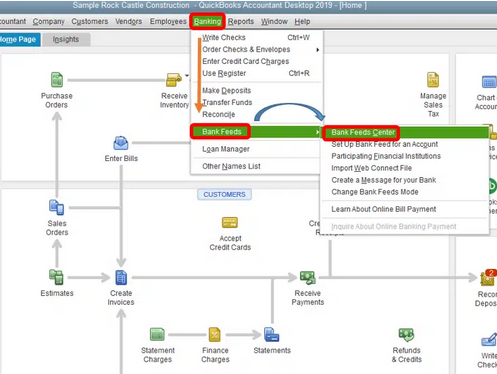
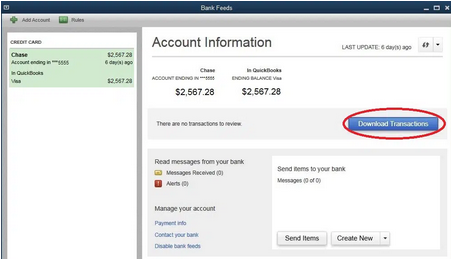
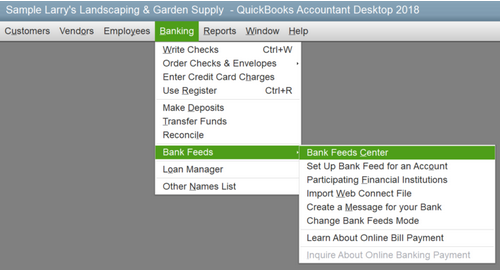
Bank Feed configuration for QuickBooks Desktop is thoroughly detailed in this guide, providing users with essential, step-by-step instructions for securely downloading bank and credit card transactions directly into their software using two primary methods: Direct Connect and Web Connect (.qbo files). It emphasizes critical preparatory steps, such as creating a backup of the company file and understanding file compatibility, noting that QuickBooks Desktop primarily requires the .qbo format and does not support QIF files, which often require a third-party conversion tool. The tutorial details the process for both Windows and Mac platforms, covering initial setup, managing login credentials (which requires deactivating and reactivating the feed), and troubleshooting common issues like limited historical data downloads (typically the last 90 days from the bank) and the prevention of duplicate entries. The content establishes expertise by clearly outlining the differences between the automatic Direct Connect and the manual Web Connect process, enabling users to choose the most efficient method for maintaining up-to-date, accurate financial records for reconciliation.
Highlights (Key Facts & Solutions)
Below are certain things you need to keep in mind when downloading the bank feed transactions in QuickBooks Desktop, which include:
There are two methods to download bank feed transactions, including Direct Connect or Web Connect, and you can select any one of them if you want to import transactions manually. Below, we have discussed how each method can be downloaded and used on a QuickBooks desktop.
You can download bank feed transactions in these scenarios; one is when you are using QuickBooks software, and the other is when you are outside of QuickBooks.
If You’re Using QuickBooks Desktop
When you connect for the first time, QuickBooks automatically downloads the maximum limit of transactions available from your Bank. It totally depends on your Bank, and this can give you up to a year of historical transactions. However, most of the banks may only download 90 days of historical transactions.
Adhere to the following steps to download transactions using Direct Connect:
Note: If you’ve already downloaded the transactions but haven’t reviewed them yet, check for the Transaction List.
Important: You can delete any remaining (previously matched/added) transactions or statements. Once you delete your downloaded transactions, you won’t be able to re-download them. This will avoid duplicate entries or data redundancy.
Some banks allow you to set a date range for downloads, but if your Bank doesn’t have this option, you can automatically get the maximum number of transactions available when you download. The range may be from 30, 60, 90 days, or more days, depending on your Bank.
You can import transactions from Web Connect using two different ways, which are as follows:
If you’re using QuickBooks Desktop
Note: Every Bank has different ways to download QuickBooks Web Connect files. If you’re not sure about how to do it, visit your Bank’s website and follow the on-screen instructions or reach out to the nearby branch for help.
With online banking, QuickBooks connects to your bank in one of two ways:
Here’s how to download and import your transactions in both ways.
Note: QuickBooks doesn’t control which transactions are downloaded from your bank. It only shows the info received from your bank.
When you download transactions through Web Connect, QuickBooks opens them from a .qbo file. Let’s download and import this file into QuickBooks.
Note: You can also download transactions outside of QuickBooks. Just open a browser and go to your bank’s website.
Note: Steps on how to download QuickBooks Web Connect files vary per bank. If you’re not sure how to download the .qbo file from their website, immediately contact your bank for help.
Direct Connect downloads transactions directly from your bank to QuickBooks. You don’t need to import your transactions as they’re made available in your register when you download.
In QuickBooks Desktop, you have the option to use Bank Feeds to connect your Bank or credit card accounts to online banking services. When you download your bank transactions, you don’t have to record them manually. There are two ways to set up an account, including Connect with Direct Connect or Web Connect. The way you connect depends on what is available at your Bank.
Note: Make sure you have a PIN or password from your Bank’s end to use this method.
After setting up the account, you can download your online statements to your Bank Feeds. However, if you’re downloading transactions for the first time, QuickBooks will automatically set up an account for Bank Feeds.
Important: Check with your Bank if there’s a fee or if the service is free when you start setting up your account.
For online banking setup, your Bank offers a Customer ID and password (or PIN) to every customer.
You may also need the following things:
| Account Type at Financial Institution | Account type in QuickBooks |
| Checking | Bank |
| Savings | Bank |
| Money Market | Bank |
| Line of Credit | Bank |
| Credit card | Credit card |
| Line of Credit | Other current liability |
If you’re a new user or enrolling for the first time, click on the Enrollment Site link and then apply for Direct Connect. However, if your Bank needs to approve your application, contact them or ask them if you need special sign-in credentials.
Once you log in successfully, do the following:
To download your company’s transactions from your Bank or credit card, you can use a .QBO file in case your Bank doesn’t offer Direct Connect. Then, you need to import that file to QuickBooks and add such transactions to your accounts.
If your Bank offers Web Connect:
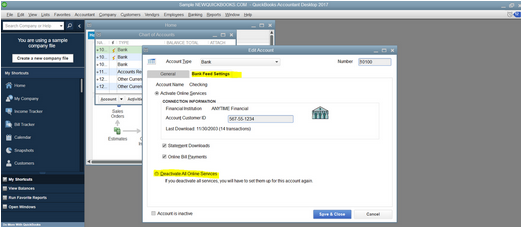
To change or edit your login and other info related to the bank account you use with QuickBooks Desktop, you are required to turn off your Bank Feeds and then set it up again.
QuickBooks Desktop for Windows
QuickBooks Desktop for Mac
Bank feeds are a digital link that automatically downloads transactions from your bank account to your accounting software on a digital basis. You can then work with the data by creating new transactions as needed or match bank transactions to your financial institution. Once set up, the feed automatically sends transaction information from your bank account to your accounting software, helping provide you with an up-to-date view of your business finances in one place.
If you can’t find recent transactions in QuickBooks, make sure that you’ve set the correct date range for before downloading the bank feeds. Adjust the date filter to include the time frame that you want to view in your transactions.
Or, follow the steps below:
The Bank Feeds logs record what happens during an online connection with your bank. If the connection fails, or you get an error, the logs can help pinpoint the failure. There’s a preference to create log files. Make sure you enable this before you reproduce the bank feeds issue.
Here’s how:
You can manually upload transactions if you want to enter old transactions, can’t find your bank, or connect it to QuickBooks.
Here are the steps:
Note: If your account is not connected yet to online banking, click Upload from file.
Note: If you’re new to QuickBooks, you may not have an account to upload the transactions into. If you don’t see one, click Add New from the drop-down to create a new bank account.
When you connect your bank to QuickBooks, the system downloads up to the last 90 days of transactions. If you need transactions that are more than 90 days old, you can import your bank statement or enter the transactions manually into your account before connecting to a bank feed.
Yes, if you want a detailed list of all your transactions, you can export them into a CSV file.
Here are the steps to download the transactions:
Note: Receipts aren’t exported. You can download them from specific transactions. Or move to the Reports menu and then download all of your receipts for specific tax years.
The number of historical transactions downloaded is controlled by your financial institution, not by QuickBooks. Upon initial connection using Direct Connect, most banks default to providing only the last 90 days of transaction history. While QuickBooks has the technical capability to download up to a year of data, the bank’s policy limits this initial retrieval.
To obtain older transactions, you must typically:
QuickBooks Desktop does not natively support the import of Quicken Interchange Format (.qif) files. It primarily relies on the Web Connect (.qbo) file format for secure and reliable transaction import.
If your bank only provides QIF files, the supported solutions are:
No, once transactions are deleted from the Bank Feeds Center (the list of downloaded items not yet added or matched to the register), they are permanently removed and cannot be re-downloaded by QuickBooks. This restriction is enforced to prevent data corruption and duplicate entries in your company file.
If transactions are deleted by mistake, your only recovery option is to:
When connecting via Direct Connect, you must match the account type as defined by your financial institution for correct mapping in your QuickBooks Chart of Accounts.
The necessary account type mapping is as follows:
You cannot directly edit the existing login credentials within the Bank Feeds settings. To securely update your User ID or PIN for an account connected via Direct Connect, you must disconnect the online service first and then reconnect it.
The steps are:
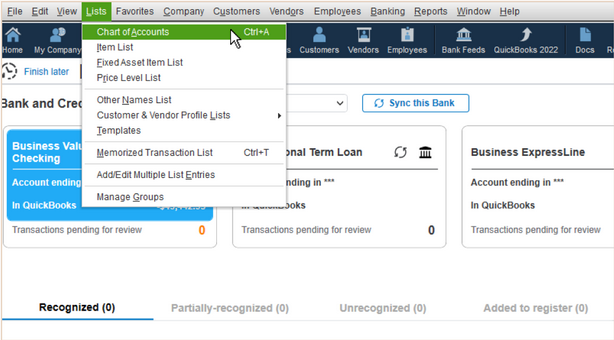
Lists menu).When the Bank Feeds Center shows a zero or missing transaction count despite a successful connection, it could be due to a few common configuration issues, primarily pending alerts at the bank or a mapping error.
To resolve this, confirm the following:
The difference between Direct Connect and Web Connect lies in the connectivity and potential cost.
| Feature | Direct Connect | Web Connect (.QBO File) |
| Connectivity | Automatic, direct server-to-server connection via the internet. | Manual, single-use file downloaded from the bank’s website and imported. |
| Two-Way | Yes, allows downloading transactions and sending bill payments/transfers from within QuickBooks (if supported by the bank). | No, only allows one-way downloading of transactions. |
| Bank Fee | May incur a monthly fee from the bank, as it is often considered a premium, two-way service. | Generally free from the bank, as it is a manual file download. |
You should choose Direct Connect for automation and payment capability. Choose Web Connect if your bank does not support Direct Connect, to avoid potential bank fees, or when needing a specific historical date range.
Downloaded transactions do not enter your general ledger automatically and must be accepted in the Bank Feeds Center:


