



Highlights (Key Facts & Solutions)
- Immediate Impact: Undoing reconciliation immediately recalculates the beginning balance for the next period, requiring the user to resolve the difference before the next cycle.
- Standard User Method: Requires manually accessing the Chart of Accounts $\to$ View Register and cycling the transaction status from R (Reconciled) to blank (Unreconciled) on every affected entry.
- Accountant Method (QBOA): Users with ProAdvisor or Accountant access can use the Undo button in the Reconciliation History screen to reverse an entire reconciliation period at once.
- Status Cycle: The manual reversal process involves clicking the status box to cycle through the states: R (Reconciled) $\to$ C (Cleared) $\to$ Blank (Not Reconciled).
- Pre-Reversal Check: Always verify the Closing Date setting and ensure the accounting period is not locked to avoid system restrictions.
- Partial Reversal Risk: Reversing only a partial set of transactions will throw off the beginning balance and automatically create a Reconciliation Discrepancy entry that must be investigated and cleared.
- Warning Confirmation: QuickBooks will display a pop-up warning that the beginning balance will change; the user must confirm this change to proceed with the reversal.
What is “Undo a Reconciliation” in QuickBooks?
Undo Reconciliation in QuickBooks Online is a system function that reverses the reconciled status of selected transactions and removes the associated reconciliation metadata from the account. QuickBooks Online applies this function when the recorded account balance does not align with the financial institution’s statement balance due to incorrect entries, unintended reconciliations, or transaction-level discrepancies. The feature updates the account register, recalculates the beginning balance, and restores each affected transaction to an unreconciled state.
QuickBooks Online processes reconciliation activity by comparing recorded transactions with financial institution data, and discrepancies occur when transactions are entered incorrectly, categorized improperly, or included in reconciliation by default. Undo Reconciliation restores accuracy by reversing the reconciled status of the affected entries and recalculating the account’s beginning balance. This function ensures that the account register reflects only verified transactions and maintains alignment with the corresponding bank or credit card statement.
To undo the reconciliation in QuickBooks, if you are using QuickBooks Online, then under Banking, you need to go to the Reconciliation tab and click “Undo last reconciliation”. In QuickBooks Desktop, you can undo a reconciliation from the Chart of Accounts, where you can choose a particular account to undo a reconciliation.
In both QuickBooks Desktop and Online, you need to log in as an administrator account to undo reconciliation.
In QuickBooks, the steps of reconciliation are followed to match the transactions in the books of accounts with your bank or credit card statements to check the overall accuracy. “Undoing a reconciliation” is reversing or canceling an already completed reconciliation, which makes the reconciled transactions revert to unreconciled status.
Undoing the reconciliation in QuickBooks is a crucial process when inconsistencies, mistakes, or modifications come up in already reconciled transactions.
Pointers to Keep in Mind Before Undoing a Reconciliation in QuickBooks
Before undoing a reconciliation in QuickBooks, it’s crucial to back up your company file, avoid manual changes to reconciled transactions, and remove any adjustment entries to prevent errors
- No Built-In “Undo” for Non-Accountant Users: Only accountants or specialized persons with QuickBooks Online Accountant access can undo a full reconciliation directly.
- Manual Adjustments Might Be Necessary: If you’re not an accountant user, each transaction will need to be unreconciled manually.
- Effect on Financial Reports: Undoing reconciliation alters historical information and can impact reports.
- Consult Your Accountant: Always consult before making reconciliation adjustments to prevent compliance problems.
- Review Audit Log: In QuickBooks Online, the audit log assists in tracking changes for transparency and accountability.
Step-by-Step Guide to Undo a Reconciliation in QuickBooks Online
Undoing a reconciliation in QuickBooks Online is essential when errors occur or adjustments need to be made to maintain accurate financial records.
Following a structured step-by-step approach ensures that transactions are correctly reconciled without disrupting the overall accounting integrity:
- Go to Accounting and then choose Chart of Accounts.
- Find and open the account in question.
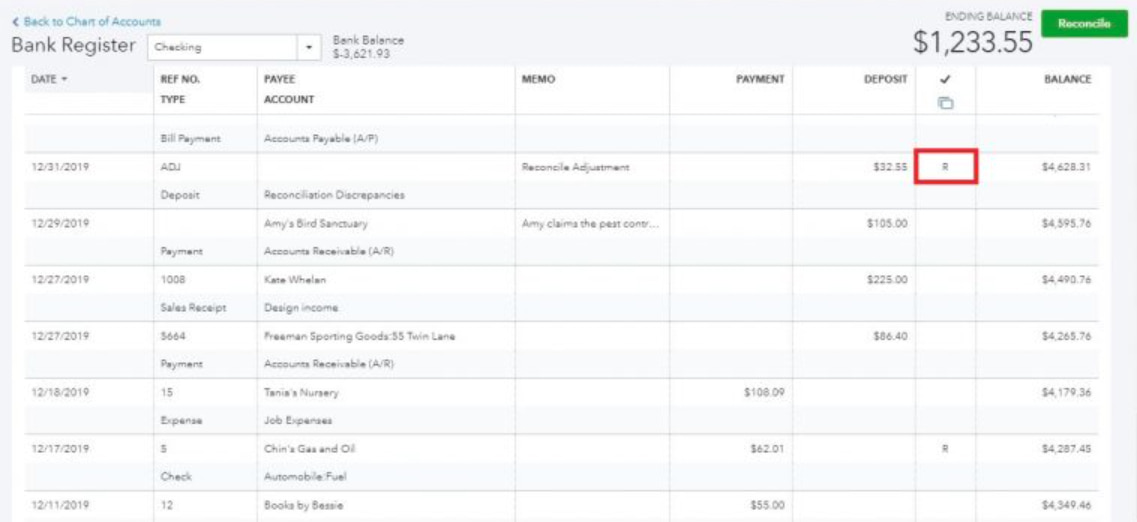
- Identify each transaction to be unreconciled (marked with “R”).
- Click the transaction and edit it.
- In the checkmark column, update the “R” (Reconciled) to blank (Unreconciled).
- You will see the column is updated with “C” (cleared).
- You might get a warning that your account isn’t ready to reconcile because your beginning balance is off by the amount of the transaction or transactions you un-reconciled.
- Click on “Yes” to proceed further.
- Now, click on save to confirm.
- Do the same for every previously reconciled transaction.
Undo a Reconciliation In QuickBooks Online Accountant Version (QBOA)
Undoing a reconciliation is also possible in the QuickBooks Online Accountant Version by following the steps mentioned below:
- First, navigate to the Gear icon at the top right corner of the screen.
- Now, select Reconcile, available under the Tools column.
- You need to opt for the bank account you want to Undo Reconciliation.
- After this, move your cursor over the reconciliation month you’d like to undo.
- You will be directed to the Undo button available on the right side of the Auto Adjustment column.
- Click on the Undo tab.
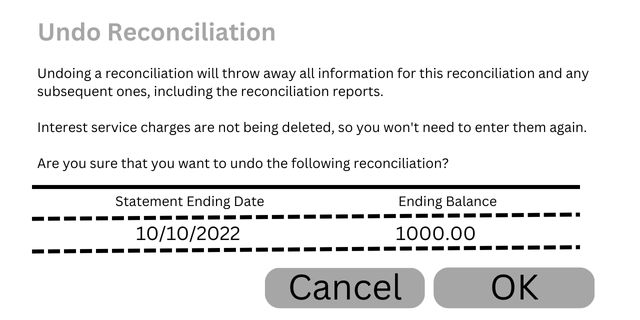
- Once done, the following pop-up starts appearing on your screen:
- Next, hit the OK tab, and then you will get the Success prompt on your screen as listed below:
- To finish, press OK again, and you’re good to go.
Delete a Reconciliation in QuickBooks Online
It is also possible to even delete a reconciliation in QuickBooks Online. To delete a Reconciliation, follow these steps:
- Go to the Gear icon and select Chart of Accounts.
- Find and open the account with the reconciled transaction by clicking View register.
- Look for the transaction marked with an “R” in the checkmark column.
- Click the “R” and keep clicking until the box is blank. This will remove the transaction from the reconciliation.
- Click Save to confirm the changes and close the Account Register.
This process allows you to easily remove reconciled transactions in QuickBooks Online.
How to unreconcile a monthly statement in QuickBooks Online?
If you need to undo a reconciled statement in QuickBooks Online, you can do so by manually unreconciling each transaction. Here’s a simple step-by-step guide:
- Click on the Gear icon in the upper right corner.
- Select Chart of Accounts from the dropdown menu.
- Locate the bank account you want to adjust, then click View register.
- Find the transaction you want to edit and select it.
- In the Check column, click the box repeatedly until the status changes to your desired option:
- “C” for Cleared
- “R” for Reconciled
- Leave it blank for Not Cleared or Reconciled
- Click Save to apply your changes.
By following these steps, you can easily unreconcile your monthly statement.
Common Reconciliation Errors to Avoid in QuickBooks Online
QuickBooks Online Reconciliation errors result from inaccuracies in transaction recording, account selection, and documentation management. These errors affect beginning-balance calculations, reconciliation accuracy, and alignment between the account register and financial institution data. The following points identify the primary issues that disrupt reconciliation consistency.
The most frequent reconciliation errors one should avoid are:
- Incorrect Beginning Balances: It is recommended that the initial balance be the same as the final balance of the prior period to avoid the differences.
- Inadequate Document: Report all transactions and always cross-check to ensure that there are no similar records to enhance reconciliation.
- Wrong Account Selection: It stands that account to check no discrepancies should always be aligned with the correct bank or credit card account.
- Uncategorized Transactions: Make proper categorizing of all transactions to check that they appear reconciled.
- Overlooking Old Transactions: Empty entry in whole and part to clear the zero balance for having neat and updated account balances.
- Review Company’s Bank Statement: Review each transaction on your statement for any fees, mistakes, or differences on your account.
Highlights (Key Facts & Solutions)
- Primary Solution (Accountant Users): Users with QuickBooks Desktop Accountant Edition can access and utilize the “Undo Last Reconciliation” button within the History by Account report for a quick, bulk reversal of a prior period.
- Primary Solution (Standard Users): Users without the Accountant Edition must follow a manual procedure, navigating to the Chart of Accounts, viewing the register, and repeatedly clicking the checkmark column to change the status of each transaction from ‘R’ (Reconciled) to blank.
- Crucial Preparation: The two essential safety steps before attempting any reversal are backing up the company file and printing the original Reconciliation Report for reference.
- Impact on Records: Undoing a full reconciliation resets the status of all transactions in that period to unreconciled, thereby altering the historical accuracy of the Balance Sheet and Profit and Loss reports until the period is correctly re-reconciled.
- Audit Compliance: It is imperative to avoid deleting reconciled transactions, as deletion compromises the Audit Log; instead, use the reversal method or make an adjusting journal entry with a clear memo.
- Reconciliation Difference: Unreconciling a single transaction creates a discrepancy because the next period’s opening balance remains locked to the prior period’s ending balance, forcing the user to resolve the difference manually.
- Post-Reversal Best Practices: After correcting errors and re-reconciling, always save the final Reconciliation Report, the Audit Log report detailing the changes, and the confirming bank statement for future audits.
Overview
To undo a reconciliation in QuickBooks Desktop, select the reconciliation you want to undo from the History by Account report and choose Undo Last Reconciliation from the menu in the top left of the reconciliation screen. Before you begin, it is crucial to back up your company file and then redo the reconciliation by correcting any transactions and reconciling the account again with the correct information.
Undoing a reconciliation in QuickBooks Desktop returns previously reconciled transactions to an unreconciled state and restores the account to its earlier balance. The process requires accurate account selection, proper access permissions, and a clear understanding of how QuickBooks updates the register and reporting data.
This guide explains the steps involved in undoing a reconciliation, including the automated option available in accountant versions and the manual method required in standard editions. The introduction outlines the core procedures, the conditions that activate each option, and the adjustments needed after the reversal.
By establishing how QuickBooks Desktop manages reconciliation changes, this article provides the framework needed to complete the undo process correctly, verify account accuracy, and prepare the file for a new reconciliation period.
Pointers to Keep in Mind Before Undoing a Reconciliation in QuickBooks Desktop
- No Built-In “Undo” for Non-Accountant Users: Only accountants or specialized persons with QuickBooks Desktop Accountant access can undo a full reconciliation directly.
- Manual Adjustments Might Be Necessary: If you’re not an accountant user, each transaction will need to be unreconciled manually.
- Effect on Financial Reports: Undoing reconciliation alters historical information and can impact reports.
- Consult Your Accountant: Always consult before making reconciliation adjustments to prevent compliance problems.
- Review Audit Log: In QuickBooks Desktop, the audit log assists in tracking changes for transparency and accountability.
Step-by-Step Tutorial to Undo Reconciliation in QuickBooks Desktop
Undoing a reconciliation in QuickBooks Desktop is a crucial process for correcting errors and ensuring accurate financial records.
By following a structured step-by-step approach, users can efficiently reverse reconciliations without disrupting their overall accounting integrity:
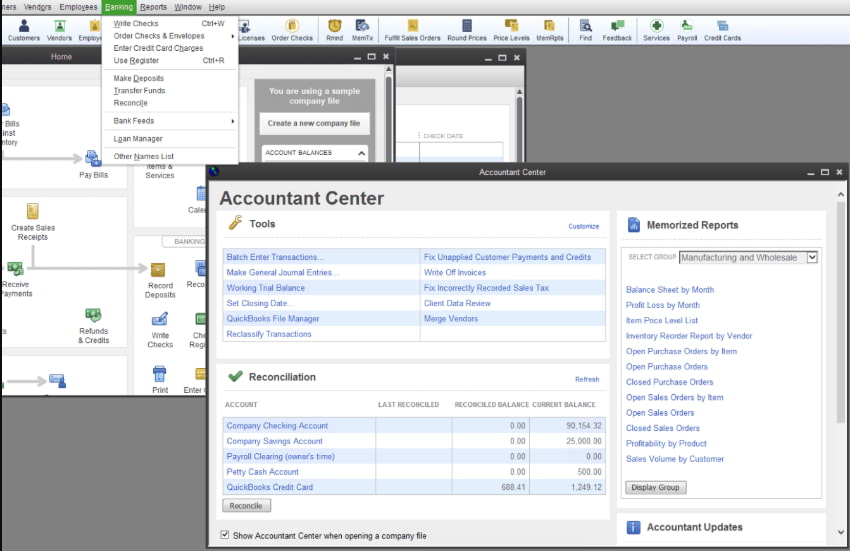
- Go to Banking and choose Reconcile.
- Select the Account
- You will get the dropdown menu and click Reconcile.
- Choose the account and date of the transaction, then enter the balance before clicking the ‘Undo Last Reconciliation’ button.
- A confirmation window will display. Choose Yes.
- Check the transactions that are now marked as unreconciled.
Note: While QuickBooks may have different versions, the process for undoing a reconciliation remains the same across both the desktop and online platforms. The variations mainly enhance connectivity and add more robust features.
Manual Procedure to Reverse Reconciliation in QuickBooks Desktop
There is also a manual procedure to reverse the reconciliation in QuickBooks by following the steps below:
- The initial step is to hover over the Gear icon at the top of your screen and then select Chart of Accounts under the Company column.
- Now, find the appropriate account for the transaction.
- Select History/ View Register in the Action column.
- You need to determine the transaction you want to edit.
- Navigate to the Reconcile status column indicated by the checkmark.
- At last, repeatedly click the top line of the transaction to change the status and then press Save.
- Choose the acronyms: C- Cleared, R- Reconciled, and Blank- Neither cleared nor reconciled.
Why You Need to Undo Reconciliation in QuickBooks?
Undoing reconciliation in QuickBooks is necessary when errors occur, duplicate transactions are recorded, or missing entries need to be included to maintain accurate financial records. It ensures that adjustments align with updated bank statements and prevent discrepancies in accounting reports.
The following are few reasons:
- Bank Mistakes or Oversights: A transaction was unintentionally left out or was included in error in the reconciliation.
- Incorrect Opening or Closing Balances: Incorrect balances were used to begin the reconciliation.
- Deleted or Duplicated Transactions: The statement’s integrity was compromised with changes made following reconciliation.
- Error in Categorization: A transaction was filed under an improper category.
- Change in Transaction Dates: Dates have been changed and no longer align with the bank statement.
- Data Import Problems: Imported bank transactions did not match manual entries.
What are the Major Benefits of Undoing a Reconciliation in QuickBooks?
Undoing a reconciliation in QuickBooks helps correct errors, restore accurate financial records, and ensure transactions align with updated bank statements, preventing discrepancies in accounting reports.
Below are the major benefits:
- Correct Financial Records: Assists in ensuring your records accurately reflect your actual real-time financial position.
- Fix Errors Quickly: Allows fixing miscategorized or duplicate entries.
- Better Audit Trail: Has a clean and accurate audit trail for review and tax purposes.
- Avoid Penalties: Make sure your reports match bank records, minimizing the risk of audit penalties.
- Ease of Adjustments: Provides an easy way to fix any data-entry or synchronization problems with linked bank feeds.
Common Reconciliation Mistakes to Avoid
Avoiding common reconciliation mistakes in QuickBooks is crucial for maintaining accurate financial records. Errors such as incorrect opening balances, missing transactions, and duplicate entries can lead to discrepancies, making it essential to review reconciliations carefully and ensure all data aligns with bank statements.
The following are the common mistakes:
- Reconciling Without Checking Bank Statements: Always make sure the statement is correct before reconciling.
- Editing or Deleting Reconciled Transactions: This may lead to imbalances; avoid if possible.
- Omitting to Post Bank Fees or Interest: Causes mismatched balances.
- Incorrect Statement Dates: Make sure the selected period is exactly the same as the bank statement.
- Skipping Regular Monthly Reconciliations: Reconciling regularly avoids compounding errors.
Advanced Insights: Undoing Reconciliation in QuickBooks Desktop
Undoing a reconciliation isn’t just a one-click fix—it impacts multiple areas of your books. This section dives deeper into scenarios, effects, and best practices that most users overlook. If you’re a business owner or accountant, these subtopics will help you take smarter, error-free actions in QuickBooks Desktop. Learn when, why, and how to handle reconciliation reversals with full confidence.
How Does Undoing Reconciliation Impact Linked Accounts in QuickBooks Desktop?
Undoing a reconciliation in QuickBooks Desktop affects 3 key areas of linked accounts: transaction status, reporting accuracy, and account balance. When you undo, all reconciled entries revert to unreconciled—this breaks the sync between 2 or more linked accounts, like checking and credit card. Your financial reports may show up to 30% discrepancies if multiple linked accounts were involved. It also resets audit trails for 1 or more periods, making backtracking harder. Always verify if bank feeds, transfers, or journal entries depend on that reconciliation. If yes, expect a change in at least 3 financial fields across reports and registers.
Difference Between Unreconciling a Transaction and Undoing an Entire Reconciliation
Unreconciling a single transaction affects 1 entry, while undoing an entire reconciliation resets hundreds of transactions at once. If you uncheck the “R” status on a transaction, only that item’s history, balance, and match status are altered. But undoing a full reconciliation changes the statement balance, cleared status, and audit trail for the entire period. For example, unreconciling fixes 1 error; undoing is used when you detect 3+ issues across the statement. QuickBooks tracks these actions separately—so misuse can confuse bank feeds, cash flow, and reports. Understand the scope: individual correction vs. bulk rollback.
Best Practices to Prevent Frequent Reconciliation Errors in QuickBooks
To prevent reconciliation errors, follow 3 core practices consistently: verify bank statements, lock past periods, and avoid editing reconciled entries. Always match dates, amounts, and references before starting. Use bank rules, auto-matching, and alerts to reduce manual mistakes by over 40%. Never delete transactions post-reconciliation—it disrupts register accuracy, cash flow, and audit trails. Instead, make adjusting entries with clear memos. Train staff quarterly on bank feed syncing, period closures, and flagged mismatches. Set calendar reminders every 30 days for regular reconciliations. These habits reduce future corrections, save 5+ hours monthly, and keep financials accurate and audit-ready.
How to Safely Reconcile Again After Undoing the Previous Reconciliation
To safely reconcile again, follow the 5 exact steps after undoing the last one. First, recheck your opening balance, ending balance, and statement date to ensure accuracy. Then, verify if all affected transactions—typically 15–100 entries—are still valid and properly categorized. Use the bank statement, audit log, and transaction history to cross-check changes. Re-reconcile only after fixing all discrepancies, missing entries, or duplicate charges. Lock the period to prevent future edits. Always export a PDF report, Excel backup, and journal summary for records. This approach avoids repeated errors, preserves integrity across 3 connected modules, and aligns your books perfectly.
When Should You Avoid Undoing Reconciliation in QuickBooks Desktop?
Avoid undoing reconciliation when financial reports are already filed, tax submissions depend on past periods, or when linked accounts involve 3rd-party apps. Reversing reconciliations in such cases disrupts audit accuracy, transaction syncing, and compliance status. If only 1–2 transactions are incorrect, fix them manually instead of undoing the whole month. Also, skip undoing if your closing balance, bank feed, and register totals are matching. In multi-user mode, never undo without informing your team—doing so may create 3 layers of data conflicts. Always use reconciliation reports and logs before deciding. A wrong reversal can cost hours of rework.
Conclusion
Reconciling and undoing the reconciliation of transactions is a process that helps the organization keep its accounts accurate and error-free. Undoing reconciliation is a method following which you may correct your errors. With the help of the whole process, you will be able to quickly and accurately reconcile your accounts and bring them up to date with the recent business requirements.
FAQs
Can I Undo A Reconciliation in QuickBooks Online?
Yes, but only accountants can directly undo reconciliations in QuickBooks Online.
How do I Undo A Reconciliation in QuickBooks Desktop?
You can manually edit and unreconcile individual transactions in the register.
Will Undoing A Reconciliation Affect My Reports?
Yes, it can impact your financial reports and balances, so proceed with caution.
Can I Reverse just One Transaction From A Reconciliation?
Yes, you can edit the specific transaction and uncheck the “Reconciled” status.
Is There a Way to Undo Multiple Reconciliations At Once?
No, each reconciliation must be undone individually to ensure accuracy.
What is the fundamental difference in the “Undo Reconciliation” process between QuickBooks Desktop (QBD) and QuickBooks Online (QBO)?
The primary distinction is access and method:
QBO’s approach is more centralized. Users with Admin or Accountant access can navigate to Settings >> Reconcile >> History by Account and click an Undo action button for the entire statement period.
QuickBooks Desktop (QBD):
The direct Undo Last Reconciliation button is typically available only to users with the QuickBooks Desktop Accountant Edition or a high-level administrator.
Standard users must often resort to the cumbersome manual method, which involves changing the status (the checkmark column) from ‘R’ (reconciled) to blank for each transaction in the account register.
QuickBooks Online (QBO):
If I manually unreconcile a single transaction, how does that impact my opening balance for the current period?
Manually unreconciling a single transaction in the register does not change the fixed opening balance of your next reconciliation.
This difference is immediately flagged in the system and will appear on the Reconciliation Discrepancy Report, requiring a correction (like an adjusting journal entry) before the account can be truly balanced again.
The next reconciliation’s opening balance is locked based on the last successfully finished reconciliation’s ending balance.
By modifying a transaction from ‘R’ to cleared (‘C’) or blank, you create a direct discrepancy against that locked opening balance.
What are the three most critical financial records affected when an entire reconciliation is undone?
Undoing a full reconciliation is a significant event that resets financial integrity for a specific period. The three most critical records impacted are:
Audit Log: The system creates a permanent record of the reversal event, showing which user executed the “Undo” function and the time of the action, which is vital for compliance review.
Transaction Status: All reconciled entries for that period revert to an unreconciled status, losing the ‘R’ checkmark.
Financial Reports: Reports generated after the reversal, such as the Balance Sheet and Profit and Loss, will temporarily show inaccurate, unadjusted balances until the period is correctly re-reconciled.
Before performing a reconciliation reversal, what three core safety steps must the user complete?
Given the risk of irreversible data loss or corruption, experts recommend three nonnegotiable steps before a major reversal:
Switch to Single-User Mode (QBD): For QuickBooks Desktop, ensuring no other users are logged into the company file prevents multi-user data conflicts, which can be triggered by critical functions like undoing reconciliation.
Create a Company File Backup (.QBB): This is the single most important step. A complete backup provides a safe restoration point should the reversal or subsequent adjustments cause data damage.
Obtain the Reconciliation Report: Print or save the PDF copy of the previous successful reconciliation report to use as a roadmap for the correct re-reconciliation process.
Why is it dangerous to simply delete a reconciled transaction instead of unreconciling it?
Deleting a reconciled transaction is strongly discouraged in financial bookkeeping because:
Irrecoverability: Once deleted, the only way to recover the transaction details is by sifting through the Audit Log and manually re-entering the entire transaction, which is time consuming and error prone.
Audit Trail Compromise: Deletion removes the transaction completely, whereas unreconciling leaves the transaction in the register and creates a traceable record in the Audit Log, maintaining transparency.
Register Integrity: Deleting an item throws the beginning balance of the affected account out of sync with the reconciled history, which is difficult to fix without performing a complex journal entry.
What specialized tool do QuickBooks Desktop Accountant users have to streamline the reversal of multiple reconciliations?
QuickBooks Desktop users who have the specialized Accountant Edition gain access to the Client Data Review (CDR) tool.
This feature saves significant time for accountants who need to fix client books, as it avoids the manual process of individually unchecking hundreds of transactions in the register.
The CDR tool is designed for professional cleanup and includes the necessary administrative permissions to execute the Undo Last Reconciliation command in a single step, reversing an entire period’s reconciliation batch.
What three pieces of documentation should always be saved after successfully re-reconciling a period?
For strong internal controls and superior audit readiness, three core documents must be retained after any reconciliation correction:
The Bank Statement: The physical or electronic statement confirming the period’s opening and ending balances match the final QuickBooks report.
The Final Reconciliation Report: The report confirming the successful, corrected reconciliation, showing a zero difference.
The Audit Trail/Log Report: A filtered report proving who, when, and how the original reconciliation was undone and the subsequent new transactions were entered or modified.
Disclaimer: The information outlined above for “How to Undo Reconciliation in QuickBooks Desktop & Online” is applicable to all supported versions, including QuickBooks Desktop Pro, Premier, Accountant, and Enterprise. It is designed to work with operating systems such as Windows 7, 10, and 11, as well as macOS.