Excerpt:
This guide helps employers activate and set up QuickBooks' "View My Paycheck" and "QuickBooks Workforce" features, enabling employees to securely access pay stubs and tax information online, anytime. It walks through easy steps to transfer payroll data, invite employees, and ensure smooth access to paycheck details, eliminating manual data distribution and offering a self-service solution for both employers and employees.
 Add As A Preferred
QuickBooks Workforce is the essential self-service platform replacing the retired ViewMyPaycheck system, designed to give employees 24/7 access to crucial payroll information. The comprehensive guide outlines how employers must transition to and utilize Workforce, whether they use QuickBooks Desktop or QuickBooks Online. Desktop users are instructed to enable the service via Manage Payroll Cloud Services and manually use the Send Payroll Data function after each pay run, often needing a Payroll PIN.
Online users activate Workforce through Payroll Settings and dispatch email invitations. For employees, the process involves accepting the invitation, linking or creating an Intuit account using the employer’s provided email, and verifying their identity with their Social Security Number and latest net pay to access, download, and print their centralized pay stubs and tax forms (like W-2s).
Note: Intuit's QuickBooks Workforce is the updated platform that replaces the older ViewMyPaycheck system. If you're still using ViewMyPaycheck or searching for how to activate it in QuickBooks Desktop, don’t worry—this guide covers everything you need to transition to Workforce and help your employees securely access their pay stubs and W-2s online.
Highlights (Key Facts & Solutions)
QuickBooks Online employers enable the feature under Payroll $>$ Overview $>$ Settings and invite employees using their email addresses.
Employees gain access by accepting the invitation and creating or signing into their Intuit account using the email address tied to the invite.
Initial employee login and verification typically require the Social Security Number and the net amount of their most recent paycheck for security and identity confirmation.
The current Workforce platform is fully mobile-responsive and supports modern browsers (Chrome, Firefox, Safari, Edge), unlike the older ViewMyPaycheck.
ViewMyPaycheck was Intuit’s earlier online tool that allowed employees to view their pay stubs and year-to-date payroll information from QuickBooks Desktop. It required employers to upload payroll data after each run and employees to log in via viewmypaycheck.intuit.com.
You can access ViewMyPaycheck free with a web browser and a QuickBooks 2009 or later Intuit® account. Your employees can use the ViewMyPaycheck website as a conduit to gain quick and secure online access to their paycheck information. They can log in and check their payroll information at any time, from anywhere.
While helpful at the time, the platform lacked mobile support, tax form access, and modern security features. Intuit has since retired it in favor of QuickBooks Workforce.
Here are a few highlights of the View My PayCheck:
Go to Preferences and put a tick at Send me an email when new pay stubs are available checkbox. This notifies you whenever a fresh pay stub is added to ViewMyPaycheck.
View My Paycheck performs best on the following browsers:
QuickBooks Workforce is the current and fully supported Intuit platform that replaces ViewMyPaycheck.
It offers a modern, mobile-responsive interface where employees can securely access:
Employers no longer need to upload payroll manually — it’s synced automatically through QuickBooks Payroll. Workforce works with both QuickBooks Desktop (via Payroll Cloud Services) and QuickBooks Online.
| Feature | ViewMyPaycheck | QuickBooks Workforce |
|---|---|---|
| Status | Outdated / Legacy platform | Active / Current platform |
| Function | Allowed employees to view pay stubs only | Offers pay stub access plus W-2s, 1099s, and more |
| Introduced For | QuickBooks Desktop users | Designed for both QuickBooks Online and Desktop users |
| Access URL | viewmypaycheck.intuit.com | workforce.intuit.com |
| Mobile Accessibility | Limited | Fully responsive + mobile app support |
| Tax Document Access | Only some versions allowed W-2 viewing | View/download W-2s, 1099s, and year-end forms |
| User Experience | Basic interface | Modern UI, intuitive dashboard |
| Security & Login | Intuit Account login | Same, but more secure features (2FA, etc.) |
Although ViewMyPaycheck has been replaced by QuickBooks Workforce, some users still using QuickBooks Desktop may need to activate it for legacy access. Here’s how to do it properly:
Step 1: Open QuickBooks desktop, then select the Employees tab.
Step 2: Select ViewMyPaycheck by clicking Manage Payroll Cloud Services.
Step 3: Enable ViewMyPaycheck
Step 4: Sign In to Your Intuit Account
Step 5: Select Data to Upload
Step 6: Save and Sync
Payroll data will now be uploaded automatically to ViewMyPaycheck (or QuickBooks Workforce if you’re transitioning).
Note: If you’re setting this up for the first time, consider switching directly to QuickBooks Workforce, as ViewMyPaycheck is no longer actively supported by Intuit.
To make employee pay stubs available through ViewMyPaycheck (or QuickBooks Workforce), you must upload payroll data after every payroll run. Here’s how to do it in QuickBooks Desktop:
Note: QuickBooks Workforce uses the same upload process, but offers a more secure, user-friendly interface for employees.
Employees must activate their accounts and sign in to view their pay stubs online. Here’s how they can do it:
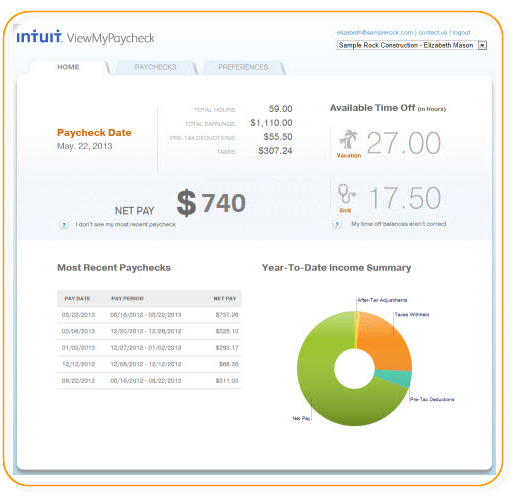
To begin using ViewMyPaycheck, adhere to the guidelines below:
Step 1: Open your web browser and go to intuit.com.
Step 2: Hit the Sign up.
Step 3: Please enter your email address. Click Sign in link and follow the steps if you already have an Intuit® account. (If it’s their first time, they’ll need to verify their identity (usually via the last paycheck info or SSN).
Step 4: Create and verify the password you’ll use to access ViewMyPaycheck.
Step 5: Select a security query you will need to answer if you lose your user ID and password.
Step 6: Select “Sign Up.”
Step 7: Next, input your SSN and your most recent paycheck’s Net Pay. After all taxes and other deductions are made from your paycheck, the remaining amount is your net pay.
Step 8: Select All Done.
Step 9: Link to Employer: If prompted, enter the employer’s EIN (Federal Employer Identification Number) to connect to the correct company file.
Step 10: Access Pay Stubs & Tax Info: Once logged in, they can view, download, or print their paychecks. If Workforce is active, they can also access W-2s and receive notifications for new pay periods.
Note: To ensure that View My Paycheck is properly set up for your employees, make sure to run at least one payroll transaction.
To view your paycheck on Intuit QuickBooks, follow these simple steps:
Step 1: Sign up for ViewMyPaycheck: If you haven’t signed up yet, you’ll need to register for ViewMyPaycheck. Just go to Intuit ViewMyPaycheck and follow the prompts to create your account.
Step 2: Sign in: Once registered, sign in to your account using the same link: ViewMyPaycheck Sign In.
Step 3: Set Up Email Notifications: After signing in, click on “Preferences.” From there, you can set up email notifications to receive alerts when a new paycheck is available. It’s an easy way to stay updated.
Step 4: View Paychecks: To see your paycheck details, simply click on “Paychecks.” This will give you access to your paycheck history and other relevant information.
To download and print paychecks in QuickBooks Online and Desktop Payroll, follow these steps:
Note: QuickBooks will print advice of deposit forms for direct deposit paychecks if you select Direct Deposit. These forms are non-negotiable checks and print on the same check stock you use for printing regular paychecks. You can give these to your employees as pay stubs.
QuickBooks Workforce is a secure self-service portal that allows employees to view and download their pay stubs and W-2s anytime. The setup process differs slightly between QuickBooks Online and QuickBooks Desktop, so it’s important to follow the correct method based on the version you use.. Follow these steps to enable it correctly:
Tip: Invitations expire after 30 days. Resend if needed.
Before setup:
Employees > Get Payroll UpdatesThis ensures accurate calculations and a smooth connection to Workforce.
Employees > Manage Payroll Cloud ServicesNote: As of June 2023, the QuickBooks Time mobile app is now called QuickBooks Workforce, with a new logo. No action is needed — your settings and data remain unchanged. Payroll users can now access paychecks, W-2s, and more in one secure app. Contractors can still track time but won’t see pay details.
To ensure employees see their latest pay stubs, follow these steps after each payroll run:
Employees > Send Payroll Data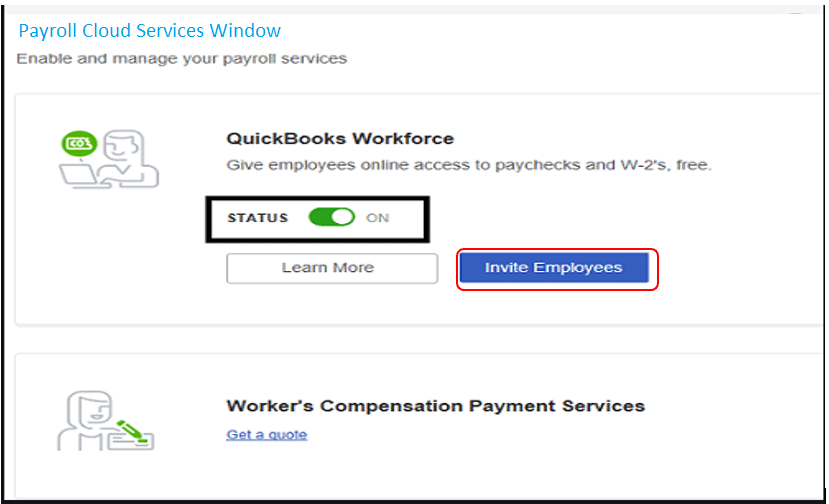
Once submitted, employees can instantly access their pay stubs through workforce.intuit.com.
Only the admin user can manage Payroll Cloud Services. Also, remind your employees to create or log in to their Intuit account to view pay stubs and W-2s online securely.
Once QuickBooks Workforce is activated, you can easily invite employees to securely view their pay stubs and W-2s online. Here’s how to send invites directly from QuickBooks Desktop:
Step 1: Open Payroll Cloud Services
In QuickBooks Desktop, go to:Employees > Manage Payroll Cloud Services
Step 2: Click “Invite Employees”
Inside the Payroll Cloud Services window, find the QuickBooks Workforce Status section.
Click on Invite Employees to launch the employee access panel.
Step 3: Select Employees & Enter Emails
Step 4: Send the Invitation
Click Send Invite to dispatch email invitations to your selected employees.
Giving employees secure and convenient access to their paychecks is a key part of modern payroll management. With QuickBooks Workforce, employees can view, download, and print their pay stubs anytime, from any device no paperwork or manual distribution needed. Here’s how employees can access their paychecks through QuickBooks Workforce:
Tip: Use the same email address your employer used to send the invite. If you don’t see the invite, check your spam or junk folder.
Once logged in:
Want to be notified when new pay stubs are available?
| Feature | Available in Workforce |
|---|---|
| Latest Pay Stubs | ✅ Yes |
| Year-to-Date Payroll Info | ✅ Yes |
| W-2 Forms (When Available) | ✅ Yes |
| Company Contact Details | ✅ Yes |
| Mobile Access (Phone/Tablet) | ✅ Fully Supported |
Once your employer has uploaded your payroll data, QuickBooks Workforce gives you direct access to your paycheck history online. Whether you need a pay stub for personal records, a loan application, or tax filing, you can view, download, or print it in just a few clicks without having to contact HR or accounting.
Here’s how to View, Download and Print Paychecks if you have already accepted their QuickBooks Workforce invitation and want to access their paycheck information quickly and securely:
💡 Tip: Use consistent file naming (e.g., Paystub_Jan2025.pdf) for easy retrieval.
Employer Tip: Encourage employees to print from a desktop/laptop for best formatting.
To access QuickBooks Workforce smoothly and securely, both employers and employees must meet the following browser and system requirements:
| Category | Requirement |
|---|---|
| Supported Browsers | – Chrome (latest 2 versions) – Firefox (latest 2 versions) – Safari (Mac only) – Edge (Chromium only) Internet Explorer is not supported |
| Operating Systems | – Windows 10 or later – macOS 11 or later |
| Mobile Access | – Android: Chrome – iOS: Safari |
| Screen Resolution | 1024 x 768 or higher |
| Internet Speed | Minimum 1 Mbps (faster recommended for viewing PDFs) |
| JavaScript & Cookies | Must be enabled in the browser |
| PDF Viewing | Latest version of Adobe Reader recommended for printing pay stubs/W-2s |
| Pop-Up Blockers | Disable if pay stub downloads do not work |
| Security Software | Ensure firewall/antivirus isn’t blocking Intuit URLs |
QuickBooks users now have more work flexibility thanks to ViewMyPaycheck and QuickBooks Workforce, which also give staff members easy access to payroll data. Employers no longer have to go through the inconvenience of printing the data as before. Updates, though, could occasionally result in mistakes. It is advised to seek professional assistance for technical issues.
Hopefully, the information given above will be useful to you. But if you are still facing any kind of issues with your software and need professional assistance regarding accounting, bookkeeping & accounting software-related issues, then feel free to get technical support with us at +1-802-778-9005, or you can email us at support@ebetterbooks.com
Still have questions?
Explore our detailed FAQs for quick answers and common troubleshooting steps.


