Excerpt:
QuickBooks simplifies fund transfers between accounts, ensuring accurate record-keeping for business owners. Whether you're transferring between business accounts or managing wire transfers, recording them correctly helps prevent errors, reconcile bank statements, and maintain up-to-date financial records. This process safeguards cash flow, enhances financial transparency, and supports sound decision-making by properly tracking all transactions.
 Add As A Preferred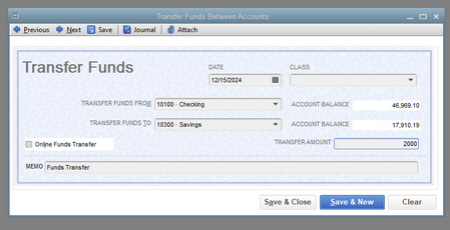
Recording fund transfers accurately in QuickBooks Desktop and Online is crucial for maintaining precise financial records and preventing discrepancies during bank reconciliation. The fundamental principle is that a transfer is a non-P&L transaction, moving money internally between company accounts without impacting revenue or expenses. The process involves navigating to the dedicated Transfer Funds feature within the Banking menu or the + New button to select the source and destination accounts, entering the amount, and saving the transaction. For complex scenarios, the content provides specialized instructions: recording wire transfers (as either an expense or deposit, carefully accounting for bank fees), managing inter-company transfers (which must be handled as two separate transactions and may require consulting a tax professional), and using a clearing account to bridge transfers with time lags or external accounts. Mastering these techniques, alongside best practices like consistently using memos and reviewing the Audit Log, ensures financial visibility, aids in cash flow forecasting, and maintains the integrity of the business’s balance sheet for auditing and reporting compliance.
Highlights (Key Facts & Solutions)
A “Record Transfer” in QuickBooks is a transaction that moves funds between accounts without affecting your business’s overall balance. It helps keep financial records accurate by updating the balances of both accounts involved, whether in QuickBooks Desktop or Online, for transfers like bank or wire transfers.
QuickBooks is a robust accounting software because of its excellent fund transfer feature that allows you to easily move money between your accounts with just a few clicks. We recommend that you use this feature, especially if you have multiple bank accounts. For instance, you might have one checking account for payroll and another checking account for other activities.
It’s important to understand how to record a transfer of funds in QuickBooks so that you can keep in check on an accurate account balance. If you fail to record a transfer, it may result in an incorrect balance for one or both of the accounts involved in the Transfer. This can make it difficult to reconcile your bank statements and even lead to overdrafts and even bounced checks.
Recording transfers in QuickBooks covers the following aspects which include:
You can record funds as a transfer since you’ll be transferring those back to your personal account once everything is clear. This feature is for your virtual record to transfer funds from one account to another account.
Here’s how:
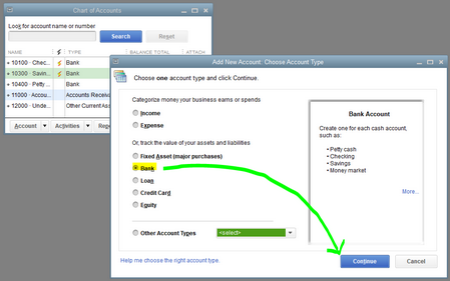
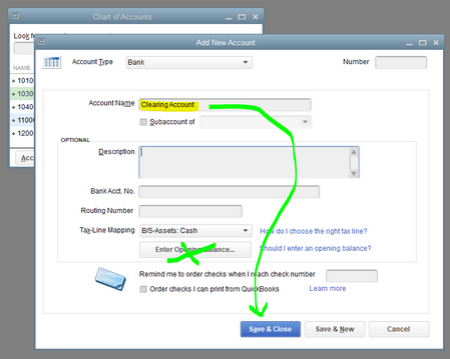
However, if your personal account isn’t connected, use a clearing account to temporarily put the funds from there. With this, you can create a journal entry to move funds from one account to another account. Let’s see how to set up a clearing account:
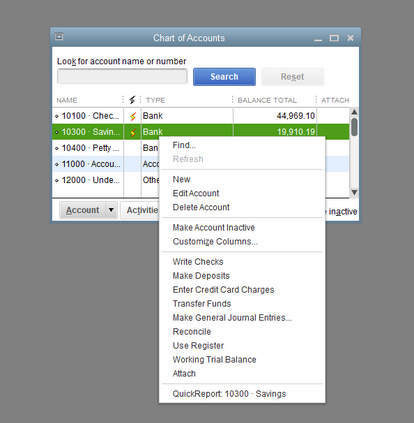
To record a transfer between accounts in QuickBooks Desktop, follow these steps:
When you try to move money from one account to another, you are required to record the transaction as a transfer in QuickBooks. To keep your books organized and up-to-date, you must enter the Transfer as a single transaction that affects both accounts. Here’s how to record a transfer in QuickBooks by ensuring accuracy in your financial reporting.
If you haven’t imported the transaction from your bank yet, below we’ve listed how to record a money transfer directly in QuickBooks:
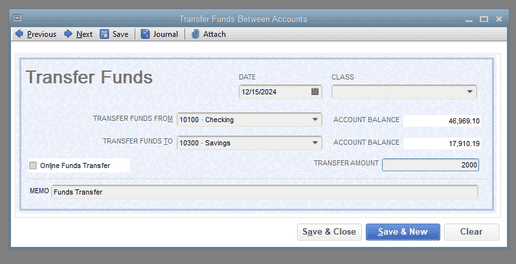
Below are the steps to record the Transfer and the check number, just in case you used a physical check to transfer funds:
You can categorize and match the Transfer as soon as you’ve downloaded transactions from both accounts. To do this, you first need to record the transaction as a transfer from one account.
Let’s see how:
Tip: You can also select Bank transactions from the Transactions tab in the MENU.
Once done, match the transaction from the other account:
If you’re running more than one business and need to transfer funds from one to the other, it is important to remember that you are recording a two-sided transaction — you are transferring funds out of one business, and receiving funds into another one.
However, this transaction seems like a transfer because both the accounts are not in the same company files. These transactions must be recorded as an expense or a check from one company and deposited by the other company.
In some rare scenarios, this may be a loan from one company to the other, so it may increase a liability account and create an asset in another company rather than simply increasing and decreasing equity.
Note: You are recommended to consult your accountant or tax professional to ensure you record these transactions in the correct accounts based on your specific business needs.
Note: You can connect with an accountant or a tax authority to be sure to select the correct account.
The Transfer is now recorded as a check or an expense coming out of the company.
Note: Consult an accountant or a tax authority to be sure to select the correct account.
Once you’re done, the Transfer is recorded as a deposit coming into the company.
Recording a wire transfer in QuickBooks Desktop is simple. Follow these steps to ensure accurate bookkeeping:
By following these steps, you can accurately record wire transfers in QuickBooks Desktop while keeping your financial records organized.
How you record a wire transfer depends on which wire transfer you want to go through. You can record it as an expense using the Cash Expense feature or as a deposit using the Bank Deposit feature. Below, we’ve discussed both; let’s take a look:
If the money will be transferred out of your account, adhere to the following steps:
If the money will be transferred into your account, follow the below-listed steps:
Note: You can add this payment method if it does not display in the list.
To record an internal funds transfer in QuickBooks, whether you are using the Desktop or Online version, follow these steps:
Transferring money between accounts in QuickBooks is a simple process. Whether you’re using QuickBooks Desktop or QuickBooks Online, the steps are similar. Here’s how to do it:
In QuickBooks Desktop:
In QuickBooks Online:
Tips:
Transferring funds between accounts in QuickBooks is a straightforward process, whether you’re using QuickBooks Desktop or QuickBooks Online. Here’s how you can do it in each version:
QuickBooks Desktop:
QuickBooks Online:
By following these steps, you can easily manage funds between accounts in QuickBooks, keeping your records up-to-date and accurate. Whether you’re using the desktop or online version, transferring funds is quick and simple.
Recording transfers in QuickBooks Online is simple. When you move money between accounts, you can classify the transaction as a transfer for accurate record-keeping. Here’s how to do it:
By following these steps, your transfer is recorded accurately in QuickBooks Online, reflecting the movement of funds between your accounts.
Recording a basic transfer is just the beginning. To truly take control of your financial records, you need to understand how transfers affect reporting, automation, reconciliation, and analysis. This section covers five focused strategies that help you use QuickBooks more accurately, efficiently, and with complete financial visibility.
Dealing with foreign currency in QuickBooks requires accuracy, compliance, and clarity. First, enable the Multicurrency feature—only available in QuickBooks Essentials, Plus, and Advanced plans. Second, assign the correct currency to each account involved—this avoids conversion errors. Third, QuickBooks auto-applies the current exchange rate, but you can manually override it for accuracy. Fourth, always reconcile both base and foreign currency accounts monthly to catch discrepancies. Fifth, note that multicurrency is irreversible once activated, so plan carefully. These 5 actions prevent misreporting, reduce audit risks, and streamline international transactions in QuickBooks for businesses handling cross-border finance daily.
Monthly reconciliation ensures your transfers are accurate, verified, and complete. First, match each transfer to both source and destination accounts—this prevents double entries. Second, use the “Reconcile” tool in QuickBooks to check for mismatches across statements. Third, flag any transfers that span month-end dates to avoid timing confusion. Fourth, reconcile fees separately—especially for wire or inter-bank charges. Fifth, document every exception with memos for audit trails. These five steps reduce human error, maintain accurate cash balances, and help you detect fraud or entry gaps before they become larger financial issues.
Custom reports give you visibility, accuracy, and trend insights on transfers. First, go to Reports > Custom Reports and filter by “Transaction Type: Transfer” for clarity. Second, set the date range to monthly or quarterly to spot recurring patterns. Third, add columns like “Transfer From,” “Transfer To,” and “Amount” for full traceability. Fourth, save and name this report for reuse—this boosts efficiency. Fifth, export it to Excel for deeper analysis or sharing with accountants. These five practices help you track every rupee, avoid misclassifications, and maintain transparent financial records across all internal fund movements.
Automating transfers saves time, prevents delays, and ensures consistency. First, in QuickBooks Online, use “Recurring Transactions” to schedule regular transfers between accounts. Second, set frequency (daily, weekly, monthly) and fixed amounts to avoid manual entry. Third, add clear memos like “Monthly Reserve Transfer” for audit clarity. Fourth, review and update schedules quarterly to reflect business changes. Fifth, in QuickBooks Desktop, use memorized transactions under the Banking menu for the same purpose. These five automation steps reduce errors, streamline cash flow planning, and let you focus more on operations than on repetitive bookkeeping tasks.
Transfers directly impact your cash flow’s visibility, timing, and accuracy. First, QuickBooks excludes internal transfers from cash flow totals by default—this avoids inflating available funds. Second, categorize transfers correctly; mislabeling them as income or expense distorts real cash movement. Third, use the “Cash Flow Statement” to view net changes per account, including transfers. Fourth, run side-by-side comparisons of months to monitor fund shifts between operational and reserve accounts. Fifth, adjust filters in reports to isolate transfers for internal analysis. These five insights help you maintain a clean cash flow, make better spending decisions, and prepare reliable forecasts.
Recording a transfer is just one part of the process—understanding its full impact is what separates good bookkeeping from great financial management. This section covers common mistakes, audit strategies, statement effects, and expert checkpoints. Use these insights to tighten controls, reduce risks, and build complete confidence in your QuickBooks records.
Avoiding mistakes ensures clean books, faster audits, and fewer errors. First, never record a transfer as income or expense—it distorts profit margins. Second, don’t forget to match both sides of a transfer, or reconciliation will fail. Third, entering the wrong accounts leads to inflated or missing balances. Fourth, skipping memos makes audits harder—always note purpose and date. Fifth, avoid using journal entries for simple bank transfers; use the built-in transfer feature instead. These five habits prevent misclassification, eliminate duplication, and keep your financial reporting smooth and error-free.
Clearing accounts add control, structure, and transparency to tricky transfers. First, use a clearing account when transferring funds between disconnected or external systems. Second, it acts as a temporary holding space—ensuring both sides of the entry are traceable. Third, label the account clearly (e.g., “Bank Clearing – Internal”) to avoid confusion. Fourth, always zero it out monthly—balances in clearing accounts indicate unfinished transfers. Fifth, document all related transactions with consistent memos. These five practices help you manage unmatched timelines, improve audit clarity, and track in-transit funds efficiently in QuickBooks.
The Audit Log provides visibility, traceability, and accountability for transfers. First, access it via Settings > Audit Log in QuickBooks Online—it logs every change made. Second, filter by “Transaction Type: Transfer” to isolate relevant edits quickly. Third, you’ll see who made the change, what was changed, and when it happened. Fourth, use this log during reconciliations to catch unauthorized or accidental edits. Fifth, export the log monthly for backup and compliance review. These five actions help safeguard your records, ensure transparency in multi-user setups, and maintain financial control over all transfer activity.
Transfers affect accuracy, presentation, and interpretation of financials. First, they do not appear on Profit & Loss statements—this prevents misleading income or expense reporting. Second, transfers impact the Balance Sheet by shifting balances between asset or liability accounts. Third, improper categorization can inflate totals or misstate liquidity. Fourth, review “Cash Flow Statement” to ensure transfers are excluded from operational flows unless they involve external parties. Fifth, reconcile both source and destination accounts to reflect the true financial position. These five checks ensure your statements stay clean, compliant, and decision-ready.
An accountant adds clarity, compliance, and strategic oversight to transfers. First, consult one if you’re transferring funds between entities—it may trigger tax or reporting obligations. Second, complex cases like owner contributions, intercompany loans, or currency adjustments require professional input. Third, accountants help classify entries correctly—avoiding errors across equity, liability, or asset accounts. Fourth, they guide you on reporting transfers on financial statements to meet regulatory standards. Fifth, during audits or funding rounds, verified transfer logs from an accountant build trust. These five reasons show why expert advice protects both accuracy and credibility.
A bank transfer is a payment method that allows consumers and business owners to transfer money between bank accounts or companies. You can record a transfer in QuickBooks to move around funds, accept payments from a customer, pay taxes associated with your business, and pay suppliers. This practice helps you to ensure that all money flows are properly recorded.
You can also maintain an accurate and up-to-date representation of your financial activities, which is crucial for making informed business decisions and meeting reporting requirements. It provides a clear audit trail and enhances the overall financial transparency of your business.
A transfer is an internal transaction that moves money between two accounts within your business (e.g., Checking to Savings). It affects only the Balance Sheet and has a net-zero impact on your business’s overall equity.
An expense or deposit involves an external party (vendor or customer) or a change in your business’s wealth.
1. Expense/Deposit: Affects the Profit and Loss (P&L) statement.
2. Transfer: Does not affect the P&L statement; recording a transfer as an expense or deposit will artificially inflate or deflate your business’s income.
Internal funds transfers, such as moving money between two checking accounts, are generally excluded from the main Operating, Investing, or Financing Activities sections of the Cash Flow Statement. This is the correct behavior.
The purpose of the Cash Flow Statement is to show net cash movement from external activities that affect liquidity. If your software included an internal transfer, it would inflate the appearance of cash inflow and outflow, making the report misleading. If your report shows an error, verify that you used the built-in Transfer feature and did not accidentally categorize the transaction as an income or expense account.
A Clearing Account acts as a temporary holding account (a zero-balance Bank type account) to manage transactions that involve a time lag or external complexity where a direct transfer is not possible.
Use a Clearing Account when:
1. You are recording a transfer between a personal account and a business account.
2. You are managing a transaction that involves funds in transit or delayed bank processing.
3. You need to record a transaction where the two linked accounts are not connected to QuickBooks for automatic matching.
You should always ensure the Clearing Account balance is zeroed out promptly to maintain accurate books.
When you manually record a transfer before the bank transactions are imported, you need to match the imported data to the existing entry, not categorize it as new.
Steps for matching:
1. Go to Transactions > Bank transactions in QuickBooks Online.
2. Locate the imported transaction on the source account (the account money came out of).
3. QuickBooks should automatically recognize and suggest a Match to your manually entered transfer.
4. Click Match under the Action column.
5. Repeat the process for the destination account (the account money went into).
This prevents creating duplicate entries and ensures successful bank reconciliation.
For transfers between two separate company files, you cannot use the simple “Transfer” function because the accounts are in different books. This is a complex accounting issue that may have legal and tax implications.
1. Consult an Accountant: You should always consult a CPA or tax professional to classify these funds correctly.
2. Likely Accounts Used (Pending CPA advice):
>> Sending Company: Record as an Expense or a Check to an Asset account (e.g., “Due from Affiliate”) or an Equity account.
>> Receiving Company: Record as a Deposit to a Liability account (e.g., “Due to Affiliate”) or an Equity account.
Misclassification can lead to incorrect taxes, so professional advice is mandatory.
If the bank deducts a fee before the wire transfer amount hits your account, you must record two separate lines in your deposit transaction to accurately reflect the activity.
1. Line 1: Record the Full Amount of the transfer using the appropriate Income or Accounts Receivable account.
2. Line 2: Record the Fee Amount as a negative number using an Expense account (e.g., “Bank Fees” or “Wire Transfer Fees”).
The resulting Deposit Total must match the actual net amount that was received and deposited into your bank account.
The Audit Log in QuickBooks Online provides a crucial trail for financial accountability and security.
The Audit Log allows you to:
1. Trace Changes: See every modification made to a transfer transaction (e.g., changes to the date or amount).
2. Identify User: Determine who made the change and when it occurred.
3. Validate Accuracy: Use the log during reconciliation to verify that transfers were recorded correctly and not accidentally or maliciously altered.


