Excerpt:
Accurate deposit recording in QuickBooks Desktop and Online is centered on correctly handling the flow of funds from a Payment to a Deposit, utilizing the Undeposited Funds holding account to match bank statements and prevent reconciliation errors. The critical process involves grouping individual customer payments into a single deposit slip amount before booking it to the bank register . For financial clarity, service charges or fees must be recorded as negative line items within the Make Deposits window to match the net bank total. Furthermore, advanced management includes correctly setting up a separate Bank Type 'Cash' account for petty cash and using the Memorize Deposit feature for predictable recurring income, ensuring robust financial reporting and efficient cash flow management.
 Add As A Preferred
Highlights (Key Facts & Solutions)
Overview
In QuickBooks, entering the undeposited funds or non-income deposits is important for maintaining accuracy and efficiency. Businesses can maintain well-organized financial records for financial analysis and decision-making with proper bank account administration.
It involves a lot of banking transactions such as deposit slips, which need to be managed carefully to make sure that every transaction is recorded and matched with the bank statement. Businesses not only maintain a methodical approach to tracking financial transactions, but they also give openness and accountability by capturing customer and invoice details during deposit recording.
Businesses can minimize inconsistencies and possible errors by using undeposited funds to make sure that every payment is accurately recorded in their accounting system prior to being deposited into their bank account. While taking care of undeposited funds, keeping thorough records of non-income deposits is essential since they support the company’s overall financial stability. So, maintaining accurate records of client deposits and payments is essential to small business financial stability and expansion.
In QuickBooks, deposits refer to the funds you receive and record in your accounts. This can include customer payments, bank deposits, or any incoming funds. By entering deposits, you ensure that your financial records accurately reflect your cash flow, helping you track income and maintain accurate accounting records.
When you make deposits in the bank, you make multiple payments at once. Banks register these deposits as one with the overall total. If you add the same payments as a single entry in QuickBooks, it would not be the same as the way the deposit has been entered into your bank.
In such cases, QuickBooks offers unparalleled assistance. It lets you mix all the transactions, which helps the transactions match the actual bank deposits. To learn how to record deposits in QuickBooks.
QuickBooks Desktop offers a unique method for you to merge all of the details so that your records correspond to your actual bank deposits. You need to make sure that every transaction is appropriately recorded, including the date of the deposit, the mode of payment, and the source of revenue, which is a useful tactic for streamlining the deposit recording process.
By streamlining the recording procedure for many transactions and utilizing the batch deposit option, you may save time and lower the risk of errors. To make sure that all deposits are appropriately reported in QuickBooks, it is also advantageous to routinely reconcile bank accounts. There are different procedures and techniques for making deposits from QuickBooks Desktop, which facilitates the easy transfer of money to specified accounts or platforms.
Direct bank transfers are one way that QuickBooks Desktop users can deposit money. You may quickly move money into and out of your account by connecting QuickBooks to your bank account. Another way is to accept payments and deposits straight into your QuickBooks account by using merchant services. For effective handling of deposit procedures, you can make use of third-party payment processors.To guarantee correct and timely transactions, it is important to take into account the significance of effective fund allocation and transfer procedures.
By using QuickBooks Desktop’s direct deposit option, you make the deposit process easier by sending money directly to specific accounts in a convenient and effective manner. With the use of this function, businesses save time and do away with paper checks by electronically depositing wages, vendor payments, and other transactions into the bank accounts of their workers or vendors.
Businesses can plan payments ahead of time and guarantee safe and prompt financial transfers without making numerous journeys to the bank by utilizing the direct deposit feature. It ensures accuracy and adherence to payment standards while lowering the possibility of errors related to manual payment processing.
Another way to deposit money using QuickBooks Desktop is to use third-party payment providers to make safe and effective transfers of funds to designated accounts. There are a number of benefits provided by these third-party payment providers, such as increased payment management flexibility and safe transactions.
QuickBooks Desktop users can simplify their financial procedures, lower manual mistake rates, and keep easy track of every transaction by integrating third-party payment systems. These services offer strong security measures that guard confidential financial data and lessen the possibility of fraud. Businesses may effectively manage their financial operations while guaranteeing the security and integrity of their transactions thanks to this seamless connectivity.
Maintaining accurate financial records and ensuring the classification of incoming cash into income or expense categories depend on your ability to effectively categorize deposits in QuickBooks Desktop.
This classification is essential for giving a clear picture of the company’s financial situation and for helping decision-makers. It’s critical to take into account various aspects when classifying deposits, including the source of the money whether it comes from loans, sales revenue, or other sources of income.
Using a dedicated bank deposit account is a useful way to classify deposits in QuickBooks Desktop, which facilitates tracking and classification of incoming funds.
This approach has a number of advantages, including streamlining the reconciliation procedure and giving you a comprehensive picture of the financial activities of your company. In order to put this into practice, you can open a Bank Deposit account in QuickBooks Desktop’s Chart of Accounts and set it aside only for deposit transactions.
To ensure that all deposits are precisely categorized and conveniently available for reporting and analytical needs, just utilize this account as the “Deposit To” box when recording deposits.
Using the Undeposited funds account is an alternate method for classifying deposits in QuickBooks Desktop that offers more flexibility in handling and classifying money prior to final deposit allocation.
This technique expedites the reconciliation process by enabling users to combine several payments from clients or customers into a single deposit. Businesses can precisely categorize and match received payments with matching invoices or sales receipts by using the Undeposited Funds account. This lowers the possibility of inaccuracies in financial reporting by assisting in the maintenance of clear and ordered records.
It ensures greater control over the entire deposit management process by providing a practical means of tracking outstanding deposits and keeping an eye on cash flow.
To record deposits in QuickBooks Desktop, first transfer funds to the Undeposited Funds account. For online payments, enable payment methods, send invoices, and modify payment options. For offline payments, use “Receive Payment” or “Sales Receipts,” then record the deposit by matching it with your bank deposit slip.
Follow the step-by-step information below:
Put the transactions you wish to combine into the Undeposited Funds account if you haven’t previously. To transfer funds to the Undeposited Funds account in QuickBooks, create or link your QuickBooks Payments account and enable online payment methods. Process payments, create sales receipts, and record bank deposits by combining payments with your deposit slip.
To process payments with QuickBooks Payments, create or link your QuickBooks Payments account, enable online payment methods for all or specific customers, then send online invoices with a “Pay Now” button for easy payment.
Register for QuickBooks Payments if you haven’t already. Additionally, link your current QuickBooks Payments account to QuickBooks Desktop if you already have one for another product.
You can begin sending bills that your clients can pay online as soon as you enable payments.
Activate online payment for all customers:
Activate online payment for a specific customers:
This sends the invoice and a Pay Now button to your customer via email. Your client only needs to click the button to complete the online invoice payment.
Modify the payment methods for a given invoice
You have the ability to modify the available payment methods when creating an invoice. This just affects the one invoice that you modified; it has no bearing on any other invoices.
To process invoice payments outside of QuickBooks, enter the payment details in the Receive Payment window, select the invoice or bills, apply discounts if needed, and choose to deposit funds or group with undeposited funds.
Choose a payment from the list, then adjust the details to make changes. Click the Show/hide customer information icon to view a customer’s payment history.
Payments for sales receipts are automatically deposited by QuickBooks into the Undeposited Funds account. QuickBooks takes care of the rest; all you need to do is create a sales receipt.
If you would prefer to choose which account you make payments to:
Every time you create a sales receipt, you may now choose to use an Undeposited Funds account or a different account.
To combine payments, record a bank deposit in QuickBooks by selecting ‘Record Deposits’ from the Homepage, choosing payments, verifying amounts, and saving the deposit with the correct details.
You can enter the money into QuickBooks as soon as you obtain your bank’s deposit slip.
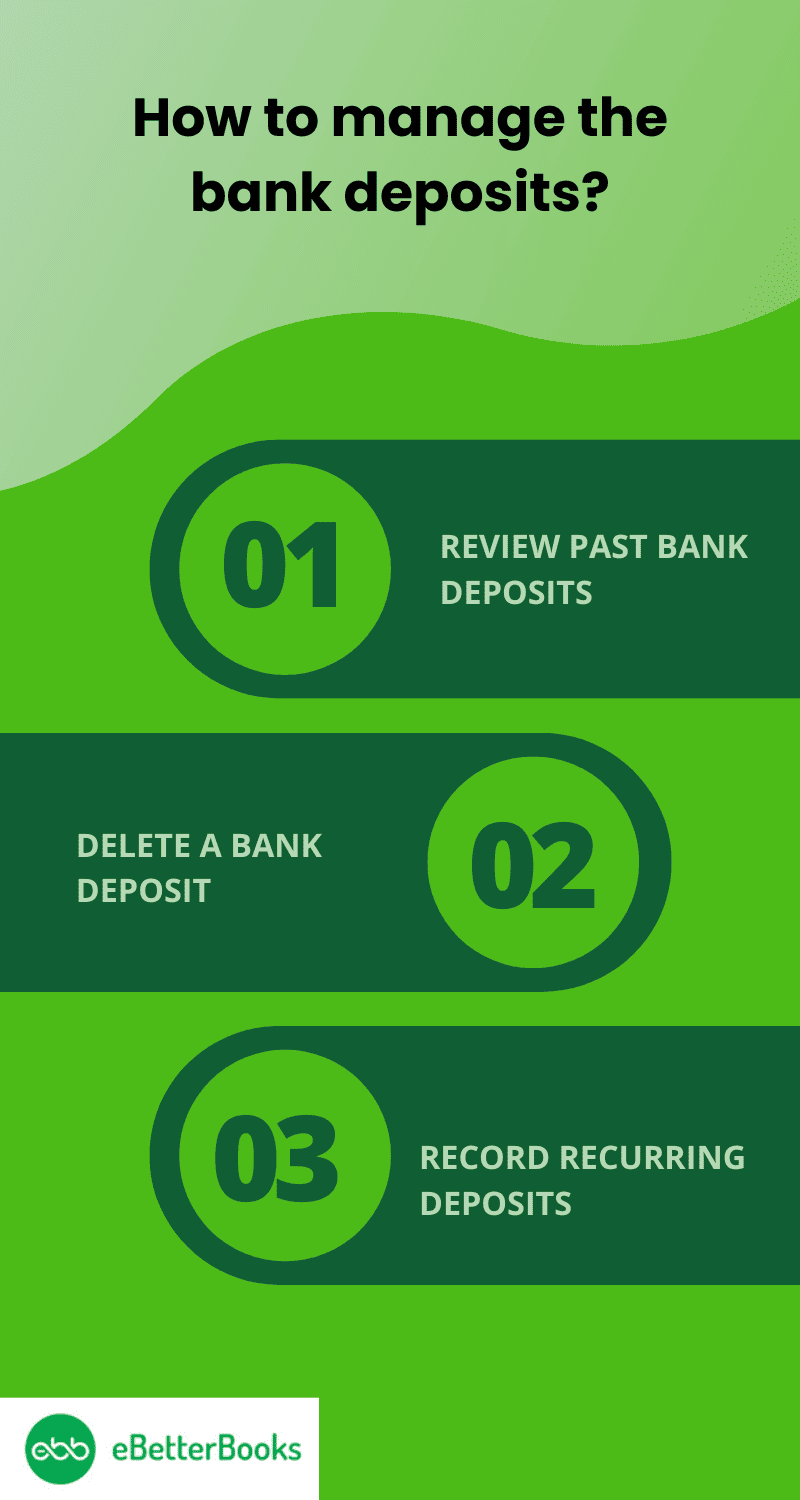
To manage bank deposits in QuickBooks, review past deposits through Reports, delete deposits if needed, and set up recurring deposits by memorizing them with desired frequencies and start dates.

To review past bank deposits, go to the Reports menu, select the Report Center, choose Banking, and run the Deposit Details report to view and analyze all recorded deposits.
To view previous deposits as well as the aggregated transactions:
All of your documented bank deposits are listed in the report. To obtain further information, you can choose individual deposits.
How to delete a bank deposit, run the Deposit Details report from the Reports menu, find and access the deposit, then right-click and select “Delete deposit” to return payments to Undeposited Funds.
You have the option to erase a bank deposit if you ever need to start over:
All deposit payments are returned to your Undeposited Funds account. You are able to make a fresh deposit and start again.
To record recurring deposits, choose Banking, select Use Register, open an existing deposit, and click Memorize Deposit. Set the frequency, start date, and number of occurrences, then click OK.
You can set up a recurring transaction for an existing deposit if you record the same deposits on a regular basis:
When you select the date and frequency of the deposit, QuickBooks will automatically record it.
To deposit into two bank accounts in QuickBooks, select “Record Deposits,” choose payments, pick the first account, add a line for the second account, enter the amount, and save.
If you must deposit money into more than one bank account:
To deposit payments into a non-bank account in QuickBooks, select “Record Deposits,” choose payments, pick the target account from the drop-down, enter the amount, and save.
Should you wish to transfer a deposit to a different kind of account:
To deposit cash in QuickBooks Desktop, first create a “Cash” account under Chart of Accounts. Then, record the deposit through the Banking menu, ensuring amounts match actual cash and bank statements.
Follow the step-by-step information below:
Setting up a specific cash account in the program and creating a platform for cash transactions and management are the first steps in putting money into the QuickBooks Cash Account.
For easier tracking and reporting, make sure the account is correctly categorized and connected to the right bank.
After creating the cash account, users can enter the cash deposit into the QuickBooks Cash Account, which guarantees precise tracking and distribution of actual dollars.
To accomplish this:
To keep accurate records, it is important to make sure that the amount entered corresponds with the actual cash deposited. Verifying that the deposit corresponds with the matching bank statement strengthens the procedure even more.
QuickBooks Online streamlines the deposit process to help businesses manage cash flow more effectively and keep a clear picture of their financial situation. In QuickBooks Online, deposits can be entered manually or by using the Bank Deposit tool. Both approaches are essential for maintaining proper bookkeeping records and managing finances.
One of the best ways to record deposits in QuickBooks Online is the Bank Deposits feature, which helps to streamline financial processes and produce accurate financial reports. Businesses can quickly record and organize their deposits with this function, making sure that all transactions are appropriately recorded in their financial records. By comparing deposit records with related bank transactions, the Bank Deposit feature expedites the reconciliation process and makes error-free and seamless financial reporting possible.
Businesses can also manually record deposit entries in QuickBooks Online, providing flexibility and control, enabling thorough financial transaction recording and expedited bank reconciliation procedures. With the help of this technique, small businesses can precisely record every deposit and give a thorough picture of their entire financial operations. Through the procedure, businesses will maintain accurate financial records and make well-informed financial decisions by having a comprehensive grasp of their cash flow.
While deciding which approach you want to go with, there are several ways to enter deposits into QuickBooks Online, such as via a sales receipt or a customer payment. All of these methods support thorough financial reporting and smooth connection with the accounting system.
Making deposits from a sales receipt into QuickBooks Online enables thorough financial analysis and precise financial reporting, both of which help in making well-informed decisions.
These deposited money are necessary for monitoring and analyzing cash flow, which offers important insights into the performance and health of the company’s finances. Precisely recording the deposits made from sales receipts is essential to producing accurate financial statements and carrying out in-depth financial analysis for forecasting and strategic planning.
In order to facilitate thorough financial planning for small businesses and maintain accurate financial records, Customer Payments must be used to submit deposits into QuickBooks Online. It entails precisely recording the money that clients give the business, ensuring that its records accurately represent the real funds. This procedure is essential for keeping the company’s financial records accurate and transparent, for making account reconciliation easier, and for creating a transparent trail of all incoming cash.
This procedure guarantees that all customer revenue is appropriately documented and classified, offering a transparent picture of the company’s financial situation. Businesses can precisely manage their cash flow, reconcile accounts, and produce crucial financial reports by recording these deposits. It makes it easier to spot patterns and trends in client payments, which supports strategic financial planning and well-informed decision-making.
In QuickBooks Online, deposits may be made straight from the Home Screen or the Bank Register—two essential features that help small businesses keep their accounting procedures efficient and their bank account reconciliations in order.
The ability to deposit money directly from QuickBooks Online’s Home Screen is a practical and effective method that helps maintain accurate financial records and streamline corporate processes.
Through the Deposit option on the Home Screen, businesses may easily record and match incoming payments to the appropriate transactions. This technique guarantees correct documentation of all financial inflows, supporting thorough financial records.
This function substantially contributes to the overall accuracy and efficiency of financial processes, which in turn promotes improved decision-making and business expansion.
Making a deposit using QuickBooks Online’s Bank Register is a comprehensive method that covers a range of financial tools for small businesses and smoothly connects with financial reporting.
The steps involved in making a deposit from the Bank Register are:
Businesses can easily create financial statements, reconcile accounts, and track their cash flow thanks to this integration with financial reporting. A comprehensive approach to financial management is made possible by the smooth integration with a variety of financial tools, including budgeting, spending monitoring, and invoicing. This gives small businesses the resources they need to remain solvent and make wise decisions.
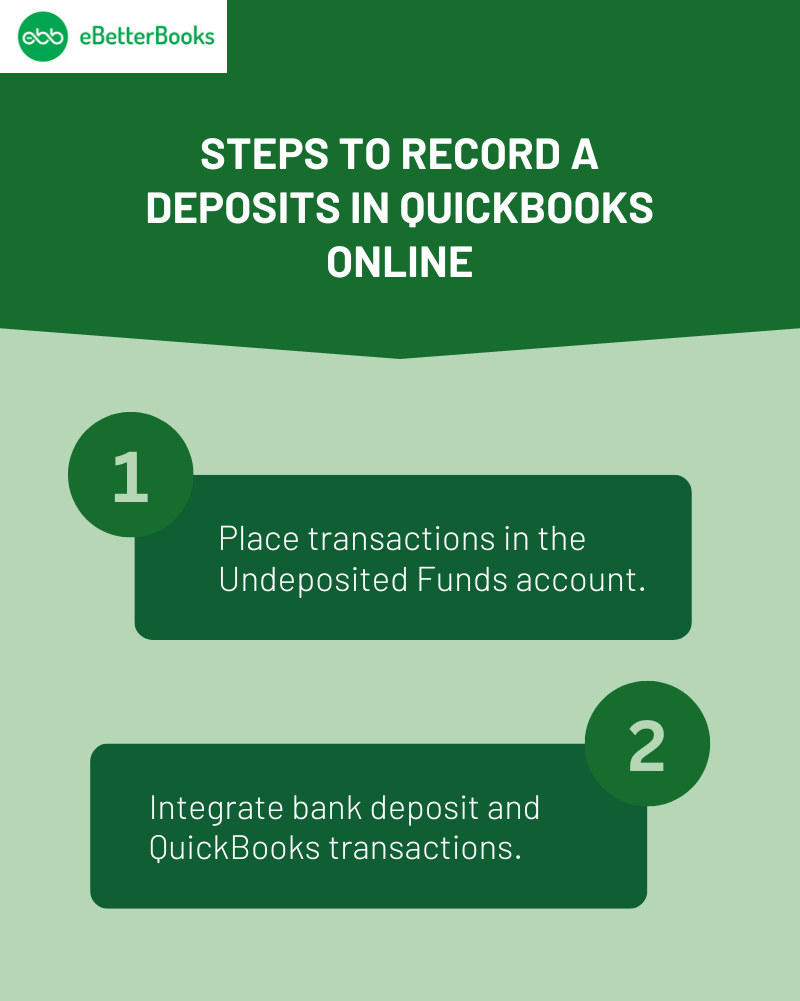
To manage payments in QuickBooks, first record transactions in the Undeposited Funds account. Then, integrate bank deposits by matching each deposit slip with corresponding transactions. Save your entries accordingly.
Follow the step-by-step information below:
In QuickBooks, every bank deposit generates a unique record. Put money on each of your deposit slips one at a time.
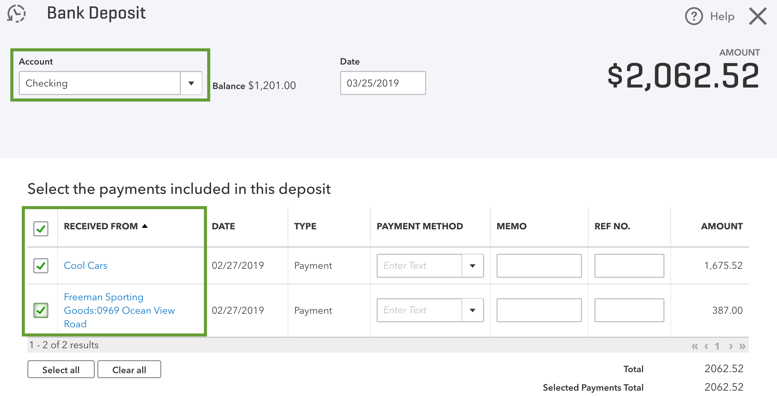
To manage bank deposits in QuickBooks Online, review deposits under Reports, remove or delete payments from deposits, and ensure funds are returned to the Undeposited Funds account.
All of your completed bank deposits are listed in the report. To obtain further information, select individual deposits.
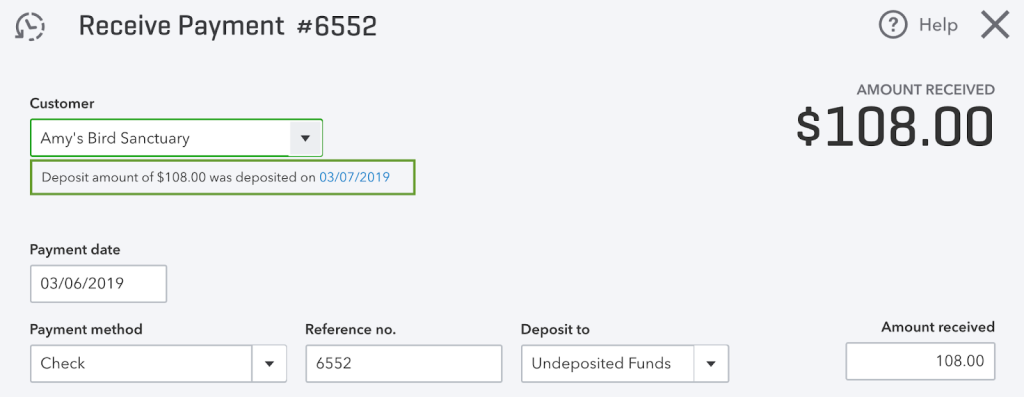
The money will be returned to the account for undeposited funds. It can be applied to a different deposit.
Every deposit payment is returned to the Undeposited Funds account. You can make a fresh deposit to get started.
Viewing bank deposits in QuickBooks Online helps small businesses develop successful financial plans by providing insights into their financial operations. Businesses can watch the flow of money, spot trends in their sources of income, and reconcile their financial records by examining bank deposits. As a result, they are better equipped to comprehend their cash flow trajectory, spot possible cost-saving opportunities, and decide on expansion and investment with knowledge.
Monitoring bank deposits closely can aid in spotting any disparities, assisting in the discovery of fraud and guaranteeing financial compliance. Viewing the bank deposits is an essential part of keeping small businesses financially stable and helping them make well-informed decisions.
There are times when the bank is going to take some service charges and processing fees. You need to make sure that you don’t edit the original QuickBooks transaction ,instead add the cost while using the bank deposit window:
Accurately recording deposits in QuickBooks is more than just data entry—it’s the backbone of reliable financial reporting. In this section, you’ll uncover advanced insights that go beyond the basics. From understanding the role of Undeposited Funds to avoiding common deposit errors, each topic is designed to help you streamline your workflow, prevent financial misstatements, and ensure full control over your cash flow. Whether you’re reconciling monthly or managing bounced payments, these expert strategies will help you maintain audit-ready records and make confident business decisions backed by clean data.
In QuickBooks, understanding the difference between deposits and payments prevents 3 common errors: double-counting income, incorrect bank balances, and reconciliation mismatches. A payment is money received from a customer (linked to an invoice), while a deposit is the act of moving that payment into a bank account. If you skip linking, your income may inflate by 2x. Payments live temporarily in Undeposited Funds, and deposits finalize the transaction in your bank register. Tracking both steps ensures accurate cash flow reporting, reliable financial insights, and audit-ready records. Mastering this difference helps you reduce mistakes by over 60% in day-to-day accounting.
Undeposited Funds in QuickBooks act as a temporary holding account, but mishandling them causes 3 major issues: unbalanced reports, overstated receivables, and failed reconciliations. If payments stay here too long, your income reports may show 25–40% variance from reality. This account ensures that only grouped, actual bank deposits reflect in your ledger—critical for matching with bank statements. Skipping this step can create phantom income and mislead stakeholders. Reviewing and clearing Undeposited Funds weekly boosts financial accuracy by 70%, improves audit trails, and keeps your Profit & Loss reports clean. It’s a vital step for financial clarity and control.
Reconciling deposits monthly in QuickBooks avoids 3 serious problems: bank mismatches, missed income, and duplicate entries. Begin by matching each QuickBooks deposit with your bank statement—this catches 98% of entry errors early. Always reconcile using the actual deposit date, correct account, and reference number. Failing to reconcile monthly can lead to 30–50% reporting inaccuracy, impacting your tax filings and cash flow analysis. Set a reminder to reconcile every 30 days and review discrepancies within 24 hours. Following this rhythm improves financial integrity, ensures your books reflect reality, and helps close each month confidently with minimal rework or backtracking.
Recording deposits incorrectly in QuickBooks leads to 3 frequent mistakes: skipping the Undeposited Funds account, selecting the wrong income category, and duplicating payments. These errors inflate revenue by up to 45%, misalign account balances, and delay reconciliation. Always review source (invoice or sales receipt), deposit destination, and date before saving. Avoid manually entering deposits without linking them to actual payments—it causes confusion during audits. Using shortcuts or assumptions in deposit entries can lead to 15–30% discrepancies in financial statements. Sticking to a step-by-step deposit workflow reduces these risks and keeps your records reliable, clean, and audit-proof.
Returned or bounced payments in QuickBooks must be handled carefully to avoid 3 major issues: inflated income, uncollected receivables, and incorrect customer balances. First, create a journal entry or use the “Record Bounced Check” feature to reverse the payment. This ensures your income isn’t overstated by 100% and the customer’s invoice is reopened correctly. Then, record any bank fees using a separate expense line—missing this can misreport costs by 10–20%. Always notify the customer and update your records within 24 hours to maintain trust and accounting accuracy. Proper handling keeps books clean, reflects reality, and supports timely cash flow tracking.
While mastering the basics of recording deposits is essential, true financial control comes from understanding what surrounds those entries. This section offers strategic insights that elevate your approach—covering security, POS integration, seasonal cash flow, and more. Each topic is crafted to help you reduce risk, enhance accuracy, and streamline operations. Whether you’re preparing for audits or scaling a seasonal business, these focused add-ons will keep your financial records clean, reliable, and future-ready.
Accurate deposit tracking is critical for audit preparation, helping you avoid 3 major audit flags: unmatched transactions, missing documentation, and inflated income. Auditors compare deposit records with invoices, bank statements, and payment receipts—any mismatch over 5% raises concerns. Properly categorized deposits reduce audit time by 40%, cut down correction costs, and ensure compliance with tax laws. Every deposit must show clear source, date, and destination account to pass audit checks. By maintaining clean, traceable deposit entries, you reduce risk of penalties, build financial credibility, and simplify year-end reporting with a strong paper trail.
Integrating your POS system with QuickBooks enables real-time deposit tracking, reducing manual entry errors by up to 80%. It ensures every sale, tax, and tip is instantly recorded and matched with the right deposit account. This automation helps reconcile daily deposits within 5 minutes, improves cash flow visibility, and prevents missed or delayed entries. Without integration, mismatches between sales and deposits can lead to 25% reporting inaccuracies. Syncing POS and QuickBooks keeps records up-to-date, streamlines end-of-day closing, and supports scalable operations with zero lag in financial reporting.
Securing payment and deposit data in QuickBooks is essential to prevent 3 high-risk threats: data breaches, unauthorized changes, and financial fraud. Enable role-based access to limit who can view or edit deposit entries—this reduces internal risk by 60%. Use multi-factor authentication (MFA) for account logins to block 99% of unauthorized access attempts. Regularly back up your QuickBooks data and audit logs every 7 days to safeguard against loss or tampering. Avoid sharing login credentials, and review user activity reports monthly. Strong security practices not only protect your finances but also ensure legal compliance and client trust.
The Chart of Accounts (COA) in QuickBooks directly impacts how deposits are tracked, categorized, and reported. Linking each deposit to the correct income, asset, or liability account ensures your reports reflect actual cash flow with 95%+ accuracy. Misclassifying a deposit—like booking loan proceeds as sales—can distort revenue by 30–50%. Customize your COA by separating operational income, non-income funds, and refunds into distinct categories. This structure improves clarity during reconciliations, supports faster month-end closing (up to 3x faster), and simplifies tax prep. A clean, well-organized COA is the foundation of dependable deposit tracking.
Seasonal businesses face unique challenges in deposit tracking—fluctuating income, high-volume periods, and long off-seasons. QuickBooks can help by using class tracking, recurring templates, and monthly cash flow reports to monitor deposit trends. Categorizing seasonal income separately improves accuracy by up to 70% during audits and budget reviews. Set up automation for high-volume months to reduce manual errors by 40%, and schedule deposit reviews quarterly for consistency. Avoid mixing seasonal income with regular cash flow—it skews projections by 25–35%. With structured deposit management, seasonal businesses can maintain stability, avoid surprises, and plan more effectively year-round.
In order to keep accurate financial records and guarantee the integrity of your company’s accounting system, you must record deposits in QuickBooks. Making sure that all deposits from sales to refunds to other sources are accurately entered will help to guarantee that your financial records accurately depict the current health of your company.
This facilitates efficient cash flow management and makes the month-end or year-end closing reconciliation procedure easier. QuickBooks’ user-friendly interface efficiently tracks and organizes deposits, reducing errors and increasing productivity. Acquiring proficiency in this area of QuickBooks will enable you to keep accurate financial records, which are necessary for long-term business growth and making smart decisions.
Understanding the distinction between a payment and a deposit is the most critical step in avoiding common reconciliation errors in QuickBooks, such as double-counting income.
To prevent bank reconciliation issues, you should never edit the original payment transaction. Instead, the service fees must be recorded as a negative line item directly within the Make Deposits window to match the net amount deposited by the bank.
The Undeposited Funds account acts as a temporary asset holding account, and failure to clear it regularly can severely distort financial reports and disrupt the reconciliation process.
QuickBooks allows you to split a single transaction or deposit among multiple asset, liability, or income accounts, which is necessary when receiving funds that originate from different sources, such as a loan and income combined.
Using a dedicated ‘Cash’ or ‘Petty Cash’ account ensures that manually managed cash funds are separated from electronic bank transactions, which is crucial for reconciliation.
Deleting a deposit in QuickBooks does not delete the income itself; it only reverses the action of depositing the money, which is essential for audit integrity.
QuickBooks Desktop allows users to memorize a deposit transaction, which automates the entry of fixed, predictable income such as monthly rent or interest payments.


