Excerpt:
Recording bank charges accurately in QuickBooks Desktop and Online is crucial for precise financial reconciliation and tax preparation. The fundamental procedure involves creating a dedicated Bank Fees Expense Account to categorize fees correctly on the Profit and Loss statement. When dealing with bank feeds, fees are typically handled by matching the transaction and utilizing the Resolve feature to account for the difference between a full invoice and the net payment received. Alternatively, fees may be recorded as a negative line item on the Bank Deposit screen, particularly when grouping payments from Undeposited Funds. For complex scenarios, such as when fees are deducted immediately from customer payments, using a Journal Entry provides the detailed control necessary to settle the open invoice balance against the fee expense.
 Add As A Preferred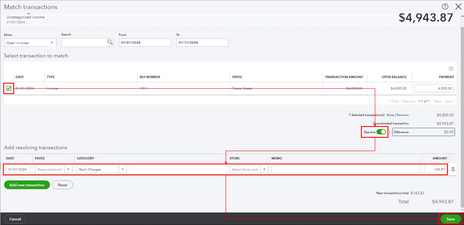
Highlights (Key Facts & Solutions)
Overview
When you reconcile bank transactions for your small business with QuickBooks, you may occasionally need to record a bank fee. Intuit’s QuickBooks application handles bank fees in the same location as the checks that you record in the register. Users can easily enter their bank fees using the Banking feature.
To make a profit and pay operating expenses, banks typically charge for the services they provide. When a bank lends you money, it charges interest on the loan. When you open a deposit account, such as a checking or savings account, there are fees for that as well. Even fee-free checking and savings accounts have some fees. It’s important to know all the fees your bank charges, as well as how to reduce or eliminate as many of them as possible. It all starts with an understanding of the fees that banks charge.
When you reconcile bank transactions for your small business with QuickBooks, you may occasionally need to record a bank fee. Intuit’s QuickBooks application handles bank fees in the same location as the checks that you record in the register. Users can easily enter their bank fees using the Banking feature.
QuickBooks offers various methods for entering the bank fees, such as clicking the Product and Services button or hitting the Adjustment Note tab. With these methods, you can successfully record the fees and maintain the information related to your accounting operations. Once you’ve recorded your bank fees, you’ll be able to properly reconcile your company’s bank accounts against your bank’s statements.
Banks charge fees to help make a profit. Bank fees allow financial institutions to reimburse operating expenses. Banks also make money on loans via interest and other fees. The major types of bank fees are charged by automated teller machines (ATMs), as well as overdraft, wire transfer, paper statement, inactivity, and account maintenance fees.
If you received less than the due amount on invoice because of bank fees, and you need to record this from the bank feed, create an expense account for bank fees if you don’t have one already and then resolve the difference when matching the transaction from your bank feed.
(a.) Create an Expense Account
The first step is to create an expense account for bank fees if you don’t already have one. Here’s how:
Note: If you’ve connected the Accept Card Payments with the PayPal app, the expense account PayPal Fees is already created for you, and you can skip this step.
Step 1: Go for the Chart of Accounts
Step 2: Select New & Expenses
Step 3: Add Bank Charges
Step 4: Finishing up
Now, the account is created, and you’re good to go.
(b.) Resolve the Difference Between the Invoice and the Payment
Once you have an expense account for bank fees, you can resolve the difference between the invoice and the payment when matching transactions from your bank feed.
For this, do the following:
Step 1: Select the Bank Account
Step 2: Find Match
Step 3: Mark the Appropriate Invoice
Step 4: Add Resolving Transactions
Step 5: Pick the Bank fees Expense Account
Step 6: Type the Bank fee amount
Step 7: Finishing up
Your transaction is now matched off against the invoice, and the bank fees are accounted for.
For recording bank fees manually when you have your bank account connected to QuickBooks, adhere to the steps listed below:
Step 1: Go for the Chart of Accounts
Step 2: Create an Expense Account
Step 3: Finishing up
Step 1: Select Products and Services
Step 2: Opt for Service
Step 3: Add the Expense Account
Step 4: Finishing up
Step 1: Make Adjustment Note
Step 2: Select Customer & Bank Fees Service
Step 3: Add the Amount
Step 4: Finishing up
Step 1: Add Customers
Step 2: Pick Relevant Invoice
Step 3: Make Payment
Step 4: Mark the Adjustment Note Off
Step 5: Finishing up
Step 1: Select Receive Payment
Step 2: Add the Customer
Step 3: Enter the Amount
Step 4: Pick the Payment Method
Step 5: Go for the Invoice & Invoices
Step 6: Mark Discount and Credits
Step 7: Finishing up
Step 1: Go for Receive Payments
Step 2: Create a Payment
Step 3: Select the Outstanding Invoices and Charges
Step 4: Decide how you want to deposit the payment
Step 5: Finishing up
To edit a payment, choose a payment in the list, then edit the info. Or, hit the Show/hide customer information icon to view a history of the payments for a customer.
You are recommended to match and adjust downloaded transactions, especially if there are fees. The only way is to create a bank deposit and manually add the fee.
Below are the steps to be followed:
Step 1: Make Deposits
Step 2: Select the Payment
Step 3: Pick the Account
Step 4: Add the fee
Step 5: Finishing up
Once done, you can now match it on your bank feeds.
After manually entering the deposit in QuickBooks, you can match it with payment on the Checking account and it won’t cause duplicate entries on your Chart of Accounts.
Step 1: Locate Downloaded Transactions
Step 2: Write down the Date, Description, Payee and the Amount
Step 3: Opt for the Downloaded Transactions
Step 4: Review the Matching Records
Step 5: Browse the Link
Step 6: Check the Payment method and Bank Account fields
Step 7: Finishing up
You may incur bank charges when receiving payments from your customers. As a result, you’ll encounter issues when it comes to recording the bank charges.
Step 1: Select Journal Entry
Step 2: Enter the Double Entries
Under the empty table, input the following double entries:
Step 3: Finishing up
Step 1: Select All Sales
Step 2: Receive Payment
Step 3: Mark the Invoice and the Journal Entry
Step 4: Enter the correct Amount
Step 5: Finishing up
Some financial institutions include processing fees while you’re on the bank deposit window. If this is your case, the steps listed below are for you:
Step 1: Go for Bank Deposit
Step 2: Type the Required Details
Step 3: Add funds to the deposit
Step 4: Select Bank Charges
Step 5: Enter the Amount
Step 6: Finishing up
However, if your account doesn’t have a bank charge account, you can create one.
For this, follow the steps below:
Step 1: Add Funds
Step 2: Mark the Account drop-down
Step 3: Select Expenses & Bank Charges
Step 4: Finishing up
Banking fees are entered as bank charges before a bank account is reconciled. The amount is then considered negative since it is an expense taken out from your bank account.
Let’s see how:
Step 1: Go for Bank Deposit
Step 2: Select Bank Charges
Step 3: Enter the Banking fees total Amount
Step 4: Finishing up
You can enter the bank service fee as a new Service item or type the bank service fee amount into the register so it matches the bank statement. Once done, enter the fee as a negative amount on the Bank Deposits screen upon depositing a payment.
Here’s how:
Step 1: Select Receive Payments
Step 2: Enter all the Payment information
Step 3: Go for Undeposited Funds
Step 4: Add Bank Deposit
Step 5: Pick Existing Payments
Step 6: Decide the Payment
Step 7: Write the Amount of the Bank Service fee
Step 8: Choose the Expense Account
Step 9: Finishing up
Bottom Line!
Banks provide a tremendous service, and our worldwide economy probably couldn’t function without them. In this article, we can clearly see that these services aren’t free. The best protection you have is to be aware of the fees you are paying and not unquestionably accept them. Accurately Recording the ins and outs of bank accounts, credit, fees, and savings can help you avoid penalties or some major mistakes.
Standard monthly service fees, such as account maintenance or inactivity charges, should be categorized as a direct expense against an Expense Account dedicated specifically to bank charges.
This setup ensures that the fees are correctly reported on your Profit and Loss statement as an operating expense, allowing for easy tracking during tax preparation.
When a customer pays an invoice, but the received amount is short because the bank or payment processor immediately deducted a fee, you must account for the difference during the payment matching process.
This process matches the full invoice amount, records the payment, and simultaneously accounts for the expense, zeroing out the transaction against the bank feed.
In the Bank Deposit window, all line items in the Add funds to this deposit section are typically positive unless you are recording an item that reduces the total physical deposit amount.
Using Undeposited Funds is a best practice in accrual-based accounting to accurately track cash handling before it physically appears in your bank account.
This two-step method ensures the grouping of funds in QuickBooks exactly matches the lump sum deposit that appears on your bank statement, making reconciliation much easier.
A Journal Entry is used when receiving payment for an invoice where the bank fee has already been deducted, and the transaction is too complex for a simple Find Match. It allows precise control over Debits and Credits.
The Journal Entry effectively lowers the outstanding balance of the invoice by the exact fee amount, allowing the net payment received from the bank feed to settle the remaining balance cleanly.
In QuickBooks Desktop, certain transaction forms, such as Adjustment Notes or Invoices (used for specific workflows), require a Product or Service item to specify the account impacted.
If you manually record the bank fee directly into the QuickBooks register, you are creating an anticipated transaction. When the bank feed downloads the actual transaction, you must match them.


