+1-802-778-9005
Home>>QuickBooks Errors & Their Support Most Common QuickBooks Online Errors & Problems with Process of Fixing Them How To Fix QuickBooks Time Login Issue?

Submit Your Details to Continue Reading

QuickBooks Time Login Troubleshooting is essential for quickly restoring employee time-tracking functionality, addressing issues primarily stemming from incorrect credentials, browser data conflicts, and connection problems. The initial troubleshooting sequence should always prioritize verifying the official Intuit login URL and leveraging the one-time code feature for secure access. Browser issues are best resolved by testing the login in an Incognito or Private window to bypass corrupted local cache and cookies, which frequently cause login loops . For persistent errors, users must ensure security software (firewall/antivirus) is not blocking communication ports and, as a last resort, proceed with the uninstallation and reinstallation of the desktop application only after confirming all local data has been successfully synchronized to the cloud.

  • Official Login URL: Always use the verified Intuit domain, tsheets.intuit.com, to prevent security and redirection errors.
  • Credential Recovery: The most secure method for regaining access is requesting a one-time verification code sent to the registered phone number or email address.
  • Browser Troubleshooting: The initial step to fix login loops or failures is using a Private or Incognito window to bypass corrupted local data (cookies and cache).
  • Browser Data Fix: If Incognito mode works, the user must clear specific data, prioritizing site-specific cookies and hosted app data from the browser’s settings.
  • Security Conflict: Firewalls and antivirus programs can block access; the user must add the official QuickBooks domains (*.intuit.com) to the security software’s exceptions list.
  • Desktop App Reinstallation: Before uninstalling the QuickBooks Time desktop app, users must confirm that all local time data has been successfully synchronized to the cloud server to prevent permanent data loss.
  • Advanced Browser Fix: Keyboard shortcuts for opening a private window include Command + Shift + N (Mac, Chrome/Safari) or Ctrl + Shift + N (PC, Chrome/Edge).

Causes of QuickBooks Time Login Issue

Like other software, users come across several errors while using QuickBooks Time.

There are a couple of factors that may give rise to this login error; all are described below:

  • Internet Connection: Slow or unstable internet connections can make logging in difficult as they may disrupt the communication between the device and the QuickBooks servers.
  • Incorrect Credentials: Incorrect login information such as a wrong username or password is a common reason that can cause login failures. Even minor typographical errors can result in access denial.
  • Browser-related Issues: Login problems often arise from browser-related issues such as accumulated cached data, stored cookies, or incompatible browser settings. These factors can prevent the login page from functioning correctly.
  • Incorrect or Outdated URL: Accessing QuickBooks Time through an incorrect or outdated URL can also lead to OuickBooks time login error.
  • User Account Issues: Problems related to user accounts such as expired subscriptions, inactive accounts, or invalid credentials can block access to QuickBooks Time.

List of Errors You May Encounter When Logging into QuickBooks Time!

If you’re using QuickBooks Time to manage the time and attendance of your employee, you may probably end up with login issues that prevent you from accessing your account. Such problems can be annoying, especially if you must run the payroll on time. Here’s what type of errors you may notice at the time of login.

  • Working with Chrome isn’t supported by QuickBooks.
  • The loading message pops up on your screen, but it fails to load.
  • When you try to log in and choose My Company, it will direct you to the same login screen.
  • You may get a notification that the services you need are not available anymore.
  • After logging into the account, QuickBooks is no longer accountable for any actions you perform.
  • This error message can be seen if the firewall or antivirus program restricts access.
  • The users on another system have logged into your account.

Struggling with QuickBooks Login Issues? Don’t panic here are some common methods listed that will surely help you to fix the issue without any hassle.

Let’s carry out each one:

Method 1: Login from the Official QuickBooks Time Website

  1. Ensure that you log in from the relevant website to avoid login issues.
  2. Rather than using tsheets.com, enter your login credentials at tsheets.intuit.com.
  3. However, if you’re signing in using a mobile device, verify that your mobile application is up-to-date having the latest updated version.

Method 2: Make Sure You’re Using the Correct Credentials to Login

  1. Check that the users are using the right login details, like username and password, to log in to QuickBooks Time.
  2. If you enter the wrong login credentials, then Intuit can’t access your account, and you won’t be able to log into QuickBooks Time.
  3. Thus, review that you use the correct username and password for accounts.intuit.com. However, in case you forget the password for your account, then you have the option to Reset your QuickBooks Time Password.

Here’s How to Reset Your Password in QuickBooks Time!

Sign in Using a One-time Code

Did you forget your password or need help while logging in? Just relax; we can send a code to your registered mobile number or email so you can log in without any hassle. Below we’ve explained how to reset your password using computer and mobile devices.

On a Computer

  1. Firstly, navigate to the QuickBooks Time sign-in page.
  2. Now, choose Text a code to [phone number], or click Sign differently.
  3. After this, select to have a code texted or emailed on your registered mobile number.
  4. Lastly, enter the code to sign in.

On a Mobile Device

  1. You need to type your Email or User ID and press Continue.
  2. Click Sign in a different way.
  3. After that, write down the phone number, email address, or user ID, then hit the Continue tab.
  4. You must choose to have a code texted or emailed to your registered contact number.
  5. To finish, type the code to log in.

Update your Credentials once signed in

If you have already signed in but wish to change or edit your sign-in info, including your password, here are the steps to do so.

On a Computer

  1. Open your Profile drop-down in QuickBooks Time and then choose Profile.
  2. Now, click on Manage User ID / Password.
  3. You need to select Sign in & Security.
  4. Afterward, hover over the User ID, Email address, Password, or Phone section.
  5. Make the changes you want.
  6. Once you’re done, press Save.

On a Mobile Device

  1. In the app, go to your Profile.
  2. Next, hit on your name and then Manage your Intuit Account.
  3. If you’re prompted, review your account with your password or a one-time code.
  4. Press Sign in & Security.
  5. After this, select the User ID, Email address, Password, or Phone section.
  6. Make the changes you need.
  7. When you’re ready, click Save.

Method 3: Use a Private Window for QuickBooks Time login

Usually, the browsers store data, cache, cookies, and history, which sometimes creates QuickBooks login issues. But when you use a Private window, your data is never saved, and it helps identify such login issues. To open a Private window, you can use the following shortcut keys that vary depending on your browser.

  1. Hold and press Ctrl + Shift + N keys to open the Google Chrome browser.
  2. You must click Ctrl + Shift + P shortcut keys for Mozilla Firefox and Microsoft Edge Browsers.
  3. For the Safari browser, you must hit Command + Shift + N tabs on your keyboard.

Method 4: Log in to QuickBooks Time with a Different Web Browser

QuickBooks Time comes up with various features, and its compatibility with multiple browsers makes it more efficient among users. The names of such browsers are Internet Explorer, Firefox, Safari, and others. So if you’re having trouble when accessing QuickBooks Time using your current browser, you can try another one. Once you switch to a different browser, check whether the issue still stands on its ground or not.

various web browsers

Method 5: Clear the Cache and History of Your Browser

If you find that your browser is full of cache data and cookies, then it can slow down your performance and prevent you from accessing different websites in your system. Hence, deleting the browser’s history may resolve your issue. Below are the steps that need to be followed.

On Google Chrome:

  1. To begin with, you must open the Google Chrome browser and select the Customize and Control icon from your browser.
  2. Now, hit on the Settings option to open and edit them.
  3. Go further and choose Privacy and Security from the drop-down menu under the Security category.
  4. After this, select Clear browsing data from the list.
  5. Click on the Advanced tab on the browser data screen.
  6. At last, open the list in the Advanced tab and then choose the boxes to delete data and cookies associated with different sites, images, and files.

On Safari:

  1. Firstly, start Safari and hover over History.
  2. Now, select Clear History and then click on the pop-up menu.
  3. Once done, choose the time frame in which you’d like to clear your history according to your preferences.

On Microsoft Edge:

  1. Navigate to Settings and More, and then hit on Settings.
  2. Afterward, select the Privacy, search, and Services option.
  3. You must hover over Under browsing data and click Choose What to clear.
  4. From the Time drop-down menu, select a time range.
  5. Moving ahead, opt for the data type you wish to delete.
  6. Finally, press the Clear Now button.

Method 6: Uninstall and Reinstall the QuickBooks Software

At times, the issue lies in the QuickBooks software, which may lead to QuickBooks login issues. Therefore, you must uninstall the application and try logging in from scratch to tackle the problem. Below are the steps to perform uninstallation and reinstallation of the software.

QuickBooks Uninstallation

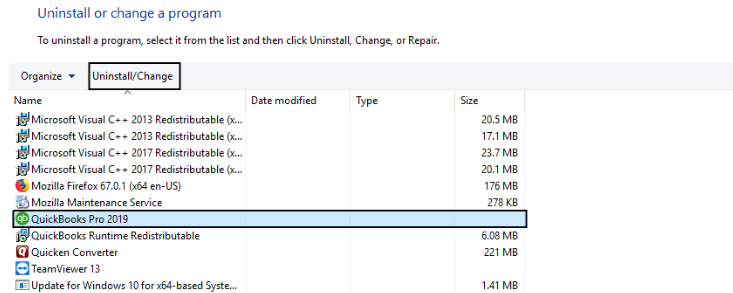
  1. In the starting, click on the Start button, then look for the Control Panel and open it.
  2. Now, choose Program and Features or Uninstall a Program.
  3. Under the List of Programs, select the QuickBooks Version you wish to remove.
  4. Hit on Uninstall/Change Remove option and then press the Next button.

QuickBooks Reinstallation

  1. You need to download the latest QuickBooks version from the official website.
  2. After this, save the file on your device.
  3. Open the QuickBooks.exe file to start the Installation process.
  4. Perform the on-screen instructions and accept the software license agreement, then click Next.
  5. In the end, enter your product and license numbers. Then press Next once again, and now you will be able to access QuickBooks software on your device.
Uninstall and Reinstall the QuickBooks Software

Method 7: Get in Touch with QuickBooks Time Customer Service

If not any solution works out, you can speak up with accounting experts to get your login-related queries answered.

Here’s how:
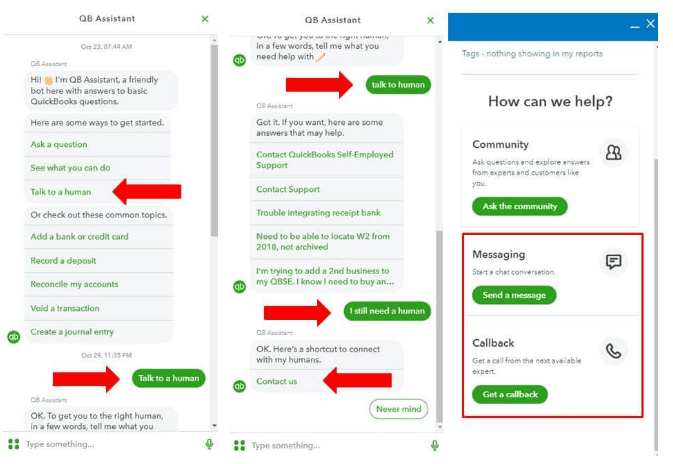
  1. The first step is to log in to QuickBooks using the right admin privileges.
  2. Now, hit the Help tab.
  3. You have to write down the issue you’re facing and select I still need a Human option.
  4. Once you have made your selection, click Contact Us.
  5. As soon as you connect with the experts, they give their best to provide you with the most possible solution so you no longer need to deal with the issue.
QuickBooks Time Customer Service

Wrapping it Up!

We believe you can now efficiently tackle QuickBooks time login issues and access your account without facing any trouble. But if you are still facing any kind of issues with your software and need professional assistance, regarding accounting, bookkeeping & accounting software-related issues then feel free to get in touch with us at +1-802-778-9005, or you can mail to us at: support@ebetterbooks.com

Frequently Asked Questions!

1. After the Intuit rebrand, what is the single, correct official URL users should use to log into QuickBooks Time?

The single, correct official URL to access the QuickBooks Time service is tsheets.intuit.com.

  • Intuit Ecosystem: QuickBooks Time, formerly TSheets, is now fully integrated into the larger Intuit ecosystem.
  • Best Practice: Always use the official Intuit-hosted domain to prevent security risks and redirection errors often caused by outdated bookmarks or third-party links.
  • Mobile Users: Ensure the official QuickBooks Time mobile application is installed and updated from the Apple App Store or Google Play Store.

2. If I forgot my password, what is the most secure and immediate way to regain access to my QuickBooks Time account?

The most secure and immediate method to regain access is by using the one-time verification code feature provided by Intuit.

  • Procedure:
    • Navigate to the QuickBooks Time sign-in page.
    • Select the option to receive a code (usually labeled “Sign in a different way” or “Text a code to [phone number]”).
    • Choose to have the code texted to your registered phone number or emailed to your registered email address.
    • Enter the unique code into the sign-in prompt to bypass the password requirement and immediately access your account.
  • Security: This method prevents unauthorized users from guessing your password while confirming your identity through a registered contact channel.

3. How does using a Private or Incognito browser window help troubleshoot login problems related to browser issues?

Using a Private (Chrome, Edge, Safari) or Incognito (Firefox) window eliminates two primary culprits of cloud-based login failure: corrupted local data and authentication conflicts.

  • Functionality of Private Windows:
    • Ignores Cache and Cookies: Private browsing sessions do not load stored cache files or existing cookies. Corrupted cookies from old sessions are a common reason for endless login loops or incorrect credential denial messages.
    • Clean Session: It simulates a first-time login environment, immediately revealing if the issue is a genuine credential error or a local browser data conflict.
  • Troubleshooting Rule: If the login is successful in the Private window, the user must clear their standard browser’s cache and cookies to fix the issue permanently.

4. What is the fastest keyboard shortcut to open an Incognito/Private window in the most common web browsers?

The fastest way to open a Private or Incognito window varies slightly by browser and operating system:

  • Google Chrome, Microsoft Edge, Mozilla Firefox (Windows/PC): Press Ctrl + Shift + N (Chrome/Edge) or Ctrl + Shift + P (Firefox).
  • Google Chrome, Microsoft Edge, Mozilla Firefox (Mac): Press Command + Shift + N (Chrome/Edge) or Command + Shift + P (Firefox).
  • Safari (Mac): Press Command + Shift + N.

5. Why would an antivirus program or firewall on my computer block access to the QuickBooks Time login page?

Security software may block the login page if it misidentifies the QuickBooks Time server communication as a threat, particularly after an update to the security program or the browser.

  • Threat Misclassification: Some firewalls are overly aggressive and flag JavaScript or secure socket layer (SSL) certificates used by Intuit’s sign-in process as suspicious.
  • Port Blocking: The software may inadvertently block the specific ports (e.g., 443 for HTTPS) used for secure communication with the QuickBooks servers.
  • Resolution: The user must temporarily disable the firewall/antivirus program and attempt to log in. If successful, they must then add the official QuickBooks domains (*.intuit.com, *.tsheets.com) to the security software’s exceptions list before re-enabling it.

6. If clearing the cache fails, what specific data should I target for deletion to resolve persistent login issues?

If a standard cache clear fails, you should target the most persistent data components: site-specific cookies and hosted app data.

  • Targeted Data for Deletion:
    • Cookies and Other Site Data: These store login sessions and site preferences, which, if corrupted, cause persistent login loops.
    • Cached Images and Files: While usually harmless, these can sometimes interfere with the loading of specific login page elements.
  • Advanced Method: Use the browser’s advanced settings to delete only the cookies related to Intuit and TSheets domains instead of deleting all browser history and saved passwords.

7. What is the essential first step to prepare for the uninstallation and reinstallation of the QuickBooks Time desktop app?

The essential first step is to ensure all local time data has been successfully synchronized and uploaded to the cloud server before removing the application.

  • Why Sync is Crucial: If you uninstall the desktop application before local timesheets or tracking data are synced, that data will be permanently lost, as it is only stored locally until uploaded.
  • Actionable Step: Open the QuickBooks Time desktop application and manually trigger a sync or wait for the application to confirm a recent successful synchronization.
  • Procedure: Once sync is confirmed, follow the standard Windows path: Control Panel > Programs and Features > Uninstall a Program to remove the software before reinstalling the latest version.