Excerpt:
QuickBooks Online Error 101, often caused by issues with web applications, outdated Windows components, or poor internet connectivity, can block your bank feeds. This article offers step-by-step solutions, including enabling TLS 1.2, checking your internet connection, verifying your financial institution, and updating your bank account in QuickBooks. These practical methods will help restore smooth connectivity and ensure your financial data syncs correctly with QuickBooks.
 Add As A Preferred
To resolve QuickBooks Online Error 101, first log in to your bank’s website to check for and resolve any prompts or alerts, then return to QuickBooks to update the connection. If the issue continues, clear your browser’s cache and cookies, verify your internet connection, or re-enter your bank credentials in QuickBooks. These preliminary actions help determine whether the problem originates from the bank’s end, browser configuration, or the QuickBooks Online environment.
QuickBooks Online Error 101 represents a secure connection failure between the user’s QuickBooks account and their financial institution. It typically occurs during the synchronization of bank feeds when the system cannot validate or maintain a secure SSL/TLS handshake. This error often stems from outdated browser components, disabled TLS 1.2 encryption, or interruptions in the network’s secure data transmission process.
The broader context of this issue lies in the authentication and encryption protocols that enable QuickBooks to communicate with financial servers. When the Windows system or browser fails to comply with updated encryption standards, the connection becomes invalid, triggering Error 101.
This article provides a comprehensive overview of the causes, preventive practices, and verified methods to fix QuickBooks Online Error 101. Each section explains a structured approach to restoring encrypted communication between QuickBooks and the bank’s server, ensuring continuous synchronization and accurate financial data management.
Highlights (Key Facts and Methods)
The content highlights the following critical information and solutions:
QuickBooks Online throws Error 101 when it cannot reach your bank at that moment. In most cases, the error points to a problem with the bank’s server.
Your bank may hold a message that needs your confirmation before it allows a third-party connection. QuickBooks cannot complete the link until you clear it.
QuickBooks Online rejects accounts that show no recent activity. It also fails when the account itself is not accessible at the bank.
Below are all the probable reasons that give rise to QuickBooks Error 101. Mainly, you face this issue while connecting the bank account and downloading the bank feeds.
When QuickBooks Error 101 occurs (typically during a Bank Feeds/online banking update in QuickBooks Online), users typically see one of these messages:
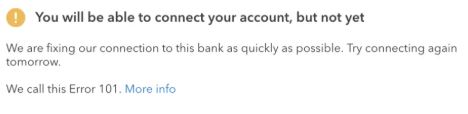
Error 101 belongs to QuickBooks Online’s Bank Feeds error series, most commonly appearing on dormant or rarely-used accounts, and is resolved by confirming account activity and any pending confirmation prompts directly on the bank’s site, then refreshing the connection in QuickBooks.
Confirmed via Intuit’s own “Fix bank error 101” and “Troubleshoot and fix banking errors” support pages.
Resolving QuickBooks Online Error 101 requires restoring secure communication between the QuickBooks application and the bank’s web server. Each of the following methods addresses one or more underlying causes of the error. Applying them in sequential order ensures that the connectivity issue is identified and resolved systematically.

Follow the step-by-step information given below:
TLS 1.2 (Transport Layer Security) is a cryptographic protocol that secures data exchanged between QuickBooks Online and the banking institution. If TLS 1.2 is disabled, the connection fails authentication and generates Error 101.
To enable TLS 1.2, go to the Advanced tab, check the TLS 1.2 box, unmark ‘Do not save encrypted pages,’ then click Apply and OK to save changes.
A stable internet connection is essential for QuickBooks Online to access banking data. Network instability causes the application to fail during data packet exchange, producing Error 101.
Check your internet connection, launch a browser, and visit a website. If unstable, update Internet Explorer, set it as your default browser, and reconfigure it through the Help menu. Select “Use my Computer’s Internet Connect Setting,” click Next, then Done. Finally, reset QuickBooks updates.
After checking the internet connection, you are required to reconfigure it. Here are the steps to do the same.
The verification of your financial institution ensures that QuickBooks Online references the correct banking endpoint. If the bank’s name or connection parameters are incorrect, Error 101 will persist.
How to verify your financial institution: Go to the “Banking” tab, select “Add Account,” ensure the financial institution’s name is correct, choose the bank, and click the link to the bank’s website.
The verification of your financial institution ensures that QuickBooks Online references the correct banking endpoint. If the bank’s name or connection parameters are incorrect, Error 101 will persist.
Add and connect your bank account, select “Transaction,” then “Banking,” click “Add Account,” choose your bank, follow the instructions, and check if QuickBooks Banking Connection Error 101 persists.
QuickBooks Online uses transaction timestamps to synchronize data with the bank’s system. Incorrect or outdated timestamps cause validation mismatches and trigger Error 101.
When the bank connection file within QuickBooks Online is incomplete or corrupted, adding and reconnecting the account can re-establish proper synchronization.
How to update the date and transaction: Click the Banking tab, unmark the unnecessary accounts, select the update option, enter MFA credentials, choose “Continue Update,” and verify that the update was successful.
Preventing Error 101 involves maintaining an updated software environment and a stable, secure connection. The following measures eliminate recurring connection failures:
These preventive actions ensure that QuickBooks Online maintains an uninterrupted and validated connection with your financial institution.
Get an Expert’s Help!
QuickBooks Online Error 101 is a technical connection failure that occurs when secure communication between QuickBooks Online and the financial institution is disrupted. Applying structured fixes such as enabling TLS 1.2, verifying the internet connection, updating framework components, and reconnecting the bank account can effectively restore synchronization and data integrity.
This guide has outlined practical and verified methods that address the root causes of the error and help maintain stable financial operations in QuickBooks Online. Keeping system components, browsers, and encryption protocols updated further reduces the likelihood of recurrence.
If the issue continues after performing all the recommended steps, it is advised to contact a certified QuickBooks expert. A team of experienced technicians can diagnose system-level conflicts and implement advanced solutions to ensure complete resolution of QuickBooks Online Error 101 and prevent similar connectivity issues in the future.
Error 101 is an internal QuickBooks Online (QBO) code used to categorize connection failures, specifically indicating a failure to establish a secure data link with the bank. It is not a standard HTTP or bank-specific error code. In simple terms, it means the QBO servers and your financial institution’s servers failed the secure TLS/SSL handshake required to validate your identity and exchange financial data. If your bank has an error, it is usually reported to QBO with a different, often 3-digit, code (e.g., Error 102, Error 310).
TLS 1.2 rarely changes on its own, but your system’s settings or your bank’s security protocols might have. This error often appears when:
1. A recent Windows Update or anti-virus patch has reset or disabled older internet options (like TLS 1.2) for security reasons.
2. Your Financial Institution (FI) has fully deprecated support for older encryption standards (like TLS 1.0 or 1.1) and now strictly requires TLS 1.2 or higher for connection, meaning QBO can no longer connect using your old settings.
3. Your browser’s cached data (cookies and cache) is corrupted and interferes with the bank’s secure login URL, even if TLS 1.2 is technically enabled.
No, you will not lose historical data already downloaded and categorized in QuickBooks Online. Disconnecting an account only stops the future synchronization. However, you should be aware of two points:
1. Unaccepted Transactions: Any transactions currently sitting in the “For Review” tab will be lost when you disconnect. Make sure to Accept or Exclude all pending transactions first.
2. Start Date: When you reconnect, you will be prompted to select a new “start date.” Ensure you select a date that covers the gap between your last successful sync and the present day to download all missing transactions.
While you use modern browsers like Chrome or Edge for the QuickBooks Online interface, some legacy components or system-level connection settings related to data services rely on the core Windows Internet Options settings. These options are historically controlled by the Internet Explorer (IE) configuration panel. Specifically, Method 1 (Enabling TLS 1.2) and connection verification must be done via the Internet Options panel accessed through the Control Panel, regardless of the primary browser you use for daily QBO access.
This can happen if your bank limits the number of days or the quantity of transactions it makes available to third-party services like QuickBooks. If you are trying to download transactions older than 90 days, your bank may block that specific request, causing a connection failure (Error 101) or a data-limit error (like Error 310). Solution: Log in to your bank’s website and manually download a QBO or QFX file for the missing period, then manually upload the file into QuickBooks Online. This bypasses the automated banking feed limit.
Yes, absolutely. Antivirus and firewall software are designed to block unsecured or unrecognized external data exchanges, and they can sometimes misidentify QuickBooks Online’s secure connection to your bank as a threat, especially if the software’s settings are highly restrictive. The primary culprit is usually a feature called SSL/TLS inspection or Secure Connection Scanning. When enabled, your antivirus program tries to look inside the secure data stream between QBO and your bank, which often corrupts the necessary security certificate, resulting in Error 101. Solution: Temporarily disable the “Secure Connection Scanning” feature in your antivirus settings (do not disable the entire antivirus program) and try the bank connection again. If the connection succeeds, you will need to add an exception for QuickBooks Online and your bank’s URL within your antivirus or firewall settings.
While both 101 and 102 are common QBO banking connection errors, they signify different points of failure:
1. Error 101 (Connection Failure): This is a low-level, secure connection failure. It means QBO could not establish the required SSL/TLS handshake with the bank’s server. This is often caused by outdated browser settings (TLS 1.2 disabled), firewall issues, or network instability.
2. Error 102 (Bank Site Issue): This typically means QBO successfully connected to the bank’s server, but the bank’s site is having a temporary problem, undergoing maintenance, or returning a server error (e.g., “site down”). These errors are common because QuickBooks acts as a third party connecting two separate, frequently updated systems (your system/browser and the bank’s server), making the connection vulnerable to changes in security standards, system updates, and bank maintenance schedules.


