Excerpt:
The QuickBooks Printer Not Activated Error Code 20 typically occurs when your operating system is incompatible with your QuickBooks version, preventing you from printing invoices, payslips, and other forms. This issue is often caused by missing registry keys, outdated software, or compatibility problems. To resolve it, you can use QuickBooks' Print & PDF Repair Tool or follow detailed solutions such as modifying registry permissions, repairing PDF drivers, or reinstalling QuickBooks. The goal is to restore printing functionality and ensure smooth business operations.
 Add As A Preferred
QuickBooks Error Code 20, also known as “Printer Not Activated”, is a printing-related issue that prevents users from generating invoices, payslips, or reports in PDF format. It blocks QuickBooks from connecting properly with the PDF converter or printer drivers, disrupting essential business functions.
This error usually arises due to registry conflicts, outdated printer drivers, misconfigured PDF converter settings, or compatibility issues between QuickBooks and newer versions of Windows. It can also occur if multiple QuickBooks versions are installed in the same directory or if the operating system is outdated.
The error typically shows up when users attempt to print documents, save reports as PDFs, or email invoices directly from QuickBooks. It often appears after a Windows update, QuickBooks upgrade, or changes to system permissions and registry settings.
When QuickBooks Error 20 occurs (typically while printing, emailing, or saving a form as PDF), users typically see one of these messages:
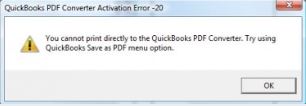
This code is documented only by third-party QuickBooks support sites, not by an Intuit KB article located in this research, most commonly appearing right after a driver or Windows update. Its wording closely resembles the generic Windows/Office “Printer not activated, error code -20” message, so it may be that underlying print-driver issue surfacing inside QuickBooks rather than a QuickBooks-specific code.
Unconfirmed against Intuit — verify directly before publishing.
| Level | Method | Verification | Estimated Time | Outcome |
| Beginner | Repair QuickBooks PDF component (QBprint.qbp) | QuickBooks prints successfully | 10–15 min | Fixes corrupted PDF component |
| Beginner | Use QuickBooks Print & PDF Repair Tool | PDF generated without error | 10–15 min | Automated repair of PDF/print issues |
| Beginner | Activate Printer Spooler Service | Spooler runs without interruption | 5–10 min | Restores printing functionality |
| Intermediate | Disable User Account Control (UAC) | No UAC prompts during printing | 5 min | Removes permission conflicts |
| Intermediate | Set Full Control Access in Registry | Registry permissions updated | 10–15 min | Grants QuickBooks access to PDF driver |
| Intermediate | Check Default Email Program in Registry | Correct email client set | 5 min | Fixes email-PDF integration issues |
| Advanced | Update Registry via PowerShell Script | Registry permissions reset | 15–20 min | Resolves deep registry conflicts |
| Advanced | Reinstall QuickBooks Desktop | Fresh installation runs smoothly | 20–30 min | Fixes corrupted installation |
| Advanced | Fix Microsoft Document Writer Component | ABS PDF driver reinstalled | 15–20 min | Restores PDF conversion support |
Step 1: Repair QuickBooks PDF Component (QBprint.qbp)
Step 2: Use QuickBooks Print & PDF Repair Tool
Step 3: Activate Printer Spooler Service
Step 4: Disable User Account Control (UAC)
Step 5: Set Full Control Access in Registry
Step 6: Check Default Email Program in Registry
Step 7: Update Registry via PowerShell Script (Windows 10 only)
Step 8: Reinstall QuickBooks Desktop
Step 9: Fix Microsoft Document Writer Component
The Printer Not Activated Error Code 20 in QuickBooks usually stems from registry conflicts, outdated drivers, or corrupted PDF components. A step‑by‑step approach starting with simple repairs, then adjusting permissions, and finally using advanced registry or reinstall methods can restore printing and PDF functionality.
Preventive maintenance like regular updates, proper permissions, and backups ensures smoother operations and avoids recurring issues.
This error often appears after Windows updates modify or replace registry entries related to QuickBooks PDF drivers. The update can reset permissions or disable printer settings, requiring reconfiguration to restore functionality.
Yes. Installing multiple QuickBooks versions on the same system can lead to conflicting registry paths and overlapping printer drivers. Each version should have its own installation directory to avoid such conflicts.
The Print & PDF Repair Tool automatically diagnoses and repairs issues with QuickBooks PDF components, printer settings, and Windows permissions. It restores missing drivers and resets configurations required for successful printing.
Users should keep both QuickBooks and Windows fully updated, avoid manual registry edits, and regularly back up registry data. Ensuring administrative privileges during QuickBooks installation also helps prevent this issue.
Not directly. This error is typically linked to software-level issues such as registry permissions, PDF converter malfunction, or system compatibility problems rather than hardware printer malfunctions.
If the error persists, perform a clean reinstallation of QuickBooks using the Clean Install Tool. If the problem remains unresolved, consult QuickBooks support to check for deeper Windows permission conflicts or profile-level restrictions.


