 Add As A Preferred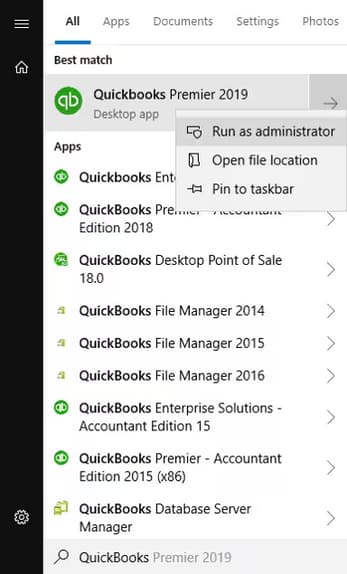
Hi, I’m Anuja. I’m currently using QuickBooks Desktop 2024 for managing our company’s accounting, and I’ve recently brought on a new employee to help with basic data entry and invoicing. The issue I’m running into is around user access I want to give them limited access so they can handle certain tasks, but without seeing payroll, banking info, or sensitive financial reports.
I went into the user settings and tried setting up a new profile, but the permissions seem a bit broad. Either it gives them access to too much or blocks them from doing even simple things like creating an invoice or checking customer balances. I need a way to customize what they can see and do like, just access to the Customers and Sales section, nothing else.
This is important not just for data security, but also for internal workflow control. I don’t want to risk accidental changes to critical financial data. I could really use guidance on setting the right restrictions without slowing down daily operations. If there’s a proper way to fine-tune user roles in QuickBooks Desktop 2024, I’d appreciate a walkthrough.
Hi Anuja,
It sounds like you’re in a bit of a tough spot right now with QuickBooks Desktop 2024. You’ve hired a new team member to help with invoicing and basic data entry which is a great move but now you’re struggling to set up the right user access. You want them to handle basic tasks like creating invoices and checking customer balances, without giving them access to payroll, banking, or any sensitive financial reports.
You’ve already taken a smart first step by creating a new user profile and adjusting permissions. But as you’ve seen, QuickBooks can be a bit rigid—permissions either give too much access or restrict your employee from doing even the basics. It’s understandably frustrating when you’re trying to protect sensitive data while keeping daily operations running smoothly.
What you really need is a way to grant access only to the Customers and Sales section and nothing beyond that. This isn’t just about privacy; it’s about protecting your business from accidental changes, reducing risk, and ensuring your employee can get their work done without hitting constant roadblocks.
The good news? QuickBooks Desktop does offer the tools to set this up, you just need to know exactly where to go and how to configure the right settings. Don’t worry, I’m here to guide you through each step so you can get full control over your internal business operations.
QuickBooks Desktop 2024 uses fixed permission categories, which makes it difficult to give users access to only specific tasks. While you can restrict access by broad areas such as Sales, Payroll or Banking, there’s no built-in way to fine-tune permissions within those sections. So if you want someone to create invoices but not view reports or payroll, you’re often forced to choose between over-restricting or over-sharing access.
QuickBooks Desktop 2024 assigns access based on predefined roles linked to specific areas like Sales, Purchases, Payroll, and Banking using built-in permission settings. While it doesn’t support fully customizable permissions, you can still manage who can view, edit, or delete data within those modules. This section will guide you through adding users, selecting their access levels, and adjusting roles to match your internal controls.
To make changes to users, roles, or permissions in QuickBooks Desktop, you must run the program with full administrative privileges. Right-click the QuickBooks Desktop icon and choose Run as administrator. This ensures you have the necessary access to perform user management tasks without interruptions or permission errors.
Adding a QuickBooks user allows you to assign specific access and permissions, ensuring that only authorized individuals can perform sensitive tasks like payroll processing. This helps you to maintain security, accountability, and maintain accurate payroll tax management.
Here’s how you can add a user, then assign a role to it.
For Pro/Premier Users (Area-based)
If you have users that don’t regularly work in QuickBooks and only need access to connected services like Payroll, Workforce, QuickBooks Time, or Capital, you can invite them to create an Intuit account.
Note: These users won’t be able to sign in to the QuickBooks Desktop file, but they can access related online services.
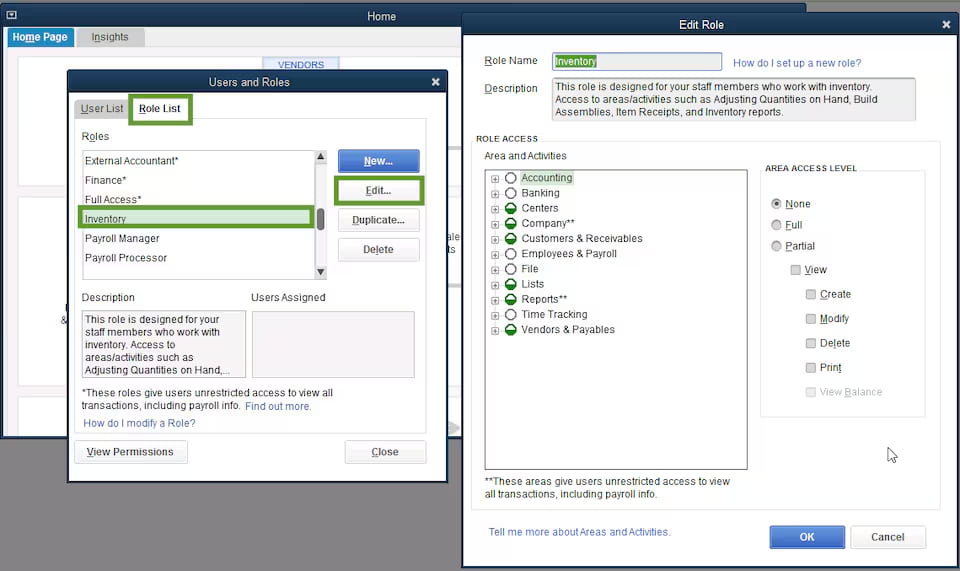
You can choose from 14 predefined roles that cover common business functions. Roles marked with an asterisk (*) have full access to view all transactions in your account. You can also customize these predefined roles to modify existing permissions.
Note: Any changes made to a role will affect all users assigned to it.
Important: These steps are applied only to Enterprise users, as Pro/Premier doesn’t support role-based access.
You can create brand new roles from scratch, giving you full control over which areas of QuickBooks a user can access. Customizing access ensures users can only access the areas necessary for their roles, helping prevent sensitive payroll data and maintain better control over company information.
Note: Name something that indicates its permission level.
Reviewing roles and permissions helps you verify that each user has the appropriate level of access based on their job responsibilities. This step ensures sensitive data, like payroll and financial records, is only accessible to authorized users, reducing the risk of errors, fraud, or unauthorized changes.
The Home Page displays balances for accounts like A/R, A/P, bank, and credit card accounts. To prevent unauthorized users from viewing this sensitive data, restrict their access rights. Limiting visibility protects payroll and financial privacy while ensuring users only see what’s needed for their specific tasks.
QuickBooks Desktop has some important limitations when it comes to managing user roles and permissions:
Note: If you need more flexible or detailed permission controls, consider using third-party tools or upgrading to QuickBooks Online Advanced, which offers customizable roles.
Anuja, I know how discouraging it can feel when you’ve spent time setting up roles in QuickBooks Desktop only to hit limitations that slow you down. But you’ve already taken smart, focused steps, pinpointing permission gaps, testing role behaviors, and mapping out what’s missing. This shows a thoughtful and solution-driven mindset.
To prevent similar roadblocks going forward, try to keep track of which tasks or reports require tighter access controls. QuickBooks Desktop has some role-based controls, but if your business is growing or you’re managing sensitive data across multiple users, consider upgrading to QuickBooks Online Advanced or integrating trusted third-party tools for more granular control.
And if similar issues come up like users seeing more than they should, role changes applying too broadly, or trouble limiting access to specific accounts or reports, don’t worry. We’re always here to help you safeguard your financial data and maintain control over your internal workflows.


