Excerpt:
The QuickBooks Event ID 4 error, often caused by a corrupted .NET Framework, damaged company files, or conflicts with third-party software, disrupts QuickBooks operations, potentially leading to data loss. This issue affects QuickBooks performance and can trigger error messages. Solutions like using the QuickBooks Install Diagnostics Tool, repairing the .NET Framework, and reinstalling QuickBooks can help resolve this error and restore functionality to your system.
 Add As A Preferred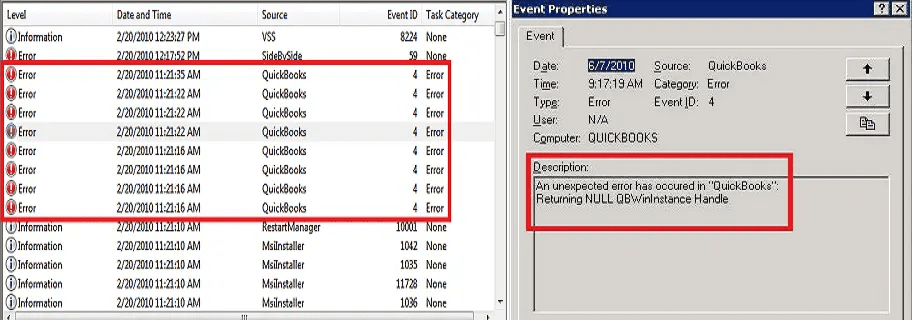
QuickBooks Desktop Event ID Log Error 4 generally appears in the Windows Event Log when QuickBooks fails to execute properly due to flaws in system components. It typically occurs when QBWinInstance returns null instead of expected output, disrupting normal operations.
This error is closely linked to issues with the .NET Framework, damaged or corrupted QBW company files, incomplete QuickBooks installation, or even virus infections. Since QuickBooks relies heavily on Windows components for smooth functioning, any malfunction in these elements can trigger Event ID 4.
Users often experience symptoms such as frequent crashes, sluggish performance, freezing, or QuickBooks not responding to commands. The error message “QuickBooks Event ID 4” may appear repeatedly until the underlying cause is addressed.
The tabular presentation shows the quick overview of all the steps along with the estimated timeline:
| Step | Action | Description | Estimated Time |
| 1 | Log in as Administrator | Restart your computer and log in with Administrator rights to ensure full access for system changes. | 2–3 minutes |
| 2 | Restart QuickBooks and Windows | Close QuickBooks completely, reboot your system, and reopen QuickBooks to clear temporary glitches. | 5 minutes |
| 3 | Update QuickBooks | Visit the official QuickBooks website and install all pending updates to ensure compatibility with Windows components. | 10–15 minutes (depending on update size) |
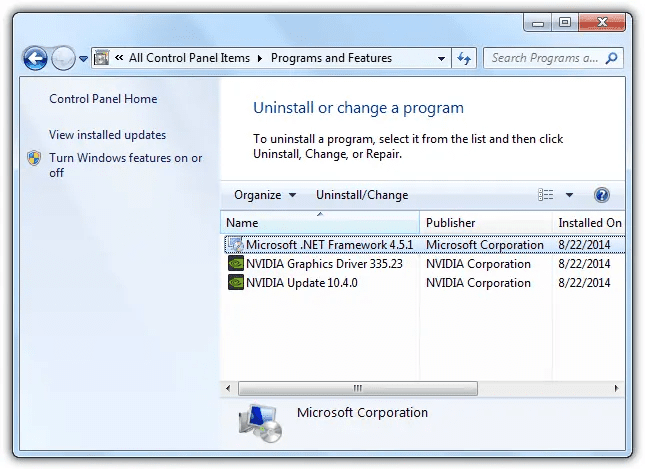
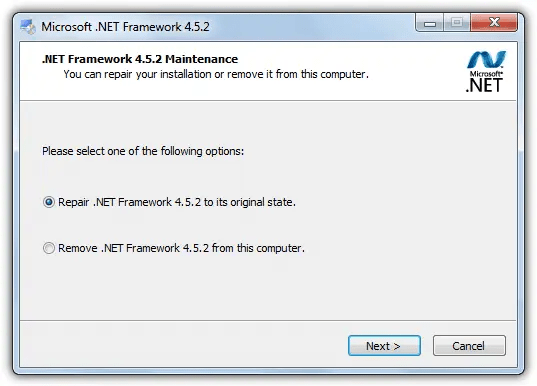
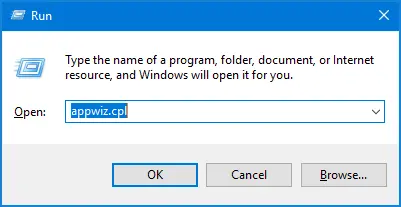
| 4 | Repair .NET Framework | Open Control Panel → Programs and Features → uninstall Microsoft .NET Framework. Restart your computer, then reinstall .NET Framework 3.5 via Windows Features. | 20–30 minutes |
| 5 | Check Windows Components | Verify that supporting components like Visual C++ Redistributables are installed and updated. | 10 minutes |
| 6 | Run QuickBooks Clean Install Tool | Download the tool from Intuit’s site, close all QuickBooks background processes, run the tool, and reinstall QuickBooks in a clean environment. | 30–40 minutes |
| 7 | Scan for Malware or Viruses | Perform a full system scan to ensure company files are not corrupted or infected. | 30–60 minutes (depending on system size) |
| 8 | Check Registry/System Integrity | If the error persists, consult IT support to repair deeper Windows registry or system file issues. | Variable (depends on IT intervention) |
Always start by logging into Windows with Administrator rights to ensure you can make system changes.
A simple restart often clears temporary glitches. Close QuickBooks completely, reboot your system, and try reopening the application.
Visit the official QuickBooks website and install any pending updates. Running the latest version reduces compatibility issues with Windows components.
5. Check Windows Components
Ensure other supporting components (like Visual C++ Redistributables) are updated. Missing or outdated files can trigger Event ID 4 errors.
7. Scan for Malware or Viruses
Perform a full system scan to ensure company files are not infected. Malware can corrupt QuickBooks data and trigger Event ID 4.
8. Check Registry and System Integrity
If the error persists, deeper issues may exist in the Windows registry or system files. In such cases, consult IT support to repair system integrity.
QuickBooks Event ID 4 is a recurring error that signals deeper issues in the Windows environment or QuickBooks installation. It is most often tied to .NET Framework corruption, damaged company files, incomplete installation, or malware interference.By following a layered troubleshooting approach—starting with basic checks (restart, updates), moving to component repair (.NET, Visual C++), and escalating to advanced solutions (Clean Install Tool, malware scans, registry repair)—technicians can systematically isolate and resolve the root cause.


