QuickBooks Error Code 80029c4a indicates a runtime error that occurs when QuickBooks Desktop fails to load essential Dynamic Link Library (DLL) files. This is usually caused by the incomplete installation, damaged system registry or antivirus interference.
These DLL files are critical because they allow multiple programs to share functionality. When QuickBooks cannot access or properly register these files, the application fails to start or crashes unexpectedly.
This error is usually triggered by:
- Corrupted or missing DLL files.
- Antivirus or firewall software mistakenly blocking QuickBooks executables.
- Damaged or incomplete QuickBooks installation.
- Windows registry corruption or system file errors.
- Outdated QuickBooks Desktop version incompatible with the current environment.
Users typically encounter this error:
- At the time of launching QuickBooks Desktop.
- When you are opening a company file.
- After installing QuickBooks on a new system or updating Windows.
- When antivirus software quarantines QuickBooks-related files.
The most common message displayed is:
“Error Code 80029c4a – Error loading type library/DLL.”

“QuickBooks couldn’t load a system component. Restarting your computer might solve the problem. Error type: 80029c4a – Can’t load dynamic link library (DLL).”

Causes of QuickBooks Error Code 80029c4a
QuickBooks Error Code 80029c4a can occur due to several factors:
- Corrupted or missing DLL files required by QuickBooks.
- Damaged company file or improper file path.
- Antivirus or firewall conflicts blocking QuickBooks executables.
- Incomplete or faulty QuickBooks installation.
- Windows registry errors or corrupted system files.
- Outdated QuickBooks Desktop version incompatible with system environment.
Symptoms of QuickBooks Error Code 80029c4a
Users may experience:
- QuickBooks failing to open or crashing immediately.
- Error message: “Error Code 80029c4a – Error loading type library/DLL.”
- Inability to access company files.
- Frequent system freezes when launching QuickBooks.
- Event Viewer logs showing QuickBooks-related runtime errors.
Prerequisites of QuickBooks Error Code 80029c4a
Before troubleshooting this error, ensure:
- You have administrator rights on your Windows system.
- A backup of your QuickBooks company files is created.
- QuickBooks Desktop is updated to the latest release.
- Antivirus/firewall settings are accessible (you may need IT support).
- Windows updates and .NET Framework are properly installed.
Quick Overview of QuickBooks Error Code 80029c4a
| Step No. | Method / Action | Level | Estimated Time | Verification Check |
| 01 | Update Antivirus Program (Avast or other) | Beginner | 5–10 minutes | Confirm antivirus shows latest program & virus definitions. |
| 02 | Run Reboot.bat File | Beginner | 5 minutes | Event Viewer shows no DLL registration errors; QuickBooks launches. |
| 03 | Update QuickBooks Desktop | Intermediate | 10–15 minutes | QuickBooks update completes successfully; restart prompt appears. |
| 04 | Repair QuickBooks Installation via Control Panel | Intermediate | 15–20 minutes | QuickBooks opens without runtime error after repair. |
| 05 | Check Antivirus Quarantine (IT Recommended) | Advanced | 10–20 minutes | Verify QuickBooks executables (e.g., QBW32.exe, QBDBMgrN.exe) are allowed. |
| 06 | Run Windows System File Checker (SFC) | Advanced | 20–30 minutes | SFC scan completes; corrupted system files repaired. |
| 07 | Perform a Clean Install of QuickBooks | Advanced | 30–45 minutes | Fresh installation completes; QuickBooks launches normally. |
| 08 | Update Security Software & Add Exceptions | Advanced | 10–15 minutes | Antivirus/firewall exceptions added; QuickBooks runs without blockage. |
Stepwise Troubleshooting Guide for QuickBooks Error Code 80029c4a
Beginner-Level Fixes (Safe, Quick Actions)
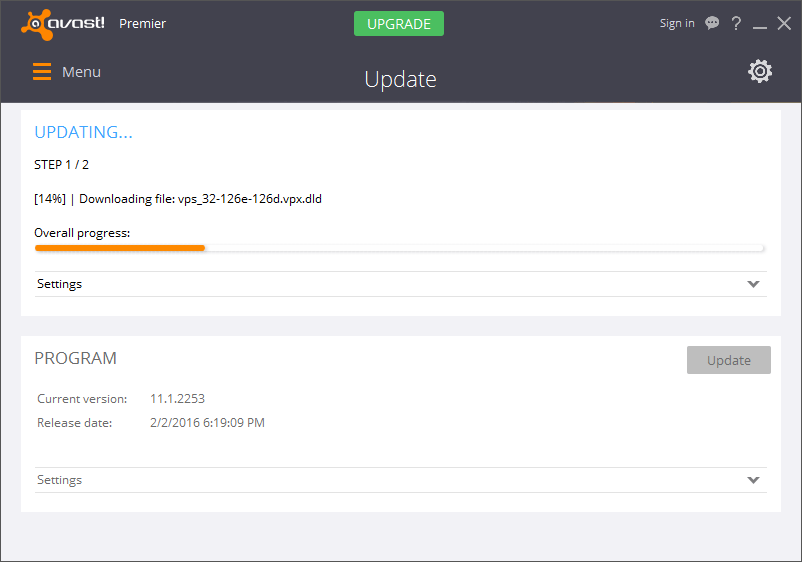
- Update Antivirus Program
- Right-click your antivirus icon (e.g., Avast).
- Select “Update” and then click on “Program” and follow prompts.
- Repeat for Engine & Virus Definitions.
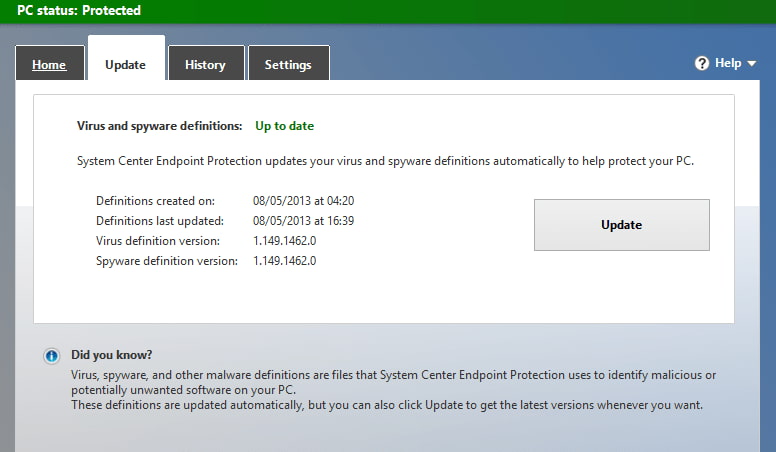
- If using another antivirus, update that software first.
- Why: Outdated antivirus definitions can block QuickBooks DLL files, triggering error 80029c4a.


- Run the Reboot.bat File
- Close QuickBooks Desktop.
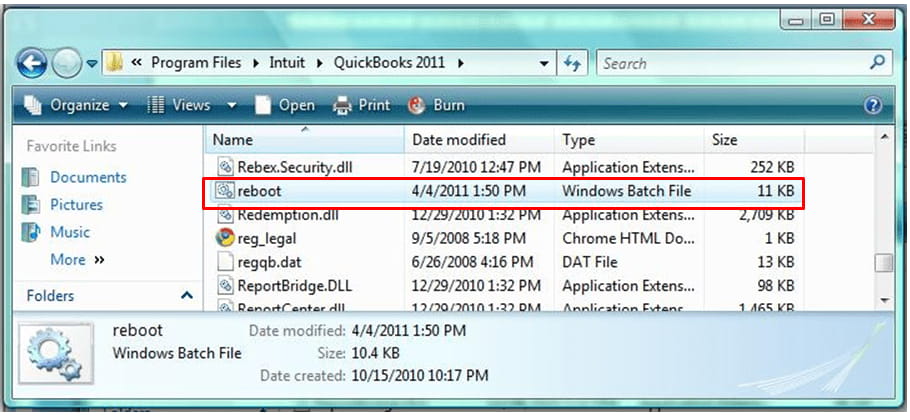
- Right-click the QuickBooks Desktop icon, select “Properties” and then select “Open File Location”.
- Locate “reboot.bat” and then right-click on “ Run as Administrator”.
- Allow the script to complete (the blank window will close automatically).
- Restart your computer.
- Why: This re-registers QuickBooks components and DLLs with Windows.

Intermediate-Level Fixes (Application & System Maintenance)
- Update QuickBooks Desktop
- Log off all company files.
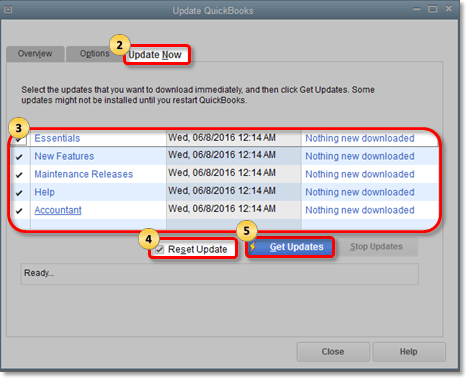
- Go to “Help” and then click on “Update QuickBooks”.
- Select “Options” and then click on “Mark All” and then “Save”.
- Click “Update Now” select “Reset Update” and then Get Updates.
- Restart QuickBooks and install updates when prompted.
- Why: Updates repair known bugs and replace damaged program files.


- Repair QuickBooks Installation (Windows Control Panel)
- Close QuickBooks.
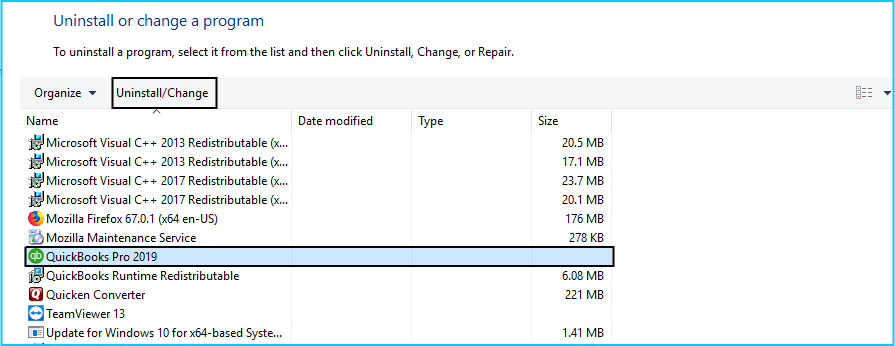
- Go to “Control Panel” and then select “Programs & Features”.
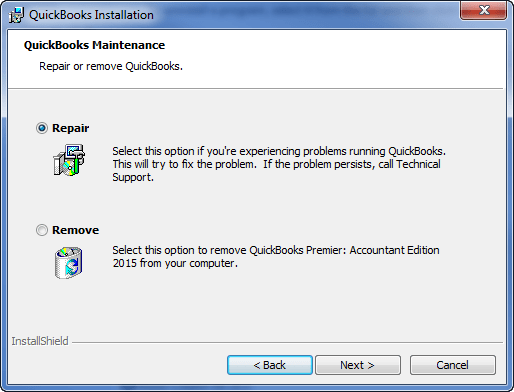
- Select QuickBooks and then right click or choose “Uninstall/Change” then select “Repair”.

- Follow prompts until repair completes.
- Restart your computer and reopen QuickBooks.
- Why: Repairs corrupted QuickBooks program files without removing data.

Advanced-Level Fixes (System Integrity & Security Configuration)
- Check Antivirus Quarantine (IT Recommended)
- Open your antivirus quarantine list.
- Look for QuickBooks executables (e.g., QBW32.exe, QBDBMgrN.exe, QBUpdate.exe).
- If quarantined, allow them through firewall/antivirus.
- If issues persist, uninstall and reinstall QuickBooks.
- Note: Consult your IT administrator before making antivirus/firewall changes.
- Why: Antivirus may mistakenly block QuickBooks DLLs and executables, preventing startup.
- Run Windows System File Checker (SFC)
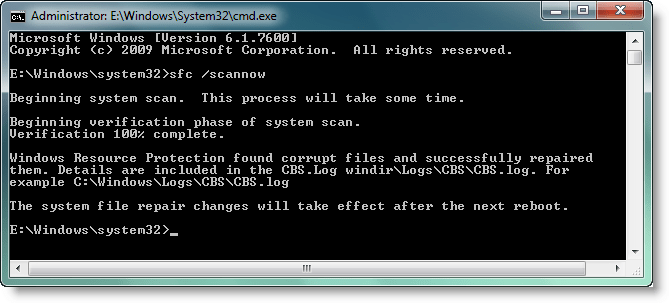
- Open Start and then type “cmd” and then “Run as Administrator”.
- Enter: SFC /Scannow and then Press Enter.
- Wait for the scan to complete and follow on-screen prompts.


- Why: Repairs corrupted Windows system files that QuickBooks depends on.
- Perform a Clean Install of QuickBooks
- Gather QuickBooks product info (license number, version).
- Uninstall QuickBooks via “Control Panel” and then go to “Programs & Features”.
- Download the installer for your version.
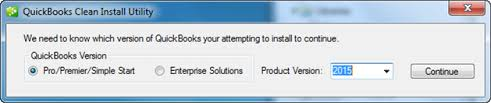
- Reinstall QuickBooks using the Clean Install Tool.
- Why: Removes all damaged QuickBooks components and reinstalls fresh files.
- Update Security Software & Add Exceptions
- Update antivirus/security software to the latest release.
- Add QuickBooks program exceptions manually (e.g., QBW32.exe, QBDBMgrN.exe).
- Restart QuickBooks to confirm smooth operation.
- Why: Ensures QuickBooks executables are not blocked in future.
Possibility of Recurring of QuickBooks Error Code 80029c4a
This error can recur if:
- Antivirus software continues to quarantine QuickBooks files.
- DLL files remain corrupted or missing after repair.
- QuickBooks updates are not applied regularly.
System-level issues (registry corruption, outdated Windows components) are left unresolved.
- Preventive measures such as regular updates, antivirus exceptions, and periodic system checks reduce recurrence.
QuickBooks Online vs. Desktop – QuickBooks Error Code 80029c4a
- QuickBooks Online (QBO):
- Error Code 80029c4a does not apply to QuickBooks Online since QBO runs in a browser and does not rely on local DLL files.
- Issues in QBO are usually related to browser cache, internet connectivity, or login credentials.
- QuickBooks Desktop (QBD):
- Error Code 80029c4a is specific to QuickBooks Desktop.
- It arises from local installation problems, DLL conflicts, or antivirus interference.
- Troubleshooting requires system-level fixes (updates, repairs, clean installs).
Conclusion:
QuickBooks Error Code 80029c4a is a runtime error that primarily affects QuickBooks Desktop when DLL files are missing, corrupted, or blocked by antivirus software. It often appears during startup or when opening company files, and while it may seem like a simple launch issue, it reflects deeper problems with system configuration, installation integrity, or security settings.
By following a structured troubleshooting approach starting with basic fixes like updating antivirus and running reboot.bat, moving to intermediate steps such as updating or repairing QuickBooks, and finally applying advanced solutions like checking antivirus quarantine, running SFC scans, or performing a clean install users can systematically eliminate causes without unnecessary risk.
Although QuickBooks Online is unaffected by this error, QuickBooks Desktop users should remain proactive: keeping software updated, maintaining antivirus exceptions, and ensuring system files are healthy. Preventive measures reduce the chance of recurrence and safeguard company data, ensuring QuickBooks continues to run smoothly and reliably.
Disclaimer: The information outlined above for “How to Resolve QuickBooks Error 80029c4a Can’t Load Dynamic Link Library?” is applicable to all supported versions, including QuickBooks Desktop Pro, Premier, Accountant, and Enterprise. It is designed to work with operating systems such as Windows 7, 10, and 11, as well as macOS.