 Add As A Preferred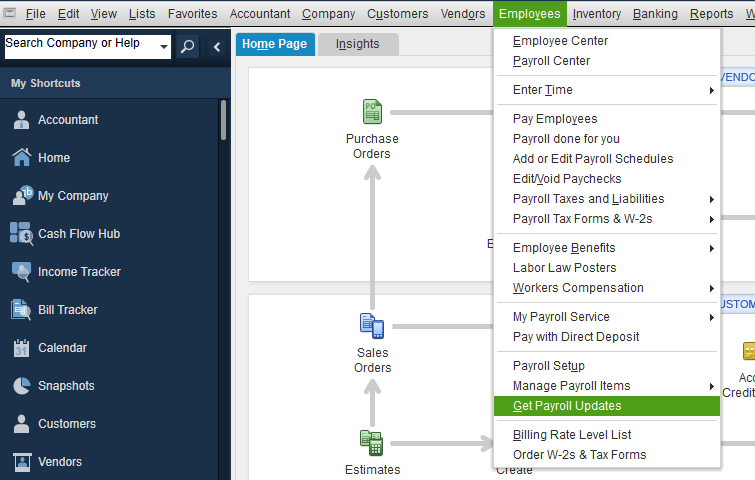
My name is Sylvia, and I’m running payroll in QuickBooks Desktop Premier Plus, and I just realized something’s off taxes aren’t being withheld when I process employee paychecks. I’ve been using the same setup for months with no issues, so this caught me off guard. I noticed it while reviewing the pay stubs before finalizing there were no deductions showing up for federal or state taxes, and the net pay looked unusually high.”
“I double-checked my payroll item list and employee profiles to see if anything had changed like exemptions being marked by mistake but everything looks normal from my end. I even updated the payroll tax table thinking it might be outdated, but that didn’t resolve the issue either. It’s concerning because I’m afraid I might be submitting incorrect payroll data and underpaying taxes, which could lead to compliance problems down the road.”
“At this point, I really need help figuring out why the system is skipping withholding and what I can do to make sure employee taxes are calculated correctly before the next pay cycle. This is time-sensitive I can’t afford to run inaccurate payroll again.
Hi Sylvia,
Thanks for reaching out to us. I can completely understand how stressful it must be to suddenly see taxes not being withheld while processing employee paychecks even though everything has been running smoothly until now. You’re doing all the right things by catching the issue early and reviewing the setup before finalizing your paychecks.
Based on what you’ve described, it seems like QuickBooks Desktop Premier Plus has stopped calculating federal and state tax withholding for your employees. You’ve already taken some powerful troubleshooting steps from checking employee profiles for exemptions to reviewing the payroll item list, and updating the payroll tax table. Since the issue is still unresolved, it’s likely that something deeper in the configuration is interfering with tax calculations.
No worries, we’ll get this sorted out. I’m here to help you resolve the issue before your next payroll cycle. Below, I’ll walk you through the most common causes for missing tax withholdings in QuickBooks Desktop, along with step-by-step solutions to restore accurate payroll calculations, stay compliant, and ensure your employee taxes are being calculated correctly.
QuickBooks Desktop Premier Plus often fails to withhold federal or state taxes from employee paychecks due to misconfigured employee profiles, inactive payroll items, or incorrect tax setup. Even a small change in filing status, exemptions, or tax tables can disrupt calculations.
Sylvia, if payroll taxes aren’t being withheld as expected, it’s important to review both employee and company payroll setups in QuickBooks Desktop Premier Plus. The steps below will help you to identify configuration issues, reactivate missing tax items, and ensure that tax calculations apply correctly during payroll processing.
QuickBooks Desktop calculates payroll taxes based on the employee details and payroll items you’ve entered. Make sure that both your employee profiles and payroll item setup are properly configured to ensure accurate tax withholdings.
If you updated tax information or installed a payroll update after creating paychecks, the changes won’t apply retroactively. To ensure accurate tax calculations, revert any affected paychecks. This action removes previously saved data and allows QuickBooks to recalculate taxes using the latest payroll setup.
Ensure your employee’s state and local tax details are set up correctly. This includes selecting the correct state for withholding, assigning applicable local taxes, and completing any pending tax setup to calculate payroll taxes accurately.
If your employee is subject to local taxes, set them up to ensure accurate calculations. You’ll have to pay and file your local taxes manually.
When adding or editing your employee’s State Subject to Withholding and State Worked fields on the Taxes tab, you may see many prompts to set up new state taxes.
If your employee is subject to local taxes, set up the local tax items.
Note: You’ll need to pay your local taxes and file local tax forms manually. Or, consider switching to QuickBooks Online Payroll Premium or Elite for automated local tax handling.
For QuickBooks Desktop Payroll Enhanced with e-file and e-pay
You may also need to set up e-file and e-pay for your new state.
Important: If you use QuickBooks Desktop Payroll Assisted, you’ll receive an email with state authorization forms. Follow the instructions to sign and return them. These are necessary for QuickBooks to file and pay your state taxes on your behalf. If you’re using Basic, Standard, or Enhanced versions, no authorization forms are required.
The Verify & Rebuild Data tool can help identify and fix common problems. Running this tool ensures your file is error-free, helping payroll calculations and settings work as expected. It’s a quick way to resolve hidden data inconsistencies before contacting support.
Note: Contact the QuickBooks Support Team before you rebuild your data in case you use Assisted Payroll.
Note: Avoid replacing your existing company file and re-entering the info into your company file after the backup was created.
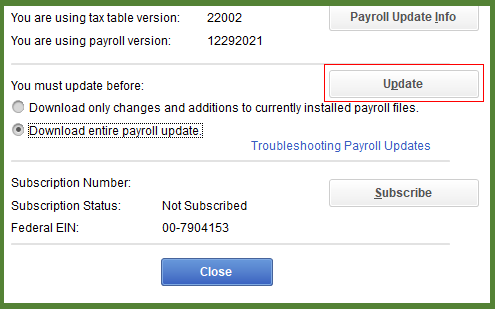
QuickBooks Desktop Payroll provides payroll updates to QuickBooks Desktop Payroll subscribers. These updates include the most current and accurate rates and calculations for supported state and federal tax tables, payroll tax forms, and e-file and pay options.
Note: The latest payroll update number is 22513 released on July 3, 2025.
The Payroll Setup Interview is a step-by-step wizard in QuickBooks Desktop that helps ensure your payroll system is fully and correctly configured. This tool is especially helpful if you’re setting up payroll for the first time or need to make major corrections to an existing setup. Before you begin, ensure your QuickBooks Desktop Payroll service is activated.
Note: Make sure to include all employees you’ve paid during the current calendar year, even if they’re no longer employed. You’ll also need to enter their year-to-date payroll info as well.
To avoid payroll tax withholding issues in QuickBooks Desktop Premier Plus, it’s important to follow correct setup procedures, keep your payroll data up-to-date, and review employee and tax settings regularly. These preventative steps will help you to ensure accurate tax calculations, timely filings, and overall payroll compliance.
Sylvia, I know how overwhelming it can feel when payroll tax withholdings don’t show up the way they should even when you’re doing your best to stay compliant and keep everything running smoothly.
You’ve already completed the most critical steps to address the issue: reviewing your payroll setup, updating employee tax information, running the Payroll Setup Interview, and using the Verify & Rebuild Data tool. Each of these actions reflects your focus, precision, and dedication to making sure your payroll stays accurate and compliant.
To maintain accurate payroll operations, regularly check employee tax settings, keep QuickBooks Desktop or payroll tax tables updated, and back up your company file. These small but important steps can help you avoid future payroll disruptions and maintain accurate tax withholdings.
And if things still feel off like federal or state taxes missing from paychecks, employees not being marked correctly as tax-subject, or outdated tax setup, we’re here to assist you anytime.


