



Recover the QuickBooks payroll item list by enabling Full Payroll in Edit > Preferences > Payroll & Employees > Company Preferences – the most common cause – then making inactive items visible through Lists > Payroll Item List > Show All, updating the QuickBooks release and payroll tax table, revalidating the payroll service key, and running Verify Data followed by Rebuild Data to correct any company file damage that removed items from the list.
The QuickBooks Desktop Payroll Item List is the master record of every pay component used in payroll – wages, salaries, bonuses, federal and state taxes, insurance deductions, 401(k) contributions, and any other addition or deduction that appears on a paycheck.
QuickBooks uses the Payroll Item list to calculate every pay stub amount, track year-to-date totals for each employee, and generate payroll tax reports and year-end W-2 forms. The Intuit QuickBooks Community confirms that if the list is missing or incomplete, payroll cannot run and any paycheck created without a required item produces incorrect tax totals.
The Intuit QuickBooks Community confirms the most common cause is not a corrupted file – it is the payroll preference being set to No Payroll in the company settings. No Payroll is the default state in QuickBooks Desktop when payroll is first installed.
The Intuit QuickBooks Community documents multiple users who reported the entire Payroll Item List disappearing from the Lists menu after a preferences change and restored it immediately by switching the preference back to Full Payroll without any file repair needed.
The Intuit QuickBooks Community also confirms a second cause: individual payroll items marked as inactive become hidden from the default list view. An item made inactive disappears from the Lists > Payroll Item List screen and from employee paycheck previews – without any error message and without the item being deleted. The item still exists in the file and reappears immediately when the user clicks Payroll Item > Show All at the bottom of the Payroll Item List screen.
What the Payroll Item List Is and Why Its Absence Stops Payroll Entirely?
The Payroll Item List is accessed through Lists > Payroll Item List in the QuickBooks Desktop menu bar. It is a company-level list – every employee record, every paycheck template, and every payroll report in the company file draws from it.
The Intuit QuickBooks Community confirms the list contains six categories of items:
- employee compensation (wages, salary, bonuses),
- federal and state payroll taxes,
- additions (expense reimbursements, allowances),
- deductions (health insurance, retirement contributions),
- employer-paid expenses (employer share of FICA, workers comp), and
- other payroll items (sick pay, vacation pay).
The Payroll Item List disappearing from the Lists menu is different from a payroll item disappearing from a specific employee’s paycheck. A full list disappearance means the payroll module itself is turned off at the company preference level – the No Payroll setting removes the entire Lists > Payroll Item List option from the menu. An item missing from one employee’s paycheck means either that item was never assigned to that employee’s Payroll Info tab, or the item was made inactive after it was assigned.
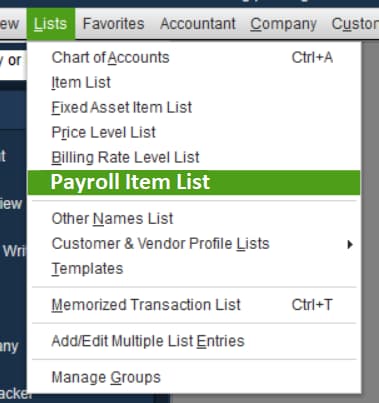
The Intuit QuickBooks Community documents three distinct scenarios with different causes:
- the entire list gone from the menu (preference issue),
- one or more items not visible in the list (inactive status), and
- items present in the list but not appearing on paychecks (employee record or tax table issue).
Each scenario requires a different fix – applying the Rebuild Data solution to a preference-level disappearance wastes time and involves unnecessary file risk.
The Payroll Item column disappearing from a single employee’s timesheet is a fourth scenario. The Intuit QuickBooks Community confirms this happens when the ‘Use time data to create paychecks’ checkbox is unchecked inside that employee’s record. The column is absent for that one employee only – all other employees show it normally. The fix takes under a minute: open the employee record, go to the Payroll Info tab, check the box, and save.
Can a Missing Payroll Item List Trigger Other Issues in QuickBooks?
A missing payroll item list stops every payroll operation that depends on it. No new paychecks can be created. No payroll liabilities can be tracked. No year-to-date wage totals accumulate correctly for W-2 preparation.
The Intuit QuickBooks Community confirms: running a paycheck without a required payroll item causes that item’s amount to be missing from the paycheck, missing from the year-to-date totals, and missing from any tax form that references it – including the W-2 and the 941. Correcting these omissions after the fact requires amended filings.
| Unresolved Cause | What Keeps Happening as a Result |
|---|---|
| Payroll preference left on No Payroll after being changed accidentally | The Payroll Item List disappears from the Lists menu for every user on every computer accessing that company file – no payroll run can be started until Full Payroll is re-selected in Preferences |
| Outdated QuickBooks release left unupdated after the list disappears | The payroll service key validation fails on the outdated build – the list remains missing even after re-entering a correct key until the QuickBooks release is updated first |
| Individual payroll items made inactive and not searched for with Show All | Items hidden by the inactive status appear missing from every payroll run and every employee record – deductions stop appearing on paychecks silently without any error message |
| ‘Use time data to create paychecks’ checkbox unchecked in employee record | The Payroll Item column disappears from that employee’s timesheet entirely – time entries cannot be mapped to payroll items and payroll processing for that employee is blocked |
| Company file corruption left unaddressed after Verify Data finds errors | Data damage grows with each payroll run added – Rebuild Data becomes more complex and the risk of permanent data loss increases the longer the corruption is left uncorrected |
| Backup restored without re-entering payroll items added after the backup date | Any payroll item created after the backup was taken is permanently absent from the restored file – those items must be manually recreated before payroll can run correctly |
- Payroll items showing $0 on some employees’ paychecks during a scheduled payroll run is a specific problem documented in the Intuit QuickBooks Community. The items exist in the list, they are assigned to the affected employees, and they populate correctly for some employees but show $0 for others in the same payroll run.
- The Intuit QuickBooks Community confirms the fix is updating the payroll tax table through Employees > Get Payroll Updates – after which the items populate correctly on the next payroll run.
- A backup restored to recover a missing payroll item creates a new gap. Any payroll item created after the backup date is not present in the restored company file.
- The Intuit QuickBooks Community confirms these items must be manually recreated through Lists > Payroll Item List > Payroll Item > New > Custom Setup. Each item must then be re-assigned to every employee who used it, through the employee’s Payroll Info tab, before payroll can run correctly again.
Identifying the Root Cause of the Missing Payroll Item List
Match the exact situation to the correct row below before attempting any fix. The four scenarios – full list missing from the menu, specific items not visible in the list, items present but not on paychecks, and timesheet column missing for one employee – each require a different first step. Starting with Verify Data when the cause is a preference setting adds time and creates unnecessary backup steps.
| What You See | Why This Is Happening | Recommended Fix |
|---|---|---|
| Entire Payroll Item List has disappeared from the Lists menu – no payroll items visible at all | Payroll preference set to No Payroll – the payroll module is switched off at the company level | Edit > Preferences > Payroll & Employees > Company Preferences tab > select Full Payroll radio button > OK. Restart QuickBooks. Open Lists > Payroll Item List to confirm the list reappears |
| Payroll Item List is visible but one or more specific items cannot be found | Items were made inactive and are now hidden from the default view | Open Lists > Payroll Item List > click the Payroll Item dropdown at the bottom left > select Show All. All inactive items reappear with a grey checkmark. To reactivate: right-click the item > Make Active |
| Payroll Item column missing from one employee’s timesheet – all other employees show it correctly | ‘Use time data to create paychecks’ checkbox unchecked for that specific employee | Employees > Employee Center > double-click the affected employee > Payroll Info tab > look for ‘Use time data to create paychecks’ checkbox > check it > OK. The Payroll Item column reappears in the timesheet |
| Items disappeared after updating QuickBooks or after QuickBooks was reinstalled | Outdated QuickBooks build – the payroll subscription validation fails on builds that are not current | Help > Update QuickBooks Desktop > Update Now tab > check Reset Update > Get Updates > restart QuickBooks. Then Employees > My Payroll Service > Manage Service Key > Edit > verify key > Next > Finish |
| Items disappeared after restoring a backup file | Backup predates items that were created after the backup – items added after the backup date are not in the restored file | Items must be manually recreated: Lists > Payroll Item List > Payroll Item dropdown > New > Custom Setup > follow wizard for each missing item type. Re-assign recreated items in each employee’s Payroll Info tab |
| Items exist in list but show $0 on some employees’ paychecks during scheduled payroll | Outdated payroll tax table – confirmed by Intuit Community; update corrects deduction population | Employees > Get Payroll Updates > check Download Entire Update > Update Now. After download completes, close and reopen QuickBooks. Run payroll again to confirm items now populate with correct amounts |
| Payroll Item List present but all items show wrong tax tracking type after being edited | Tax tracking type edited incorrectly – wrong type causes wrong withholding on affected paychecks | Lists > Payroll Item List > right-click affected item > Edit Payroll Item > click Next twice > correct the Tax Tracking Type field > click Next twice more > Finish. Run Verify Data after to confirm no data errors |
| Payroll items missing and Verify Data reports data integrity errors | Company file corruption affecting payroll data records | File > Back Up Company first. File > Utilities > Verify Data. If errors found: File > Utilities > Rebuild Data > follow prompts > OK when complete. Run Verify Data again to confirm clean. Restart QuickBooks and check list |
Data Safety Advisory: Key Concepts Before Troubleshooting
What Does the No Payroll Preference Setting Do and Why Does It Hide the Entire List?
The No Payroll setting in Edit > Preferences > Payroll & Employees > Company Preferences tells QuickBooks to operate without any payroll functionality. The Intuit QuickBooks Community confirms this setting removes the Payroll Item List from the Lists menu, removes the Employees menu’s payroll options, and disables all payroll-related reports.
The setting is applied to the company file – not to a specific user. Every person who opens that company file sees the same missing list until the preference is changed back to Full Payroll.
What Does Making a Payroll Item Inactive Mean and How Is It Different From Deleting It?
Making a payroll item inactive hides it from the default view of the Payroll Item List without deleting the item or removing it from historical paychecks. The Intuit QuickBooks Community confirms inactive items still exist in the company file and all past transactions that used them are preserved.
An inactive item cannot be selected for new paychecks until it is reactivated. The difference from deleting is critical: a deleted item cannot be recovered, while an inactive item reappears immediately when Show All is selected from the Payroll Item dropdown at the bottom of the list.
What Is the Tax Tracking Type and Why Does Editing It Incorrectly Affect Filed Tax Forms?
The tax tracking type is the setting inside each payroll item that tells QuickBooks which tax boxes on the W-2 and 941 to report the item’s amounts in.
The Intuit QuickBooks Community confirms: editing the tax tracking type of a payroll item that has already been used on paychecks changes how QuickBooks reports those amounts on year-end forms – potentially causing W-2 box totals to be wrong even for paychecks already processed.
The Intuit QuickBooks Community warns specifically that a wrong tax tracking type causes incorrect W-2 and 941 form totals and requires amended filings to correct.
Steps to Fix QuickBooks Payroll Item List Missing
Solutions are organized by the scenario identified above. Start with Level 1 – the preference setting and inactive item checks resolve the majority of payroll item list missing reports without any file repair. Advance to Level 2 and Level 3 only after confirming the Level 1 fixes did not restore the list.
| Level 1 – Company Settings: Preference and Inactive Item Fixes |
These two solutions address the most common confirmed causes. Both require Admin access and carry zero risk to company data. Try them before any update or file repair step.
Solution 1.1: Enable Full Payroll in Company Preferences
| Skill Level | Risk Level | Success Probability | Approximate Time |
|---|---|---|---|
| Beginner | None | 75% – Restores the entire Payroll Item List immediately when the No Payroll preference is the cause | 5 minutes |
| Risk ExplanationChanging the payroll preference from No Payroll to Full Payroll does not delete any data, change any employee records, or affect any previously processed paychecks. It only re-enables the payroll module display. Changing it back to No Payroll again would re-hide the list. | Solution ExplanationThe Intuit QuickBooks Community confirms the payroll preference defaulting to No Payroll – or being changed accidentally – is the primary cause of the entire Payroll Item List disappearing from the Lists menu. Multiple Intuit Community threads document users who restored the list within two minutes by switching the preference back to Full Payroll. This fix requires Admin access because Company Preferences can only be changed by the QuickBooks Admin account. | ||
Steps to Implement Solution 1.1:
1. Open QuickBooks Desktop and sign in as the Admin account. A standard user account cannot access or change Company Preferences. Click the Edit menu at the top of the screen. Select Preferences from the dropdown. The Preferences window opens showing a list of categories on the left side.
2. Scroll down the left panel and click Payroll & Employees. The right side of the window shows two tabs: My Preferences and Company Preferences. Click the Company Preferences tab. The QuickBooks Desktop Payroll Features section appears with radio button options.
3. Look at the radio buttons under QuickBooks Desktop Payroll Features. If No Payroll is selected, click the Full Payroll radio button instead. Full Payroll enables all payroll functionality including the Payroll Item List. Click OK at the bottom of the window to save the change.
4. Close all open windows inside QuickBooks by clicking Window > Close All. Click the Lists menu at the top of the screen. Select Payroll Item List. Confirm the full list of payroll items is now visible. If the list appears, the preference was the cause and no further steps are needed.
| Skill Level | Risk Level | Success Probability | Approximate Time |
|---|---|---|---|
| Beginner | None | 90% for cases where specific items are missing from an otherwise visible list | 5 minutes |
| Risk ExplanationSelecting Show All only changes what is displayed on screen – no items are deleted, no data is changed, and no paychecks are affected. Reactivating an item only makes it selectable again for new paychecks; it does not alter any historical paycheck that used or did not use that item. | Solution ExplanationThe Intuit QuickBooks Community confirms payroll items can be made inactive deliberately or accidentally, causing them to disappear from the Payroll Item List default view and from employee paycheck previews. The Show All option in the Payroll Item dropdown at the bottom of the list reveals all inactive items. Each inactive item shows a small grey X to the left of its name. Right-clicking the item and selecting Make Active restores it to the active list immediately. | ||
Steps to Implement Solution 1.2:
1. Open QuickBooks Desktop as Admin. Click the Lists menu at the top. Select Payroll Item List. The Payroll Item List window opens showing all currently active payroll items.
2. Look at the very bottom left of the Payroll Item List window. There is a button labeled Payroll Item. Click it to open a small dropdown menu. Select Show All from this dropdown. The list now expands to show all items including those that were made inactive. Inactive items appear with a small grey checkmark or X symbol to the left of their names.
3. Look through the expanded list to find the missing item. Right-click the inactive item. Select Make Active from the right-click menu. The grey symbol disappears and the item is restored to the active list. Repeat this for every inactive item that needs to be recovered. Close the Payroll Item List window after reactivating all needed items.
4. Verify the reactivated item now appears correctly by opening an affected employee’s record: Employees > Employee Center > double-click the employee > Payroll Info tab. Confirm the item appears in the payroll items section. If the item was assigned to the employee before it was made inactive, it will reappear. If it was never assigned to this employee, add it through the Payroll Info tab.
Solution 1.3: Restore the Payroll Item Column in a Single Employee’s Timesheet
| Skill Level | Risk Level | Success Probability | Approximate Time |
|---|---|---|---|
| Beginner | None | 100% – Resolves immediately when the checkbox is the confirmed cause for one employee | 3 minutes |
| Risk ExplanationChecking the ‘Use time data to create paychecks’ box only enables the timesheet payroll mapping feature for that one employee. No pay rates, payroll items, or historical paychecks are changed. The change takes effect the next time a timesheet is opened for that employee. | Solution ExplanationThe Intuit QuickBooks Community confirms the Payroll Item column disappearing from one employee’s timesheet while all other employees show it normally is caused by the ‘Use time data to create paychecks’ checkbox being unchecked in that employee’s record. This is a per-employee setting in the Payroll Info tab. Checking it immediately restores the column on that employee’s timesheet. | ||
Steps to Implement Solution 1.3:
1. Open QuickBooks Desktop as Admin. Click the Employees menu. Select the Employee Center. The full employee list opens.
2. Find the employee whose timesheet is missing the Payroll Item column. Double-click their name to open the employee record. The employee information window opens with several tabs across the top.
3. Click the Payroll Info tab. Look at the earnings table in the upper portion of the tab. Directly below the earnings table, find the checkbox labeled Use time data to create paychecks. If this box is unchecked, click it once to place a checkmark in it. Click OK to save the change. Return to the employee’s timesheet to confirm the Payroll Item column now appears.
| Level 2 – Software Updates and Service Key Revalidation |
Use these solutions after confirming Level 1 preference and inactive item checks did not restore the list. These fixes address items that disappeared after a QuickBooks update, reinstall, or subscription change.
Solution 2.1: Update QuickBooks Desktop and Revalidate the Payroll Service Key
| Skill Level | Risk Level | Success Probability | Approximate Time |
|---|---|---|---|
| Beginner | None | 70% – Resolves list disappearance caused by an outdated QuickBooks build or lapsed subscription validation | 15-20 minutes |
| Risk ExplanationUpdating QuickBooks Desktop carries zero risk to company data when a backup exists. Revalidating the service key only updates the account registration record – no payroll data, employee records, or historical paychecks are changed. Back up before the update as a precaution. | Solution ExplanationThe Intuit QuickBooks Community confirms payroll items disappear after a QuickBooks update when the updated build cannot validate the payroll service key against an outdated program version. Updating QuickBooks first and then revalidating the service key through Employees > My Payroll Service > Manage Service Key restores the payroll module registration and brings the item list back. The Intuit Community also confirms that updating the payroll tax table immediately after corrects items showing $0 on scheduled paychecks. | ||
Steps to Implement Solution 2.1:
1. Back up the company file before updating: File > Back Up Company > Create Local Backup > choose a location on a separate drive > wait for backup confirmation. Close QuickBooks. Right-click the QuickBooks desktop icon and select Run as Administrator. Click Yes if a permission prompt appears.
2. Inside QuickBooks, click Help > Update QuickBooks Desktop. Click the Update Now tab. Check the Reset Update box to clear any previously failed downloads. Click Get Updates. Allow the download to complete without closing QuickBooks. After the download completes, close QuickBooks and reopen it as Administrator. Accept the Install Now prompt and allow the installation to finish.
3. After the update installs, go to Employees > My Payroll Service > Manage Service Key. The Service Keys window opens. Click Edit. Confirm the 16-digit service key matches the subscription confirmation email from Intuit. Click Next. Uncheck Open Payroll Setup if it is checked. Click Finish. A confirmation appears. Click OK.
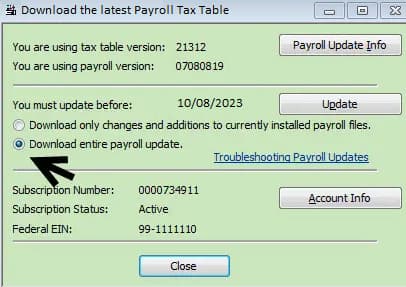
4. Go to Employees > Get Payroll Updates > check Download Entire Update > Update Now. After the tax table download completes, click Lists > Payroll Item List to confirm the list is restored. Open a paycheck preview for an affected employee to confirm items now populate with correct amounts.
| Level 3 – File Repair: Verify Data and Rebuild Data |
Use this solution when Level 1 and Level 2 fixes have not restored the list and Verify Data reports errors in the company file. Back up the company file immediately before running Rebuild Data without exception.
Solution 3.1: Run Verify Data and Rebuild Data to Repair Company File Damage
| Skill Level | Risk Level | Success Probability | Approximate Time |
|---|---|---|---|
| Advanced | Moderate – Rebuild Data modifies the company file; a confirmed backup immediately before is required | 75% when company file data damage is the confirmed remaining cause | 20-45 minutes depending on file size |
| Risk ExplanationVerify Data scans without changing anything – zero risk. Rebuild Data corrects errors found by modifying the company file directly. A backup taken immediately before Rebuild protects all data in case the rebuild introduces any inconsistency. Never run Rebuild without a fresh, confirmed backup taken in the same session. | Solution ExplanationThe Intuit QuickBooks Community confirms Verify Data followed by Rebuild Data is the correct repair sequence when payroll item list problems are caused by company file data damage. Verify Data identifies which records are damaged and reports them. Rebuild Data corrects the damage it finds. Running Verify Data again after the rebuild confirms the file is clean before payroll is restarted. The qbwin.log file documents any errors that Rebuild could not correct automatically. | ||
Steps to Implement Solution 3.1:
1. Back up the company file before starting: File > Back Up Company > Create Local Backup. Choose a folder on a separate drive or external device. Wait for the backup confirmation message before proceeding. Do not run Rebuild Data without this confirmed backup.
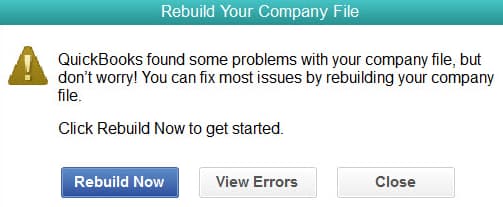
2. Click Window at the top menu, then select Close All to close all open QuickBooks windows. Click File > Utilities > Verify Data. A progress bar runs while QuickBooks scans the company file. After completion, one of three messages appears: QuickBooks detected no problems with your data – the file is clean and company file damage is not the cause; an error prompt – search Intuit’s support site for that specific error code; or Your data has lost integrity – data damage was found and Rebuild is needed.
3. If data damage was found: click File > Utilities > Rebuild Data. QuickBooks prompts to create another backup – click OK and allow it. The rebuild runs and corrects the errors. After the rebuild completes, a confirmation message appears. Click OK. Then run File > Utilities > Verify Data again to confirm the file shows no remaining errors.
4. If Verify Data finds errors that Rebuild could not correct: navigate to C:\Users\[username]\Documents\Intuit\QuickBooks\2026\Log on the computer to find the qbwin.log file. Open it in Notepad and search for lines marked BEGIN VERIFY. The log lists each error found – search Intuit’s QuickBooks Desktop Help site for the specific error code to find the targeted repair steps. Contact Intuit Payroll Support if the errors cannot be resolved manually.
Scenarios Requiring Immediate Intuit Escalation
Stop troubleshooting and contact Intuit Payroll Support in the following situations. These scenarios cannot be resolved through the self-service fixes above.
- Verify Data Errors Remain After Multiple Rebuild Data Cycles: Recurring Verify Data errors after repeated Rebuild cycles indicate damage beyond what the built-in tool can correct. Intuit has data recovery specialists who can diagnose and repair file-level damage that Rebuild Data does not address. Provide the qbwin.log file to the support agent when contacting Intuit.
- Payroll Item List Restored but W-2 or 941 Totals Are Wrong After Items Were Missing: Missing payroll items during a live payroll period mean paychecks were processed without required deductions or tax items. The Intuit QuickBooks Community confirms this requires corrective payroll adjustments for each affected employee before year-end forms are filed. Contact Intuit Payroll Support to confirm which adjustments are needed before filing any amended W-2 or 941.
- Payroll Items Show $0 After Tax Table Update and Payroll Rerun: If updating the payroll tax table did not resolve items showing $0 on scheduled paychecks, the Intuit QuickBooks Community documents this as a case requiring direct Intuit support investigation. Contact Intuit Payroll Support and provide the specific item names and the QuickBooks Desktop release version number found at Help > About QuickBooks.
- Payroll Must Run Today and the List Is Still Missing After All Fixes: Contact Intuit Payroll Support immediately and describe the payroll deadline. While the list issue is being resolved, manually calculate and record employee pay using payroll journal entries in the interim. The Intuit QuickBooks Community confirms journal entries can document payroll accurately until the item list is restored and a corrective payroll run is completed.
Prevention Strategy For QuickBooks payroll item list missing (Payroll Error)
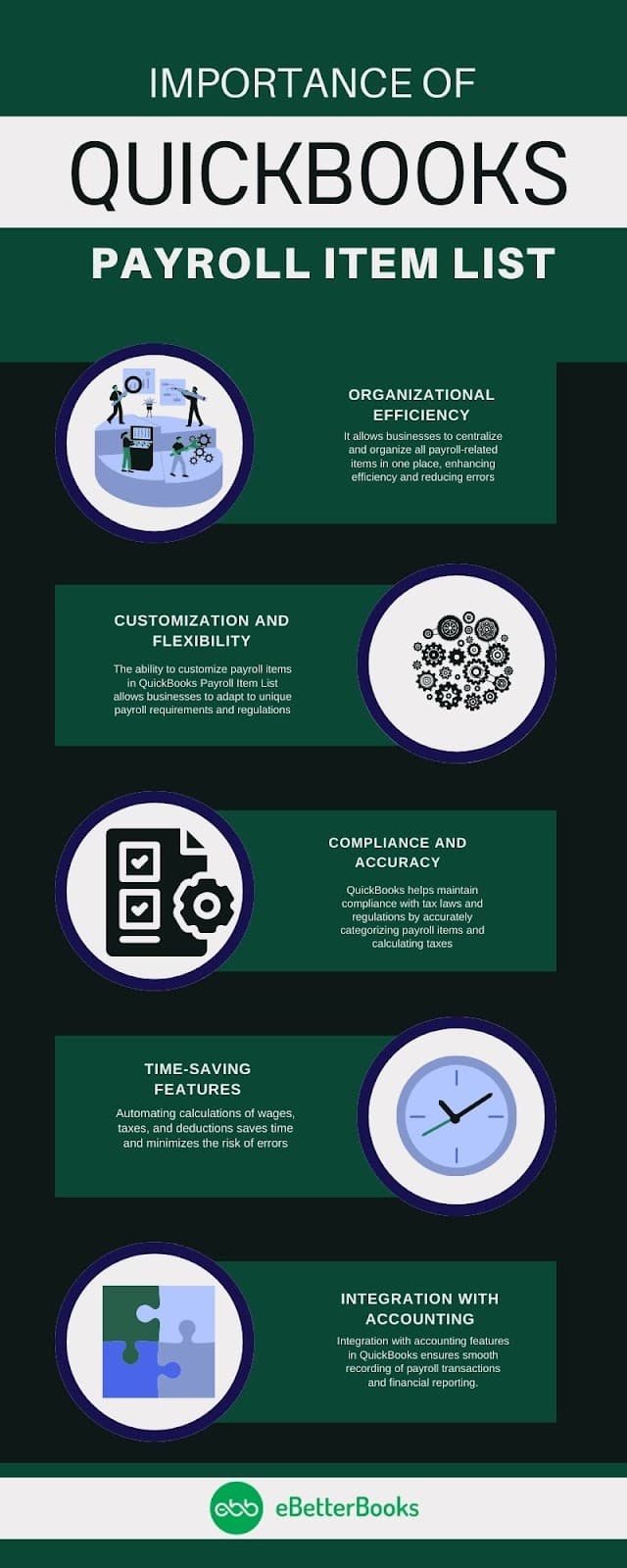
Preventing the payroll item list from going missing requires four consistent habits: reviewing Company Preferences after every QuickBooks update, checking Show All before reporting a payroll item as missing, updating QuickBooks and the payroll tax table on a regular schedule, and backing up the company file before every major change. These habits address every confirmed cause of the payroll item list disappearing.
- Review Company Preferences After Every QuickBooks Update
The Intuit QuickBooks Community confirms QuickBooks Desktop updates can reset certain company preferences. After each QuickBooks program update, open Edit > Preferences > Payroll & Employees > Company Preferences and confirm the Full Payroll radio button is still selected. This check takes 30 seconds and catches a preference reset before any payroll run attempts to process without the list.
- Always Use Show All Before Reporting an Item as Missing
The Intuit QuickBooks Community confirms making an item inactive is the most common cause of a specific payroll item appearing to disappear. Opening Lists > Payroll Item List and clicking Payroll Item > Show All at the bottom of the window reveals every inactive item in the file. Running this check before any other troubleshooting step prevents unnecessary file repairs from being applied to a simple visibility issue.
- Update QuickBooks Desktop and the Payroll Tax Table on a Consistent Schedule
Multiple verified sources confirm that an outdated QuickBooks Desktop build causes the payroll service key validation to fail – which makes the Payroll Item List unavailable. Updating QuickBooks Desktop through Help > Update QuickBooks Desktop and downloading the latest payroll tax table through Employees > Get Payroll Updates after each Intuit release keeps the subscription validation current and prevents the list from disappearing after a version change.
- Back Up the Company File Before Every Significant Payroll Change
The Intuit QuickBooks Community confirms that restoring a backup to recover a missing payroll item list removes any item created after the backup date. Creating a backup immediately before adding new payroll items, editing existing items, or running Verify and Rebuild Data ensures a clean recovery point that includes all current items.
File > Back Up Company > Create Local Backup before any significant change is the single habit that protects against data loss during every repair scenario in this article.
Conclusion
Recover the QuickBooks payroll item list by checking the payroll preference first – Edit > Preferences > Payroll & Employees > Company Preferences > Full Payroll – as this is the confirmed top cause. Then check Lists > Payroll Item List > Show All to find any items hidden by inactive status.
Update QuickBooks Desktop and revalidate the service key if the list disappeared after a program update. Run Verify Data and Rebuild Data only if both preference and inactive item checks confirm the list is still incomplete after those steps.
The four payroll item list scenarios each require a different fix:
- the entire list gone from the menu means a preference issue;
- specific items not visible in an otherwise present list means inactive status;
- items present but showing $0 on paychecks means an outdated tax table; and
- one employee’s timesheet missing the Payroll Item column means the ‘Use time data to create paychecks’ checkbox is unchecked for that employee.
Matching the exact scenario to the correct solution before starting prevents time-wasting repairs and avoids adding unnecessary risk to the company file.
Preventing recurrence requires four habits after every QuickBooks update: verify the Full Payroll preference is still selected, run Show All before reporting any item as missing, update QuickBooks Desktop and the payroll tax table on schedule, and back up the company file before every significant payroll change. These four habits cover every confirmed cause of the payroll item list disappearing before it can interrupt a live payroll run.
FAQs!
If I have an inactive payroll item, should I delete it instead of keeping it?
Intuit strongly advises against deleting any payroll item that has ever been used on a paycheck, even if it is no longer active.
➜Data Integrity: Deleting an item that has a history in your company file can cause reporting inaccuracies and potentially corrupt the historical payroll data.
➜Best Practice: Always make the item inactive instead of deleting it. Inactive items are hidden from new transactions but remain in the system for historical reporting and paycheck viewing.
How do I make sure a new payroll item for a pre-tax deduction correctly reduces taxable wages?
When setting up a new pre-tax deduction (like a Section 125 plan or 401(k)), the key is to ensure the “Tax Tracking Type” and the “Taxes” settings are configured correctly during the item setup interview.
➜Tax Tracking Type: Must be set to the appropriate pre-tax category (e.g., “401(k)” or “Section 125, Flex Spending”).
➜Taxes Setting: In the next step of the wizard, you must ensure that the box is unchecked for the taxes you want the deduction to reduce (e.g., Federal Withholding, Social Security, Medicare). Leaving the box unchecked tells QuickBooks not to calculate that tax on the deducted amount.
Yes. payroll-related lists (items, wages, taxes) are sensitive structures within the company file. Minor data corruption might affect payroll data specifically without impacting items like vendors or customers.
How often should I update QuickBooks’ payroll tax tables to ensure the payroll item lists function properly?
It is recommends downloading the latest payroll tax table regularly. Outdated tax tables can cause payroll-related inconsistencies in calculations and item behavior even if the list itself appears complete.
What should I do if a payroll item’s tax table rate seems incorrect after an update?
If the tax amount calculated for an item (especially a company contribution item like SUI or a tax deduction) appears incorrect immediately after a payroll update, you should first re-verify the tax table download.
Re-Verification Steps (QuickBooks Desktop):
➜Go to the Employees menu and select Get Payroll Updates.
➜Check the box to Download entire update.
➜Click Download Latest Updates.
➜If the Issue Persists: If the rate remains incorrect after updating, the issue may be with the Company Setup information (e.g., an incorrect SUI rate entered). If the item is a mandatory federal/state tax, contact Intuit Payroll Support, as they manage the tax tables.
Where is the Payroll Item List in QuickBooks?
Go to Payroll, then Employees. Select Edit payroll items. Select Pay types or Deductions & contributions to see your list of payroll items.
How Can I Track the Payroll Items List in QuickBooks?
To track the Payroll Items List in QuickBooks, go to Payroll Item List under the Lists menu (Desktop) or Payroll Settings (Online). Use payroll reports like Payroll Summary or Payroll Item Detail to monitor item usage and employee-specific data.
Disclaimer: The information outlined above for “A Comprehensive Guide to Fix QuickBooks Payroll Item List Missing Issues” is applicable to all supported versions, including QuickBooks Desktop Pro, Premier, Accountant, and Enterprise. It is designed to work with operating systems such as Windows 7, 10, and 11, as well as macOS.