 Add As A Preferred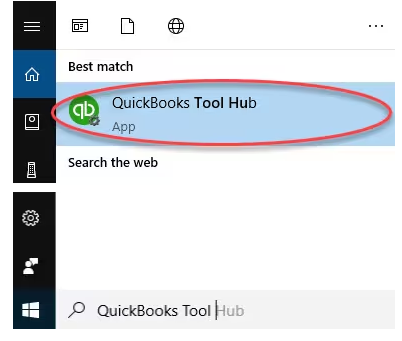
Hi, I’m Ann, and I’m currently handling payroll in QuickBooks Desktop for our small business. When I logged in today to finalize this week’s payroll, I noticed that a chunk of payroll data specifically for the last pay period is just missing. The employee hours, paycheck history, everything we entered last week seems to have vanished.
I didn’t run any updates or make major changes recently, so I’m honestly not sure what caused this. I’ve checked the payroll center, tried switching between date ranges, and even looked into recent backups, but nothing seems to bring the data back. It’s frustrating because our team relies on timely and accurate payments and now I’m worried about re-entering data manually and possibly duplicating entries.
I need to get this resolved quickly to avoid delays in processing. If something got corrupted or went missing due to a sync error or file issue, I need help recovering that data fast. Right now, I’m stuck and can’t move forward with payroll until this is sorted out.
Hey Ann,
Thank you for reaching out. I can imagine how worrying this must be for you. You opened QuickBooks Desktop to finish payroll, and suddenly the last pay period’s data, employee hours, paycheck history, everything is just gone. You’ve already done the right things by checking the Payroll Center, adjusting date ranges, and reviewing backups, but nothing has worked so far.
Payroll accuracy is essential, not just for keeping records in order, but to ensure your team gets paid on time. When that data suddenly goes missing, it can be stressful, especially since re-entering it manually can cause duplicate entries or other issues. And when payroll is delayed, employees are left waiting for their paychecks and business operations are disrupted.
The good news is, issues like this can often be fixed without starting from scratch. It may be due to file corruption, sync errors, or data damage, all of which have proven recovery steps. You’ve already done the first and most important thing, noticing the problem right away and avoiding making changes that could overwrite or complicate recovery.
From verifying and rebuilding your company file to restoring from a verified backup, we’ll go step-by-step so you can recover the missing information quickly, minimize downtime, and get payroll processing back on track smoothly.
Missing payroll data in QuickBooks Desktop can be alarming, but it usually happens due to a few common and fixable causes. In many cases, it’s linked to company file corruption, incomplete or failed data syncs, or accidental changes in payroll settings. Sometimes, outdated software versions or interrupted updates can cause recent payroll information to not display correctly.
When payroll data is missing in QuickBooks Desktop, you can restore it by checking direct deposit status, updating QuickBooks and tax tables, verifying and rebuilding your company file, and reviewing payroll transactions. You may also need to fix damaged components or resolve sync issues.These steps help recover your data and keep your payroll accurate and on schedule.
To ensure your employees’ payments are processed correctly, regularly check the status of their direct deposits. This step helps you quickly identify if any paychecks are delayed, pending, or failed, so you can address issues before they impact your team’s timely payments.
If a paycheck is missing or has been voided, restoring it promptly is essential to keep your payroll accurate and avoid payment delays. This process helps ensure your employees are paid correctly without causing duplicate payments or accounting discrepancies.
Note: Try sending a zero payroll to restore the paycheck if you use Assisted Payroll and you’re missing a paycheck.
The offset item is needed when you recreate missing or voided direct deposit paychecks that are sent to employees’ accounts. It is to zero out the net pay amount so that your employee doesn’t get paid again.
Missing direct deposit paychecks need to be recreated with zero net pay because the total amount should reflect in the direct deposit liability check. It’ll help balance your check register, and make sure your employees aren’t paid twice.
The direct deposit offset is a deduction item and will display in QuickBooks Desktop as a liability to be paid. You need to make a company adjustment to remove the deduction item amount from your liability balances.
You’ll send your payroll data to Intuit to sync.
Customizing the Payroll Detail Report allows you to closely review employee payroll transactions and identify any missing or incorrect data. This helps you spot discrepancies early and ensures your payroll records are complete and accurate.
Note: Customize the report as needed to review employee payroll transactions and identify any missing data or discrepancies.
Reviewing and verifying payroll transactions at regular intervals helps determine errors or omissions before they impact your employees’ pay. This step ensures that all hours, wages, and deductions are correctly recorded and processed.
Adding your employees’ prior paychecks info ensures your payroll records are complete and up-to-date, especially if any data was missing or lost. This helps maintain accurate year-to-date information and avoids payment discrepancies.
Verifying and rebuilding your company file helps identify and fix data corruption errors that could cause missing payroll information. Running these tools regularly keeps your QuickBooks file healthy and ensures accurate payroll processing.
Note: Contact the QuickBooks Support Team before you rebuild your data in case you use Assisted Payroll.
Note: Avoid replacing your existing company file and re-entering the info into your company file after the backup was created.
The QuickBooks Tool Hub helps to fix common errors. You’ll need to close QuickBooks to use the tool hub. For the best experience, we recommend you use Tool Hub on Windows 10, 64-bit.
Note: To find out which tool hub version you have, select the Home tab and the version will be on the bottom.

Note: If you are unable to find the icon, do a search in Windows for QuickBooks Tool Hub and select the program.
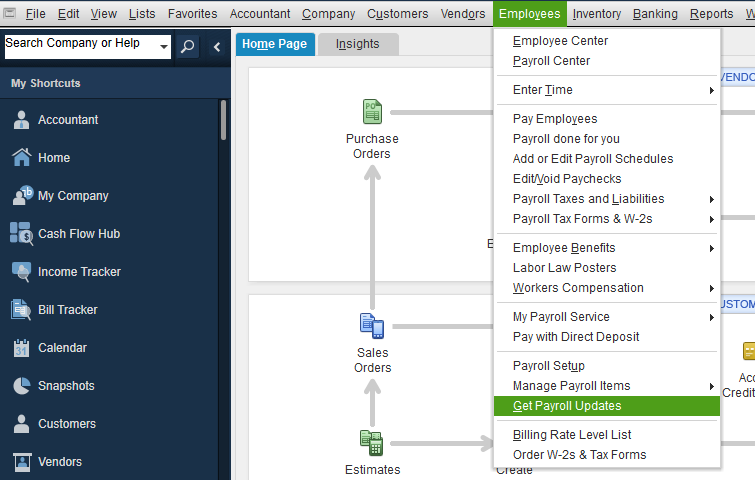
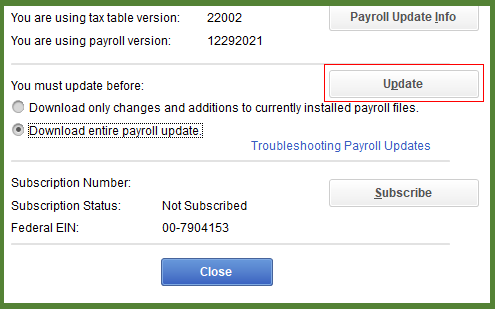
Keeping QuickBooks Desktop and your payroll tax table up to date ensures you have the latest tax rates and software improvements. Regular updates help prevent errors, improve system stability, and keep your payroll calculations accurate.
An outdated QuickBooks version doesn’t allow you to download the QuickBooks Payroll Updates. Here’s how you can update your software.
QuickBooks Desktop Payroll provides payroll updates to active subscribers. If your account shows as inactive or your tax service status needs validation, updating your software will restore access. These updates include the most current and accurate rates and calculations for supported state and federal tax tables, payroll tax forms, and e-file and pay options.
Note: The latest payroll update number is 22513 released on July 3, 2025.
To avoid missing payroll data problems in QuickBooks Desktop, keep your software and payroll updates current, review payroll reports after each run and follow these best practices to maintain accurate and secure payroll processing.
Ann, I understand how frustrating it can be to face missing payroll data, especially when accurate payroll is so crucial for your team and business. You’ve already done a great job identifying the problem and taking careful steps to avoid making things more complicated. That thoughtful approach will really help as you work through restoring your data.
To stay ahead of payroll problems, make it a priority to regularly back up your company file and keep both QuickBooks and payroll updated. After each payroll run, take a moment to verify the details, limit who can access payroll data, and frequently review payroll reports to catch any discrepancies early. Ignoring these steps can lead to errors like missing paychecks, incorrect tax filings, or delayed employee payments, which can disrupt your business operations and timely payroll processing.
If you experience issues like missing paycheck history, incorrect payroll tax calculations, or problems with direct deposit status, don’t worry. We’re here to help you recover your data and keep your payroll running smoothly.
QuickBooks typically retains your historical payroll data (including paychecks and tax filings) on its servers for a period of time, even after you cancel your QuickBooks Desktop payroll subscription. This is done for tax compliance and audit purposes. However, the exact retention period varies by service type and is subject to change. It is always recommended that the user print all year-end tax forms and save local backups of the company file, as the primary responsibility for record-keeping lies with the business owner.
Many QuickBooks payroll issues, including missing data, stem from incomplete or failed data transfers from third-party time-tracking or scheduling apps. If the connection fails mid-sync, the payroll data can be partially recorded, leading to missing hours or incomplete paychecks for a period. It is critical to verify the payroll summary report immediately after syncing third-party data and before processing payroll to catch these discrepancies.
You can review payroll configurations using Lists → Payroll Item List and Employees → Employee Center → Payroll Info.
QuickBooks recommends confirming that payroll items, pay schedules, tax tables, and employee defaults are still correctly assigned to employees, as these master records remain independent from individual paycheck data.
Yes. QuickBooks Desktop will still generate reports such as Payroll Summary, Payroll Item Detail, and Payroll Tax Liability. However, Intuit notes that reports may appear incomplete if a specific pay period’s data is missing, since reports pull only from existing paycheck records.
Yes, limiting user permissions is a key security measure. QuickBooks Desktop allows the administrator to restrict access to sensitive areas like payroll. By going to Company ➜ Set Up Users and Passwords ➜ Set Up Users, you can specifically prevent certain users from having the ability to create, modify, or delete paychecks and payroll items (including the ability to void a check). This prevents accidental data loss caused by non-payroll staff.


