Excerpt:
This article addresses the issue of tax setup errors in QuickBooks Desktop Enterprise Payroll after migrating from QuickBooks Online. It guides users in identifying and resolving tax discrepancies caused by mismapped accounts, outdated tax rates, or missing payroll components during migration. Key solutions include verifying tax settings, updating tax tables, using the Payroll Setup Interview, running data rebuild tools, and cross-checking migrated data—ensuring accurate payroll calculations, compliance, and smooth financial management.
 Add As A Preferred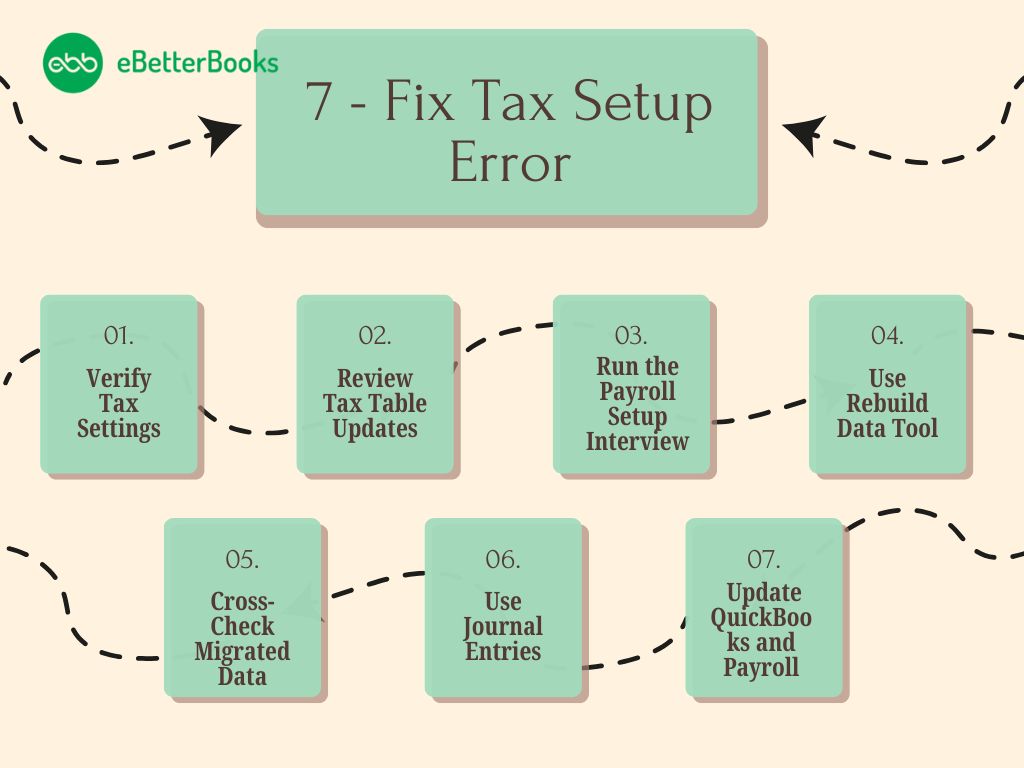
Tax setup errors in QuickBooks Desktop Enterprise Payroll occur when payroll tax attributes, liability mappings, and employee identifiers fail to align with the data structure used in QuickBooks Online. The migration process introduces structural differences in tax parameters, account assignments, and withholding logic, which must be validated to restore accurate payroll calculations.
QuickBooks Desktop Enterprise Payroll relies on a defined set of federal, state, and local tax attributes, a consistent liability framework, and a stable data file structure to accurately calculate employee deductions and employer liabilities.
This article reviews the causes of tax setup errors after migration and the steps to verify tax settings, confirm payroll item mappings, validate employee identifiers, rebuild corrupted company files, update tax tables, and cross-check migrated data. It outlines procedures to ensure tax accuracy, correct structural discrepancies, and maintain compliance, providing a complete overview for stable post-migration payroll operations.
Tax errors in QuickBooks Desktop Enterprise Payroll arise when migrated payroll data does not align with the system’s tax calculation structure, regulatory requirements, or payroll item configuration. Discrepancies may occur during data transfer or tax-attribute mapping, resulting in conflicts between imported values, Desktop-specific tax rules, jurisdiction formats, and account structures.
Accurate tax setup after migrating from QuickBooks Online to QuickBooks Desktop ensures correct withholding, liability alignment, and compliance. QuickBooks Desktop Enterprise Payroll resolves tax setup errors by validating migrated tax attributes, confirming employee identifiers, reviewing payroll item mappings, and updating tax tables.
Use the following methods to identify and fix tax setup errors:
Tax settings ensure that payroll calculations comply with federal, state, and local regulations. Misconfigured tax rates or employer identification numbers (EINs) can lead to incorrect deductions, affecting tax liability and employee compensation.
Below are the steps to validate tax settings:
Payroll tax tables contain critical updates on the latest tax rates, deductions, and withholding calculations.
The following steps ensure that tax tables are up to date, maintaining compliance with regulatory changes:
The Payroll Setup Interview is an automated tool that helps configure payroll tax details correctly after migration. Errors in tax IDs, filing statuses, or employee tax settings may create discrepancies in payroll processing.
Following these steps, one can ensure all missing details are identified correctly:
Corrupt data files interfere with tax calculations and payroll reporting, leading to errors in paycheck deductions and tax liabilities. The Rebuild Data Tool fixes internal file issues and restores missing components.
Follow the steps to run this tool to eliminate corruption and ensure accurate payroll data processing:
Ensuring consistency between QuickBooks Online and Desktop prevents payroll errors and incorrect tax deductions. Any mismatch in employee tax details can lead to calculation inaccuracies, requiring manual updates to maintain accuracy and compliance.
The following is a checklist to verify the accuracy:
Journal entries help reconcile financial records and align payroll tax liabilities.
Following these steps ensures payroll tax accuracy and seamless financial tracking:
Outdated versions of software lead to payroll processing errors, mismatches in tax calculations, and incompatibility with regulatory updates. Keeping QuickBooks and payroll services up-to-date prevents disruptions and avoids compliance issues.
Regular updates using the following steps help ensure payroll accuracy:
The following are the potential challenges encountered when configuring tax settings in QuickBooks, including data discrepancies, incorrect tax mappings, and system errors that affect payroll calculations and compliance:
Issues arise due to incorrect user permissions, corrupted company files, or incomplete setup procedures. If changes are not saving, the configuration may be missing essential data, causing the payroll setup to remain incomplete.
Severe file corruption, outdated software, or insufficient system resources trigger errors during the rebuild process. These issues prevent QuickBooks from restoring accurate payroll tax settings, leading to miscalculations.
QuickBooks Desktop Enterprise Payroll resolves tax setup errors by correcting migrated tax attributes, verifying payroll item mappings, and aligning employee identifiers with the system’s calculation framework. These steps restore structural accuracy, apply current tax tables, and reestablish precise withholding and liability reporting.
Ensuring that admin permissions are correctly configured prevents QuickBooks from restricting payroll modifications. Verifying and rebuilding the company file removes corruption that may block setup changes.
The following steps help resolve these issues effectively:
Backing up company files protects critical payroll data from loss during the rebuild process. Creating a local backup ensures that any corrupted entries can be restored without disrupting ongoing financial records.
The following steps help maintain data integrity and resolve rebuild errors:
Post-migration checklist ensures that tax attributes, employee identifiers, payroll items, and updated tax tables in QuickBooks Desktop Enterprise Payroll align with the system framework to maintain accurate withholding and compliant reporting.
| Task | Description |
| Verify company EIN | Ensure the EIN matches what was used in QuickBooks Online |
| Confirm employee SSNs | Double-check SSNs and personal info accuracy |
| Validate the federal and state tax setup | Match all tax types, rates, and jurisdictions |
| Update the payroll tax table | Ensure the latest tax rates are downloaded |
| Complete payroll setup interview | Walk through the entire interview in QBDT |
| Rebuild and verify company data | Repair and confirm that no corruption exists |
| Reassign liability and expense accounts | Map payroll items to correct accounts |
| Compare reports (QBO vs QBDT) | Validate year-to-date figures and liabilities |
| Run test payroll or preview | Confirm accurate calculations before live payroll |
Accurate tax setup in QuickBooks Desktop Enterprise Payroll depends on a validated alignment between migrated tax attributes, employee identifiers, payroll items, and account assignments. The verification of these elements removes the structural discrepancies introduced during the transfer from QuickBooks Online and restores correct withholding, liability mapping, and jurisdictional configuration.
Rebuilding and verifying utilities remove damaged company file components to maintain corruption-free calculation frameworks, while updating payroll tax tables ensures the latest federal, state, and local thresholds to maintain compliance and prevent outdated tax rates usage. These steps establish a stable post-migration payroll environment that supports precise calculations, consistent reporting, and long-term reliability across all payroll operations.
Tax setup errors occur when payroll tax attributes, liability mappings, or employee tax identifiers differ between the Online and Desktop systems.
When you switch to QuickBooks Online, your company file data is converted, but certain features like custom reports or payroll setup require manual adjustments.
Use the QuickBooks Tool Hub to run the Installation Issues tool and follow prompts to resolve common installation problems.
Update QuickBooks and payroll tax tables, verify data integrity, and rerun payroll setup to fix most payroll-related errors.
No, QuickBooks Online Payroll is not compatible with QuickBooks Desktop; each version requires its own payroll service.
Employee identifiers, withholding attributes, state unemployment rates, payroll item mappings, and year-to-date tax balances require manual review.
A tax table update is required to replace outdated wage bases, jurisdictional rates, and regulatory thresholds with current values for compliant payroll calculations.


