+1-802-778-9005
Home>>QuickBooks Desktop Errors & Their Support How to Fix QuickBooks Error Code 1406 (An Installation Issue)?

Quickbook is an essential software that helps many business users to manage their finances, payroll, invoices or other compliances easily.  However, a few installation errors such as Quickbook error 1406 disrupts the workflow.

QuickBooks Error Code 1406 typically arises when a third-party program running in the background conflicts with the installation process, or when QuickBooks cannot write information to the Windows Registry due to permission restrictions or system conflicts.

Because it is central to day-to-day operations, any installation issue can cause serious disruption. One such issue is QuickBooks Error Code 1406, an installation error that typically appears with the message:

“Error 1406: QuickBooks installer cannot write to the registry key.”
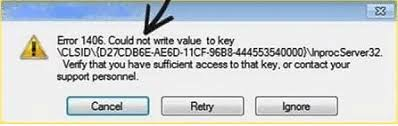
Error 1406 QuickBooks installer cannot write to the registry key

This error message signals that QuickBooks is unable to access or modify critical system files or registry entries during installation. It often arises due to permission restrictions, conflicts with third-party programs, outdated Windows components, or interference from antivirus/security software.

Causes of QuickBooks Install Error 1406

  • Insufficient registry permissions for system or administrator groups.
  • Antivirus or security software blocking QuickBooks installation files.
  • Outdated Windows operating system or missing updates.
  • Corrupted or incomplete QuickBooks installation files.
  • Conflicts with Microsoft Office data files (data.dat or opa12.dat).
  • Third-party applications interfering during installation.
  • Damaged system configuration or recent changes in system settings.

Symptoms of QuickBooks Install Error 1406

  • QuickBooks installation fails midway with Error Code 1406 displayed.
  • The system freezes or slows down during installation.
  • The QuickBooks application does not launch after the installation attempt.
  • Error message referencing registry access denial or file permission issues.
  • Repeated installation failures even after multiple attempts.
  • Windows event logs showing QuickBooks-related installation errors.

Preventive Measures

  • Always run QuickBooks installation as Administrator.
  • Keep Windows OS updated with the latest patches.
  • Temporarily disable antivirus/firewall during installation.
  • Use QuickBooks Install Diagnostic Tool before reinstalling.
  • Perform installation in Selective Startup Mode to avoid third-party conflicts.
  • Regularly back up registry and system restore points before major installations.
  • Ensure Microsoft Office files (data.dat, opa12.dat) have proper permissions.

Prerequisites Before Troubleshooting

  • System Access: Ensure you have administrator rights.
  • Backup: Create a system restore point and backup registry settings.
  • Internet Connection: Stable connection to download QuickBooks Tool Hub and updates.
  • QuickBooks Installer: Latest version downloaded from Intuit’s official site.
  • Windows Updates: Verify system is updated before attempting fixes.
  • Antivirus Control: Ability to disable or configure antivirus/firewall temporarily.
  • Microsoft Office Setup: Confirm Office files are accessible if permissions need adjustment.

Quick Overview of Troubleshooting Steps

LevelMethodPurposeDetailed StepsEstimated TimeRisk Level
BeginnerDisable Antivirus SoftwarePrevents security software from blocking QuickBooks installation.1. Right-click the antivirus icon in the taskbar.2. Select Turn off/Disable protection.3. Restart computer.4. Launch QuickBooks again.5–10 minutesLow – temporary change, easily reversible.
Install Latest Windows UpdatesEnsures compatibility and fixes missing system components.1. Open Start menu → type Update.2. Select Windows Update → Check for Updates.3. Download/install updates.4. Restart system.20–40 minutesLow – standard system maintenance.
IntermediateRun QuickBooks Install Diagnostic ToolDetects and repairs installation-related issues automatically.1. Download QuickBooks Tool Hub.2. Install and open Tool Hub.3. Go to Installation Issues → QuickBooks Install Diagnostic Tool.4. Run scan.5. Restart system.15–25 minutesLow – automated tool, minimal risk.
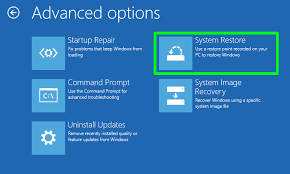
System RestoreReverts system settings to a point before the error occurred.1. Go to Start → Programs → System Tools → System Restore.2. Select restore point prior to error.3. Confirm and restart the system automatically.30–60 minutesMedium – changes system state, may affect recent files/settings.
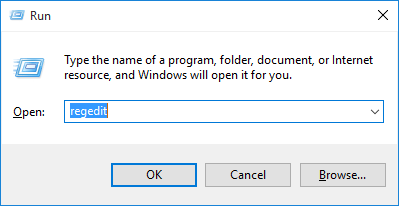
AdvancedRepair Windows RegistryFixes registry permission issues blocking installation.1. Press Win + R, type regedit, press Enter.2. Navigate to: HKEY_LOCAL_MACHINE\SYSTEM\CurrentControlSet\services\iaSTOR.3. Ensure the Administrators group has Full Control.15–30 minutesHigh – incorrect edits can destabilize the system.
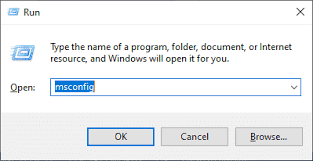
Clean Install in Selective Startup ModePrevents third-party apps from interfering with installation.Step 1: Switch to Selective Startup- Press Win + R, type msconfig, hit OK.- Select Selective Startup.- Hide all Microsoft services, disable others, enable Windows Installer.- Restart system.Step 2: Clean Install QuickBooks- Uninstall QuickBooks.- Download the latest installer.- Reinstall QuickBooks.Step 3: Return to Normal Startup- Open msconfig again.- Select Normal Startup.- Restart system.45–90 minutesMedium – requires uninstall/reinstall, but reversible.
Permit Permissions for data.dat File (Office Users Only)Fixes conflicts with Microsoft Office files interfering with QuickBooks.1. Open Windows Explorer (Win + E).2. Enable Show hidden files/folders.3. Navigate to: C:/users/all users/Microsoft/Office/data.4. Right-click opa12.dat (Office 2007) or data.dat (Office 2003).5. Go to Properties → Security → Advanced → Permissions.6. Edit entries to grant Full Control.20–30 minutesMedium – changes file permissions, limited scope.

Detailed Explanation for Troubleshooting Steps

Beginner-Level Fixes (Fast Checks)

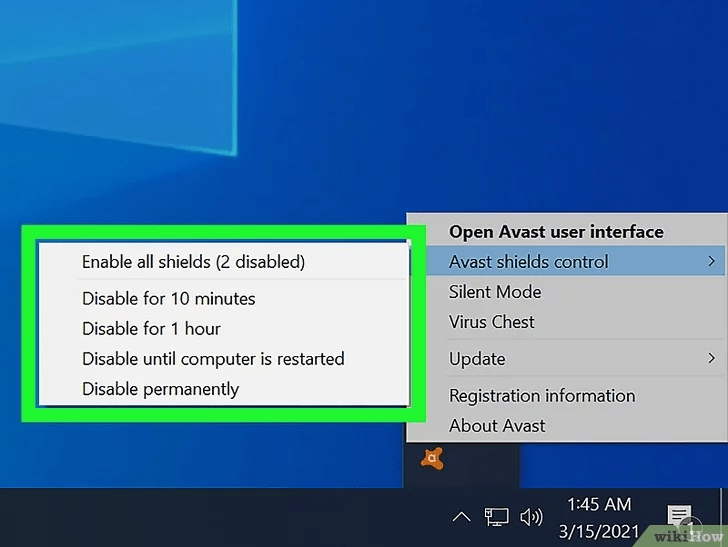
Method 1: Disable Antivirus Software

  • Purpose: Security software often blocks QuickBooks installation files.
  • Steps:
    1. Right-click the antivirus icon in the taskbar.
    2. Select Turn off/Disable protection.
    3. Restart your computer.
    4. Launch QuickBooks again.
Disable Antivirus Software
  • Estimated Time: 5–10 minutes
  • Verification Point: QuickBooks installs without interruption.

Method 2: Install Latest Windows Updates

  • Purpose: Outdated Windows components can cause compatibility issues.
  • Steps:
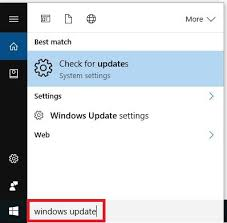
    1. Open Start menu → type Update.
    2. Select Windows UpdateCheck for Updates.
Windows Update → Check for Updates
  1. Download and install all critical updates.
  2. Restart your system.
  • Estimated Time: 20–40 minutes (depending on update size)
  • Verification Point: QuickBooks launches after updates.

Intermediate-Level Fixes (System Adjustments)

Method 3: Run QuickBooks Install Diagnostic Tool

  • Purpose: Automatically detects and repairs installation-related issues.
  • Steps:
    1. Download QuickBooks Tool Hub from Intuit’s official site.
    2. Install and open the Tool Hub.
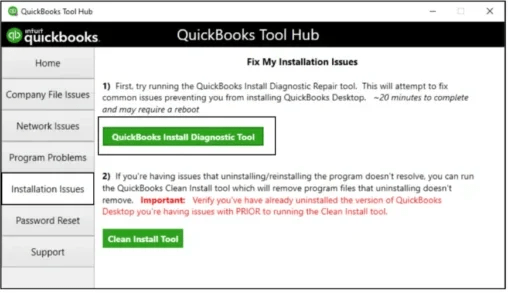
    3. Navigate to Installation IssuesQuickBooks Install Diagnostic Tool.
Installation Issues → QuickBooks Install Diagnostic Tool
  1. Allow the scan to complete.
  2. Restart your system.
  • Estimated Time: 15–25 minutes
  • Verification Point: QuickBooks installs successfully after reboot.

Method 4: Restore Your System

  • Purpose: Reverts system settings to a point before the error occurred.
  • Steps:
    1. Go to Start Menu → Programs → System Tools → System Restore
Start Menu → Programs → System Tools → System Restore
  1. Select a restore point prior to the error occurrence.
  2. Confirm and let the system restart automatically.
  • Estimated Time: 30–60 minutes
  • Verification Point: Verify QuickBooks installation after system restore.

Advanced-Level Fixes (Deep System Changes)

Method 5: Repair Windows Registry

  • Purpose: Incorrect registry permissions can block QuickBooks installation.
  • Steps:
    1. Press Win + R, type regedit, and press Enter.
Press Win + R, type regedit, and press Enter

Navigate to:

  1. HKEY_LOCAL_MACHINE\SYSTEM\CurrentControlSet\services\iaSTOR
  2. Ensure Administrators group has Full Control permissions.
  • Estimated Time: 15–30 minutes
  • Verification Point: Retry QuickBooks installation and confirm no error appears.

Method 6: Clean Install in Selective Startup Mode

  • Purpose: Prevents third-party applications from interfering with installation.
  • Steps:
    • Step 1: Switch to Selective Startup
      1. Press Win + R, type msconfig, and hit OK.
Press Win + R, type msconfig, and hit OK
  1. Under the General tab, select Selective Startup.
  2. Hide all Microsoft services, disable others, and enable Windows Installer.
  3. Restart your system.
  • Step 2: Clean Install QuickBooks
    1. Uninstall QuickBooks.
    2. Download the latest installer from Intuit.
    3. Reinstall QuickBooks in Selective Startup mode.
  • Step 3: Return to Normal Startup
    1. Open msconfig again.
    2. Select Normal Startup.
    3. Restart your system.
  • Estimated Time: 45–90 minutes
  • Verification Point: Confirm QuickBooks runs without installation errors.

Method 7: Permit Permissions for data.dat File (Office Users Only)

  • Purpose: Microsoft Office files can interfere with QuickBooks installation.
  • Steps:
    1. Open Windows Explorer (Win + E).
    2. Enable Show hidden files and folders.

Navigate to:

  1. C:/users/all users/Microsoft/Office/data
  2. Right-click opa12.dat (Office 2007) or data.dat (Office 2003).
  3. Go to Properties → Security → Advanced → Permissions.
  4. Edit entries to grant Full Control.
  • Estimated Time: 20–30 minutes
  • Verification Point: Retry QuickBooks installation after permission changes.

Checklist

  • Disable antivirus and retry installation.
  • Update Windows fully. 
  • Run QuickBooks Install Diagnostic Tool.
  • Attempt System Restore if recent changes caused the issue.
  • Repair registry permissions.
  • Perform clean install in Selective Startup mode.
  • Adjust Office file permissions if applicable.

Conclusion:

QuickBooks Error 1406 is an installation issue that occurs when the software cannot write to the Windows Registry or required files due to permission restrictions, antivirus interference, or outdated system components. The error message signals blocked access, preventing QuickBooks from completing setup.

By following all the troubleshooting steps and taking necessary preventive actions businesses can minimise the occurrence or recurrence of these errors.  This ensures that QuickBooks runs smoothly, avoiding downtime and maintaining uninterrupted financial management.