Excerpt:
QuickBooks Error 1328 can disrupt your update, installation, or repair processes due to corrupt files or system issues. This article provides actionable solutions, such as renaming configuration files, using the QuickBooks Install Diagnostic Tool, and performing a clean reinstall, ensuring a smooth resolution for your QuickBooks application. These steps will help restore functionality and resolve the error, enabling uninterrupted accounting tasks.
 Add As A Preferred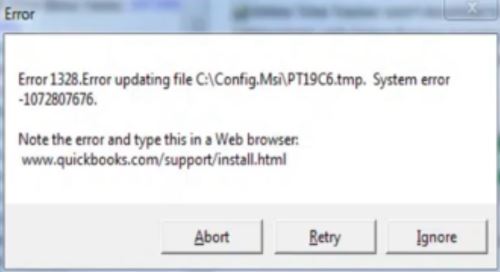
Fix QuickBooks Error 1328 by:
QuickBooks Error 1328 appears with a message stating: “Error 1328. Error updating file [file name]. GetLastError: 0.” This specific error occurs during the installation, update, or repair process of QuickBooks Desktop. The error fires when the Windows Installer attempts to update a specific file on the computer’s hard drive but cannot write to that file.
The error message indicates that a file required for the installation or update exists on the computer but is in a state that prevents the installer from changing it. This usually means the file is locked by another process, the user does not have permission to change the file, or the file is damaged. The installer stops immediately because it cannot safely continue without overwriting or modifying this specific file.
Error 1328 appears specifically when updating QuickBooks to a new release, installing a newer version over an old one, or repairing an existing installation. It fires when the configuration file on the computer does not match the configuration the installer expects to find. It also occurs when antivirus software treats the installer’s attempt to modify a file as a security threat and blocks the action.
The QuickBooks installer follows a strict sequence of checking the system, backing up files, and then copying new files. Error 1328 fires in the file-copying phase. This happens when the installer tries to place a new version of a file on top of an old one but the action fails.
Error 1328 is different from Error 1712, which fires during the preparation or rollback phase because backup files are missing. Error 1328 happens later in the process when the actual file update is taking place. Error 1712 is about the installer’s inability to prepare the environment, whereas Error 1328 is about the installer’s inability to write a specific file to the hard drive.
Error 1334 fires when a file required for installation is completely missing from the installation source. Error 1328 fires when the file is present but cannot be updated. Error 1402 fires when the installer cannot write to the Windows Registry database. Error 1328 focuses specifically on the program files stored on the hard drive, not the registry keys.
A common cause for Error 1328 is a conflict between the new installer and an existing QuickBooks file that is “in use.” If a QuickBooks process is running silently in the background, it holds specific files open. The installer tries to update these open files, fails because they are locked, and displays Error 1328.
Error Message Variants (as they appear to users)
When QuickBooks Error 1328 occurs (during install, uninstall, update, or repair of QuickBooks Desktop), users typically see one of these messages:
Real user reports on Intuit’s own Community forum confirm this pattern: “Error 1328. Error updating file C:\Config.MS\PTFCAD.tmp. System error -1072807676,” which gives the option to Abort, and that Error 1328 might indicate underlying concerns with the update or installation files.This error is triggered when the installation files are corrupt or incomplete, which can occur due to a failed download or issues during the installation process.
The most important diagnostic step is noting exactly when the error appears during the installation bar. An error appearing at the very beginning of the file copy phase suggests a permission issue or an active file lock. An error appearing late in the process suggests a corrupted specific file or antivirus interference.
An error that appears immediately after downloading a new update suggests the download itself might be damaged or the internet connection interrupted the file download. An error appearing during a repair installation suggests the existing files on the computer are too damaged for the repair tool to fix.
| When Error 1328 Appears | Why This Is Happening | Recommended First Action |
| Error 1328 on the very first screen of installation | The installer cannot write to the hard drive folder due to lack of Administrator permissions or folder access rights. | Right-click the QuickBooks installer and select “Run as Administrator.” |
| Error 1328 appears immediately after clicking “Update” inside QuickBooks | A QuickBooks process is still running in the background and is holding a file lock open. | Restart the computer and ensure QuickBooks is closed before running the update. |
| Error 1328 appears at the same percentage point every time | A specific file is corrupted or locked by antivirus software at that exact moment in the sequence. | Temporarily disable antivirus software and run the QuickBooks Install Diagnostic Tool. |
| Error 1328 after a previous installation failed | Corrupted files left behind from the failed attempt are blocking the new installer. | Perform a clean install by renaming the QuickBooks folder and installing fresh. |
| Error 1328 only on a specific computer in a network | The security settings or antivirus settings on that specific computer are stricter than others. | Check local antivirus logs and add QuickBooks as an exception, then run as Administrator. |
| Error 1328 after a Windows Update | The Windows update changed file permissions or system files that the QuickBooks installer relies on. | Run the QuickBooks Install Diagnostic Tool to repair the Microsoft components. |
File locking is a Windows feature that prevents two different programs from changing the same file at the same time. When QuickBooks runs, it opens specific files and “locks” them so that no other program can change them while QuickBooks is using them.
This protects data integrity. If the installer tries to update a locked file, Windows refuses the request. The installer then fails and throws Error 1328 because it cannot gain the necessary access to the file to perform the update.
Administrator permissions are the highest level of access in Windows. A user with Administrator rights can change system files, install programs, and modify settings that affect the entire computer. Standard users have limited rights and cannot change files in protected folders like “Program Files.” The QuickBooks installer needs to write files to these protected folders. Without Administrator permissions, Windows blocks the installer to protect the system, resulting in Error 1328.
Real-time scanning is a feature of antivirus software that checks every file the moment it is created, modified, or opened. When the QuickBooks installer tries to modify a file, the antivirus steps in to scan the action. Sometimes the antivirus mistakes this valid modification for a virus attack and blocks it. This blockage stops the installer in its tracks, causing Error 1328 because the file write operation was forcefully stopped by security software.
Solutions are arranged from the safest and fastest first action to the most involved repair. Start with Level 1 – restarting the computer and using automated tools. Move to Level 2 only after confirming Level 1 did not clear the error.
| Level 1 – Restart, Close Background Processes, and Run Tool Hub |
These solutions carry no risk to QuickBooks data. They address the most common causes of Error 1328 – active background processes holding files open and minor component conflicts – using automated tools.
| Skill Level | Risk Level | Success Probability | Approximate Time |
|---|---|---|---|
| Beginner | None | High when Error 1328 fires due to a file lock | 5 minutes |
| Risk ExplanationRestarting the computer and closing processes through Task Manager does not delete any files or change data. It simply stops programs that are running. This is a safe action that prepares the computer for a fresh installation attempt. | Solution ExplanationActive QuickBooks processes lock files so they cannot be changed. The installer needs these files to be unlocked to update them. Restarting forces all programs to close and release their locks on files. Manually ending tasks ensures no hidden QuickBooks process remains to block the installer. | ||
Steps to Implement Solution 1.1:
| Skill Level | Risk Level | Success Probability | Approximate Time |
|---|---|---|---|
| Beginner | None | High – these tools repair the components that manage file installation | 25–30 minutes |
| Risk ExplanationQuick Fix My Program and the Install Diagnostic Tool only repair program files and system components. They do not access or modify company financial data. Using these tools poses no risk to accounting records. | Solution ExplanationQuick Fix My Program stops background processes and resets the QuickBooks configuration. The Install Diagnostic Tool repairs the Microsoft .NET Framework and MSXML components. These components are essential for the installer to read and write files correctly. Repairing them often resolves Error 1328 caused by system corruption. | ||
Steps to Implement Solution 1.2:
| Level 2 – Adjust Permissions, Disable Antivirus, and Clean Install |
Use these solutions after Level 1 did not resolve Error 1328. These address deeper confirmed causes: lack of Windows permissions, antivirus interference, and corrupted existing files that require a clean replacement.
| Skill Level | Risk Level | Success Probability | Approximate Time |
|---|---|---|---|
| Beginner | None | High – resolves permission-based failures immediately | 5 minutes |
| Risk ExplanationRunning the installer as an Administrator grants it the necessary permissions to modify system files. This does not change the security settings of the computer permanently; it only elevates the rights for this specific installation task. | Solution ExplanationWindows blocks the installer if the current user account does not have permission to write to the QuickBooks program folder. Running as Administrator bypasses this block. It tells Windows to treat the installer as a trusted system operation, allowing it to update files that standard users cannot touch. | ||
Steps to Implement Solution 2.1:
| Skill Level | Risk Level | Success Probability | Approximate Time |
|---|---|---|---|
| Intermediate | Low – risk increases only if internet is used during this time | High – stops security software from blocking file writes | 10 minutes |
| Risk ExplanationDisabling antivirus leaves the computer vulnerable to threats for a short period. Only disable it for the duration of the installation. Disconnect from the internet if possible while the antivirus is off to minimize risk. | Solution ExplanationSolution Explanation: Antivirus software monitors every file change. It often blocks the QuickBooks installer because it mistakes the rapid file changes for malicious behavior. Disabling the antivirus removes this blockade, allowing the installer to update files without interruption. | ||
Steps to Implement Solution 2.2:
| Skill Level | Risk Level | Success Probability | Approximate Time |
|---|---|---|---|
| Intermediate | Low – company data is safe if folders are renamed, not deleted | Very high – removes all corrupted files and conflicts | 60–90 minutes |
| Risk ExplanationA clean install involves uninstalling QuickBooks and removing leftover folders. This does not delete company files (those with .qbw or .qbb extensions) if they are stored in a separate location. Renaming folders instead of deleting them provides a safety net. | Solution ExplanationA clean install removes all corrupted program files and configurations that might be causing Error 1328. Selective Startup prevents other background programs from interfering. This gives QuickBooks a completely fresh environment to install in, free of old errors and third-party conflicts. | ||
Steps to Implement Solution 2.3:
Contact Intuit QuickBooks Support in the following situations. These require investigation beyond standard computer-side repairs.
Error 1328 Returns After a Clean Install in Selective Startup: A clean install removes all possible corrupted files and conflicts. If Error 1328 still appears after a clean install with no antivirus and in Selective Startup, the issue may be a deep fault with the Windows operating system itself or the hard drive.
Error 1328 References a Specific Corrupted System File: If the error message names a specific Windows system file (like a .dll file) rather than a QuickBooks file, the Windows operating system may be damaged. This requires Windows repair tools rather than QuickBooks tools.
Multiple Installation Errors Appear Simultaneously: If Error 1328 appears alongside Error 1334, Error 1712, or Error 1603, the installation environment is severely compromised. This combination of errors suggests widespread corruption that requires professional data recovery and system repair.
Preventing QuickBooks Error 1328 requires four consistent habits:
Standard user accounts are great for daily security but they often block installation tasks. Making it a habit to right-click and select “Run as Administrator” for every QuickBooks update or installation ensures the installer always has the authority it needs to modify files. This simple step prevents the vast majority of permission-based Error 1328 instances.
Most antivirus programs allow users to create “exceptions” or “exclusions.” Adding the QuickBooks installation folder and the QuickBooks.exe file to this exclusion list tells the antivirus that these files are safe. This prevents the antivirus from interfering with future updates and stops Error 1328 caused by security blocks.
Windows updates often include fixes for the .NET Framework and the Windows Installer service. These are the tools QuickBooks uses to update itself. Keeping Windows updated ensures that the underlying tools QuickBooks relies on are in perfect working order, reducing the chance of an installation failure.
Fix QuickBooks Error 1328 by:
The confirmed causes are: active QuickBooks background processes holding installation files open which prevents updates, damaged Microsoft components like .NET Framework that fail to process file updates correctly, lack of Administrator permissions which stops Windows from allowing file overwrites, antivirus software interference which mistakenly blocks valid file modifications, and corrupted existing configuration files that cause the update logic to fail.
Preventing Error 1328 requires: always running the QuickBooks installer as an Administrator so Windows never withholds the permissions the installer needs to write files, configuring antivirus software to trust QuickBooks so real-time scanning does not block installation operations, closing all QuickBooks programs completely before installing updates to ensure no files are locked during the process, and restarting the computer before installing major updates to clear the system memory and release hidden file locks. These habits address every confirmed recurring cause before a permission denial, a security block, or a file lock can stop a QuickBooks installation from completing.


