 Add As A Preferred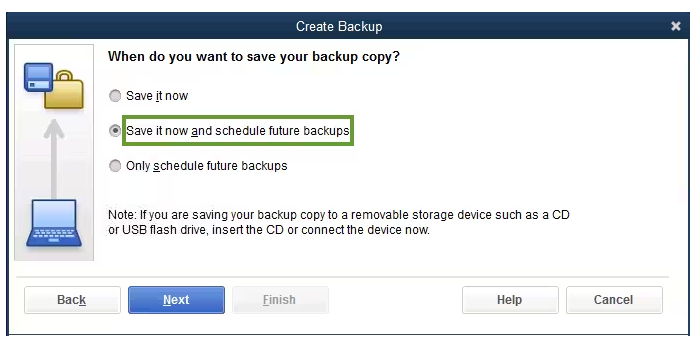
I’m Derek McParlane, and I’ve recently started managing a second business entity. I’m using QuickBooks Desktop both Premier and Enterprise editions and I’ve hit a frustrating wall. I need to copy over all my vendor and customer lists from one company file to the new one I just set up. Seems like something QuickBooks should handle easily, but it’s not going smoothly at all.
“I initially thought I could just export the lists from the old file and import them into the new one. But either the formatting goes wrong, or the system throws errors about missing fields or incompatible data. I tried using the ‘Utilities’ > ‘Export Lists to IIF Files’ feature, but once I attempted to import the IIF file into the new business file, some vendors didn’t show up, and a few customer names got jumbled or skipped.
What’s worse is that I have several custom fields in the vendor and customer profiles like specific terms, tax IDs, and internal notes and those aren’t transferring at all. I’m now stuck manually rebuilding these profiles one-by-one, which is taking forever and opens the door for human error. For someone trying to get the second company off the ground efficiently, this is a major bottleneck.
QuickBooks should offer a cleaner, foolproof way to migrate customer and vendor data between company files especially since I’m using two of their more advanced desktop products. I really need expert guidance to get this done properly without data loss or rework.
Hi Derek McParlane,
Thanks for sharing your situation and it’s completely understandable to feel stuck. You’re in the process of setting up a second business in QuickBooks Desktop (Premier and Enterprise), but transferring your customer and vendor lists from your existing company file to the new one isn’t going as expected. If you’ve already reviewed the complete QuickBooks error codes list, you might have noticed that data import issues like these are quite common.
You’ve already taken the right steps by using QuickBooks’ built-in Utilities > Export Lists to IIF Files feature and then trying to import them into the new company file. But still you’re facing issues like missing vendors, jumbled customer names, and important custom fields like tax IDs, terms, and internal notes aren’t transferring at all. These kinds of problems make it hard to maintain accurate records, especially when you’re trying to launch a second business efficiently and need everything to be accurate from day one.
Right now, this issue is more than just a technical glitch. It’s not just about data entry, it’s about slowing you down, increasing the risk of manual errors, and making it harder to manage consistent records across two business entities. What you need now is a reliable, streamlined method to move your customer and vendor lists with all their details intact without rework or system errors.
The good news? You don’t have to rebuild everything manually. There are better tools and smarter steps available to help you do this smoothly.
Import failures in QuickBooks Desktop usually happen due to missing required fields, unsupported custom fields, incorrect formatting, or duplicate entries. The IIF import tool does not support all data types, especially custom fields like tax IDs or terms. Even small errors in column alignment or field names can cause records to be skipped or imported incorrectly. For deeper troubleshooting, referring to a QuickBooks company file errors guide can help identify underlying file or data structure issues.
QuickBooks Desktop lets you import a variety of data using IIF files, but with specific limitations. Here are the lists and transactions you can or can’t import:
Importing customer and vendor lists into a new company file can be tricky, especially when dealing with IIF formats and custom data fields. This troubleshooting guide outlines proven methods to help you resolve common import issues in QuickBooks Desktop Premier and Enterprise whether they’re caused by missing fields, mapping errors, encoding problems, or formatting conflicts. Follow each step closely to ensure a clean, accurate, and complete transfer of your list data.
Backup company files save everything currently in your company file. This includes your accounting data, templates, letters, logos, images, and related files (QuickBooks Statement Writer, Cash Flow Projector, Business Planner, and Loan Manager).
There are two ways to back up your data. You can either back up your data automatically or do them manually.
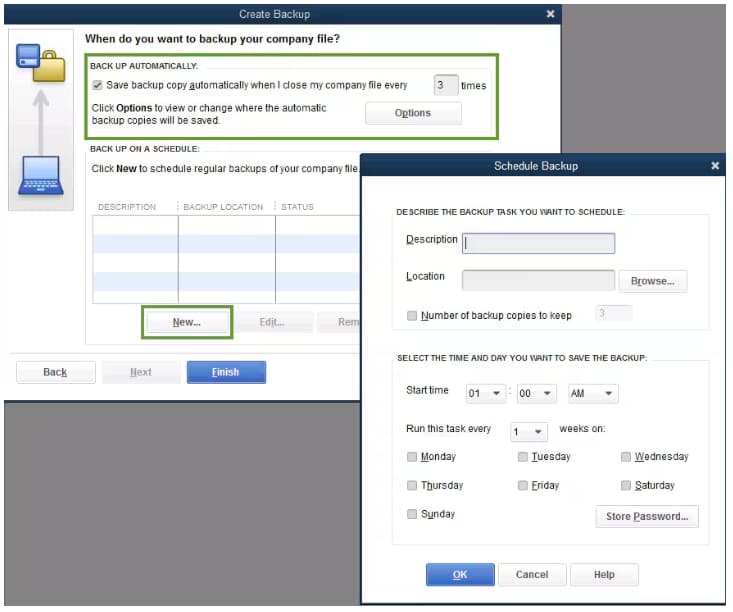
Instead of manually backing up your company file, allow QuickBooks to do it automatically.
Tip: No need to pencil it in on your calendar. Use the options in the Online and Local Backup section to set backup reminders.
QuickBooks creates a backup and schedules your future backups at the same time. When done, you’re notified with a confirmation message.
If you prefer, you can back up your company files yourself anytime.
Tip: No need to pencil it in on your calendar. Use the options in the Online and Local Backup section to set backup reminders.
QuickBooks creates a single backup company file. When it’s done, you’re notified with a confirmation message.
Use the IIF feature to export lists, make batch edits in Excel, and re-import them into QuickBooks Desktop. This helps manage or correct large volumes of data quickly, especially for custom fields or account details.
Note: If you’re in Multi-user mode, click the File menu, and select Switch to Single-user Mode.
Important: Back up your company file before you import IIF files. If you ever run into problems, you can use your backup to restore your data.
Note: If you’re in Multi-user mode, move to the File menu, and choose Switch to Single-user Mode.
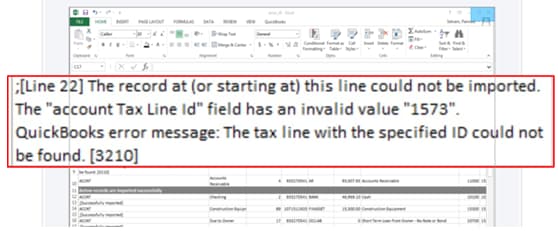
When you encounter the error “File not imported”, use QuickBooks’ IIF Import Kit or built-in error logs to identify formatting or data issues in your IIF file such as missing headers, incorrect account names, invalid dates, or improperly mapped fields. Always review the import summary for error messages, and cross-check your data structure against the IIF sample templates to ensure accuracy before re-importing.
Note: Intuit doesn’t offer assisted technical support for creating or importing IIF files.
Use the Verify and Rebuild Data tool in QuickBooks Desktop to detect and repair data integrity issues that might block IIF imports. This ensures your company file is free from corruption or structural errors before importing.
Note: Contact the QuickBooks Support Team before you rebuild your data in case you use Assisted Payroll.
Note: Avoid replacing your existing company file and re-entering the info into your company file after the backup was created.
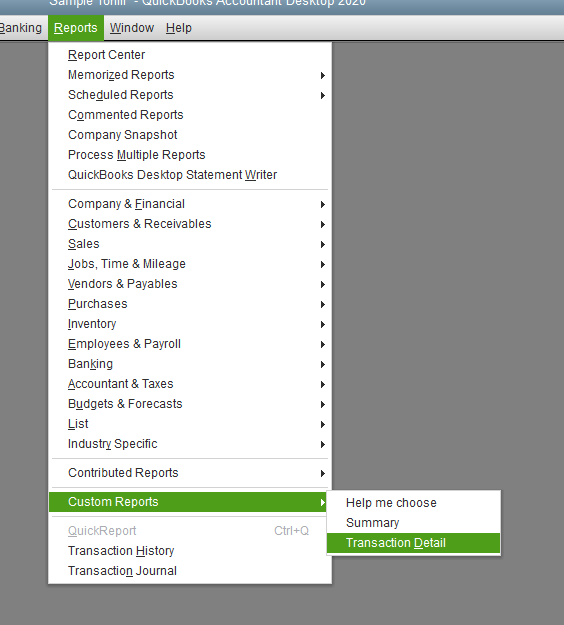
After importing, run a Transaction Detail Report and customize the columns to include your custom fields. This helps ensure that the data was correctly mapped and imported into the right fields.
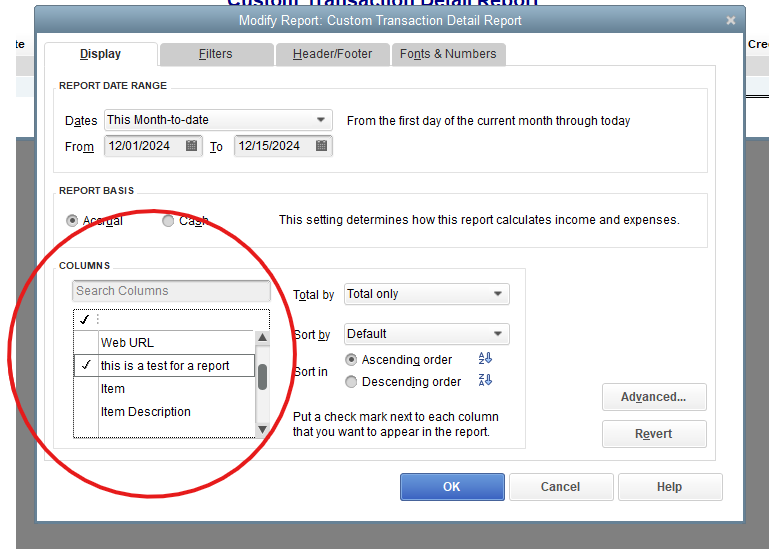
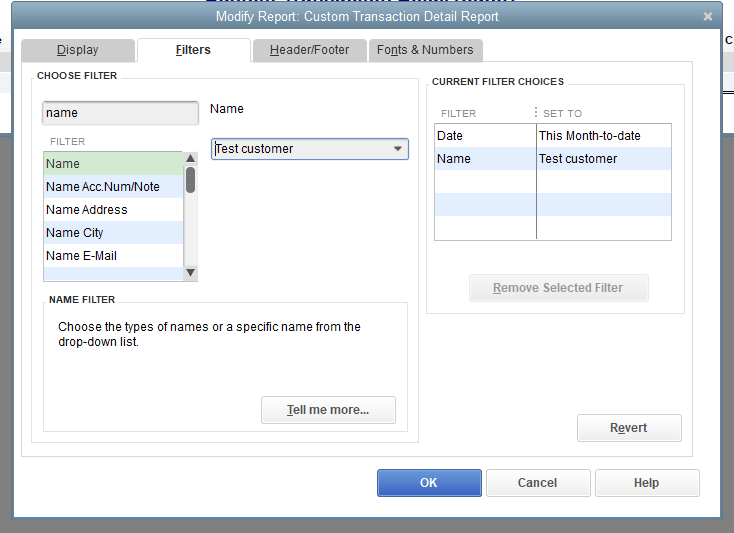
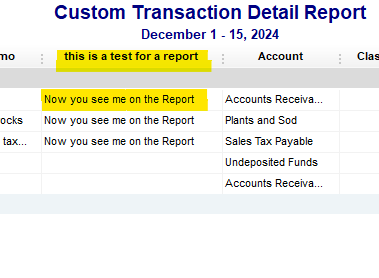
To avoid future customer and vendor list import errors in QuickBooks Desktop Premier and Enterprise, always use the latest IIF import templates provided by Intuit and ensure your data structure including headers and formatting aligns perfectly with QuickBooks standards. Even a small mismatch in column headers or missing required fields can cause the import to fail.
Related: QuickBooks Errors
If you’re unable to copy customer and vendor lists to a new company file, the following related issues may also be impacting your QuickBooks Desktop:
| Error | Description |
|---|---|
| Fix negative balances in QuickBooks Desktop | Data inconsistencies or incorrect entries can create negative balances, affecting list transfers and financial accuracy |
| Fail to remove or delete payment from the Make Deposits window | Occurs when transactions are locked or linked, preventing deletion or modification |
| QuickBooks Desktop Error Code 6147 | Triggered due to damaged company files or incorrect file paths, restricting access and data migration |
Derek, I completely understand how frustrating it can be when your customer and vendor list import doesn’t go as planned even after carefully preparing your data. The good news is, you’ve already taken the right steps by identifying IIF files errors, reviewing custom field mappings, and using built-in tools like the Verify and Rebuild Data utility. That reflects your focus and commitment to getting things right.
To keep things moving smoothly, continue using clean, well-formatted import files, double-check your headers for accuracy, and always test with a smaller dataset before full imports. Backing up your company file regularly also gives you a safety net in case something doesn’t work out as expected.
If you ever feel stuck with name mismatch, “Target not found” errors, or import issues, don’t hesitate to reach out for QuickBooks support and troubleshooting. Our experts are always available to guide you step-by-step so you don’t need to worry about data loss or starting over from scratch.


