Excerpt:
QuickBooks Error 213, caused by duplicate entries in the QBWIN.log file, disrupts your accounting processes. This error can occur during installation, startup, or when using multi-user mode. To resolve it, users can fix the duplicates manually, use the Verify Data Tool, or access the log file directly to remove duplicates. For persistent issues, contacting technical support ensures a swift resolution. This article provides clear steps to fix Error 213 efficiently and prevent future disruptions.
 Add As A Preferred
Fix QuickBooks Error 213 by locating duplicate names using the QBWin.log file, renaming or merging duplicates from active and inactive lists, and running Verify and Rebuild Data to restore company file integrity.
QuickBooks Error 213 appears when the Verify Data or Rebuild Data tool detects duplicate name entries inside a company file. This error blocks Rebuild operations, prevents switching from single-user to multi-user mode, and can make the company file inaccessible.
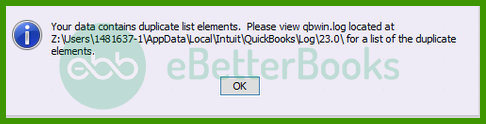
QuickBooks displays this error specifically when the same name appears more than once across lists like Customers, Vendors, Items, Employees, or the master Name List.
Common Error 213 messages: “Error: Verify Item list. Duplicate name encountered. Name: [Item Name]. Records [Number] and [Number]. To fix this, edit this element in the list and change its name.” or “Error: Verify Name list. Duplicate name encountered. Name: [Name]. To fix this, edit this element in the list and change its name.”
This article provides a diagnostic framework, risk assessment, and complete solution guide. Duplicate name entries require immediate attention because every failed Rebuild attempt deepens the file damage. Delayed repairs make the company file harder to recover.
Error 213 belongs to the internal list integrity error category in QuickBooks Desktop. This category covers problems where QuickBooks finds conflicting records inside the company file’s own lists during verification scans. The error does not belong to the 6000 series, the H series, or the C= series. Error 213 is exclusively triggered during Verify Data and Rebuild Data operations.
QuickBooks organizes errors into series: C= series (internal processing during execution), H series (multi-user hosting), 6000 series (file access), and list integrity errors (data-level conflicts inside the company file). Related list errors include damaged list elements after importing from other applications, duplicate entries created during data migration, and inactive items that retain names conflicting with active entries.
QuickBooks errors create additional failures when left unresolved. One underlying data problem generates multiple error codes at different points.
| Cause of Error 213 | Possible Triggered Errors |
| Duplicate names in lists | Rebuild Data failure (Rebuild cannot complete) |
| Corrupted company file data | File inaccessible after Verify Data runs |
| Inactive duplicate entries | Single-user to multi-user switch failure |
| Windows registry issues | Program instability during QuickBooks operations |
Match your symptom to find the correct solution path. Start by reading the QBWin.log file to identify the exact duplicate name and list. Check both active and inactive records before attempting fixes.
| Possible Causes and QuickFix for Error 213 | ||
| Error Event | Likely Cause | Recommended Fix (When to Perform) |
| Error 213 during Verify Data | Duplicate name in active list | Before attempting Rebuild, open QBWin.log, find the duplicate name, rename one entry, then re-run Verify Data |
| Error 213 persists after renaming | Duplicate exists in inactive records | After renaming active duplicates, enable Show Inactive Items in the list, locate the inactive duplicate, and rename or delete it |
| Error 213 after importing data | Duplicate created during import | Right after import and before Rebuild, run Verify Data to locate all new duplicates and rename them individually |
| Error 213 with Rebuild failure | Deep file corruption with multiple duplicates | After finding all duplicates in QBWin.log, rename all entries systematically, then run Quick Fix my Program from Tool Hub before Rebuild |
Understanding QuickBooks list structure prevents data loss during repairs. Follow these data safety advisories for Error 213:
Reading QBWin.log is the only reliable way to identify which specific list entry contains the duplicate. QuickBooks overwrites this file frequently so check it immediately after an error appears.
Solutions are organized by skill level, risk level, and success probability. This tiered approach protects your data while maximizing repair chances. Start with Level 1 solutions and move to higher tiers only if lower-tier solutions fail.
These solutions require no technical expertise. The risk of data loss is minimal. Anyone can perform these steps safely.
| Solution 1.1: Run QuickBooks as Administrator | |||
| Skill Level | Risk Level | Success Probability | Approximate Time Required |
| Beginner | Low | Moderate | 5-10 minutes |
| Risk Explanation | Running as administrator does not modify files. This grants necessary permissions for Verify and Rebuild operations. No data damage can occur. | Solution Explanation | QuickBooks requires administrator privileges to run Verify Data and Rebuild Data tools successfully. Insufficient rights prevent these tools from reading or writing list data. Running as administrator grants the permissions needed to complete these operations. |
Steps to Implement Solution 1.1
| Solution 1.2: Read QBWin.log to Identify the Duplicate | |||
| Skill Level | Risk Level | Success Probability | Approximate Time Required |
| Beginner | Low | High | 10-15 minutes |
| Risk Explanation | Reading the log file makes no changes to any data. This is a diagnostic step only. No risk of data loss exists. | Solution Explanation | QBWin.log contains the exact name of the duplicate record and the list it belongs to. Reading this file identifies the specific entry causing Error 213. Without reading this file, users waste time searching for wrong lists. The log file points directly to the problem record. |
Steps to Implement Solution 1.2
| Solution 1.3: Rename the Duplicate Entry in Active Lists | |||
| Skill Level | Risk Level | Success Probability | Approximate Time Required |
| Beginner | Low to Moderate | High | 15-20 minutes |
| Risk Explanation | Renaming changes the display name only. Existing transactions linked to this entry remain intact. Renaming does not delete any financial data. Follow naming steps exactly. | Solution Explanation | Error 213 requires changing the name of one duplicate entry so QuickBooks registers two distinct records. The duplicate name from QBWin.log identifies which record to rename. Changing even one character creates a unique record that resolves the conflict. |
Steps to Implement Solution 1.3
These solutions require checking hidden records and editing multiple list entries. Basic QuickBooks knowledge is helpful. Risk increases because changes affect data records. Always create backup before attempting Level 2 solutions.
| Solution 2.1: Find and Rename Inactive Duplicate Records | |||
| Skill Level | Risk Level | Success Probability | Approximate Time Required |
| Intermediate | Low to Moderate | High | 20-30 minutes |
| Risk Explanation | Editing inactive records does not affect transactions. Inactive records are not used in active operations. Renaming inactive entries only resolves hidden conflicts. | Solution Explanation | QuickBooks sometimes retains inactive records that share names with active entries. Error 213 persists after active renaming because inactive records still hold the duplicate name. Enabling Show Inactive Items reveals these hidden records for editing. |
Steps to Implement Solution 2.1
| Solution 2.2: Verify and Rebuild Data in Sequence | |||
| Skill Level | Risk Level | Success Probability | Approximate Time Required |
| Intermediate | Moderate | High | 30-60 minutes |
| Risk Explanation | Rebuild Data modifies internal file structure. Interrupting Rebuild causes serious file damage. Always create a full backup before running Rebuild. Do not close QuickBooks during the process. | Solution Explanation | Verify Data scans the company file for all errors without making changes. Rebuild Data repairs identified errors by rewriting damaged list structures. Running both tools in sequence after resolving duplicates confirms and completes the repair. |
Steps to Implement Solution 2.2
| Solution 2.3: Use Quick Fix My Program from Tool Hub | |||
| Skill Level | Risk Level | Success Probability | Approximate Time Required |
| Intermediate | Low | Moderate to High | 15-20 minutes |
| Risk Explanation | Quick Fix My Program closes background processes and repairs QuickBooks program files. This does not modify company file data. Company data remains safe during this process. | Solution Explanation | Quick Fix My Program stops QuickBooks background processes that may interfere with Verify and Rebuild tools. The tool repairs QuickBooks program files without affecting company data. This resolves Error 213 caused by program instability during Rebuild operations. |
Steps to Implement Solution 2.3
These solutions require technical knowledge and carry higher risk. System-level changes affect QuickBooks program files and Windows settings. Contact professional support if uncomfortable with these procedures. Data backup is mandatory before attempting Level 3 solutions.
| Solution 3.1: Apply QuickBooks Update Patch | |||
| Skill Level | Risk Level | Success Probability | Approximate Time Required |
| Advanced | Moderate | Moderate to High | 20-30 minutes |
| Risk Explanation | Patches modify QuickBooks program files. Failed patches may prevent QuickBooks from starting. Record license information before patching. | Solution Explanation | Intuit releases update patches that fix known list integrity errors including Error 213. Applying the latest patch updates QuickBooks program files to versions containing bug fixes. Updated program files handle duplicate name conflicts more effectively. |
Steps to Implement Solution 3.1
| Solution 3.2: Repair QuickBooks Installation | |||
| Skill Level | Risk Level | Success Probability | Approximate Time Required |
| Advanced | High | High | 30-45 minutes |
| Risk Explanation | Repair modifies QuickBooks installation files without changing company data. The process requires a product license key. Failed repair may prevent QuickBooks from starting. | Solution Explanation | Corrupted QuickBooks program files cause persistent Error 213 during Verify and Rebuild operations. Repair replaces damaged program components without affecting company files. Fresh program files restore proper list processing functions needed to resolve duplicate errors. |
Steps to Implement Solution 3.2
Some situations require professional assistance. Attempting DIY repairs risks permanent data loss. Stop attempting solutions if:
Preventing Error 213 requires disciplined data management practices.
If QuickBooks Error 213 continues after following the tiered solutions above, do not keep experimenting with repeated Rebuild attempts. Each failed Rebuild deepens file damage and makes recovery harder. At this stage, a structured professional diagnosis is the safest path forward.
Get expert assistance to analyze your company file list data, identify all duplicate entries, and restore file integrity quickly. Acting early protects both your records and your business continuity. Professional data recovery services can extract clean data from damaged files when standard tools cannot complete repairs.
Running “Verify Data” and “Rebuild Data” in QuickBooks Desktop is generally safe — but before rebuilding, QuickBooks prompts you to make a backup. To minimize risk, always save a fresh backup to a new filename/location before rebuild.
The Windows Registry is a hierarchical database that stores low-level settings for the Microsoft Windows operating system and its applications, including QuickBooks.
QuickBooks relies heavily on specific registry keys to store information about its installation path, component versions, and licensing. Error 213 frequently appears when these necessary registry entries are missing, corrupted, or incorrectly referenced (a problem common after an incomplete uninstall or system restoration), preventing QuickBooks from properly registering its components during startup or update.
A conflict between a recent Windows Update and QuickBooks is a documented cause for various operational errors. Windows updates sometimes modify or overwrite shared system files (like certain DLLs) that QuickBooks components rely on, or they may change security settings that revoke QuickBooks’s necessary access to the registry. This change can render the existing QuickBooks component registration invalid, leading to a failure to initialize and subsequently triggering Error 213. Reviewing the Windows Update history for recent changes is an important diagnostic step.
While it is not directly related to file corruption, Error 213 often stems from inconsistencies within the company file, such as duplicate entries.
Yes, Error 213 in QuickBooks can potentially be resolved by reinstalling the software, but it depends on the root cause of the issue. Error 213 typically occurs when there are duplicate entries in the list of names, such as customers, vendors, or employees, in QuickBooks’ data file.
Here’s how reinstalling QuickBooks might help:
➜Corrupt Installation Files: If the error is due to corrupt or missing installation files, reinstalling QuickBooks could restore the necessary files and resolve the issue.
➜Software Conflicts: Reinstalling can clear out any conflicting settings or files that may have been altered, leading to the error.
However, the primary cause of Error 213 is often database corruption or duplicate entries in the list. In these cases, reinstalling QuickBooks may not be the best solution. Instead, resolving duplicates within the QuickBooks database through its built-in utilities, like “Rebuild Data” or “Verify Data,” may be necessary.


