Excerpt:
This article helps QuickBooks Desktop 2024 users resolve the critical issue of check transactions disappearing or appearing blank after a software update. The problem, often caused by data corruption or display glitches, disrupts reconciliation and reporting. It offers advanced, risk-free recovery solutions—like manual updates, file repair tools, and Auto Data Recovery—to safely restore missing transaction details without compromising existing data.
 Add As A Preferred
Hey everyone, I’m Jennifer, and I’m hoping someone out there can help me figure this out — I’ve been using QuickBooks Desktop 2024 to manage my small business finances, and after a recent QB update (pretty sure it was pushed automatically about a week ago), I started noticing that some of my previously recorded check transactions missing entirely or showing up blank.
I first caught it while I was prepping for my monthly reconciliation. I noticed that 3 vendor checks I wrote last month weren’t showing up in the bank register — and the strange part is, the check numbers are still listed, but there’s no associated payee, no amount, no memo — basically just a ghost entry.
I didn’t delete anything, and no one else has access to the file. We don’t sync with any third-party apps either, so I ruled that out.
Here’s what I’ve tried so far:
Ran Verify Data – it did detect issues but didn’t give specific errors.
Followed up with a Rebuild Data, which completed, but the missing check info didn’t come back.
Checked audit trail – nothing flagged or deleted for those checks.
Searched for backups, but we’ve entered so many new transactions since then that I’m hesitant to restore and risk losing current data.
I also tried toggling filters in the check register and even pulled custom reports to see if the data just got moved or filtered out, but no luck.
This has completely thrown off our reporting and vendor balance tracking. I rely on QB for monthly and quarterly closeouts, and now I’m second-guessing every record.
Honestly, I feel stuck. I don’t want to call support and sit on hold for hours if there’s something I might’ve missed that others have figured out already.
Has anyone else using QuickBooks Desktop 2024 run into check transactions going blank or disappearing after an update?
Did restoring from a backup fix it for you? Or is there any way to recover just those missing transactions without wiping out weeks of new entries?
Hey Jennifer — first of all, you’re doing everything right.
It can be incredibly frustrating to open your company file and find that some of your previously recorded check transactions are missing or showing up blank, especially right after a recent QuickBooks Desktop 2024 update.
You mentioned spotting the issue during your monthly reconciliation, when you realized that three vendor cheques you had entered last month had turned into ghost entries. The cheque numbers still appeared in your bank register — but with no payee, no amount, and no memo.
After trying every standard troubleshooting step — including run Verify Data and Rebuild Data, review Audit Trail, check bank register filters and custom reports and even look for backup options— the problem persisted. This kind of diligence is exactly what most users skip, and it shows how committed you are to keeping your records clean and your business on track.
The good news? Even though the standard repair tools didn’t resolve the issue, there are advanced recovery steps you can try — and in most cases, they can help you either restore the missing check details or re-enter them safely without wiping out weeks of new entries.
After a recent automatic update in QuickBooks Desktop 2024, users have reported the following issues with cheque transactions:
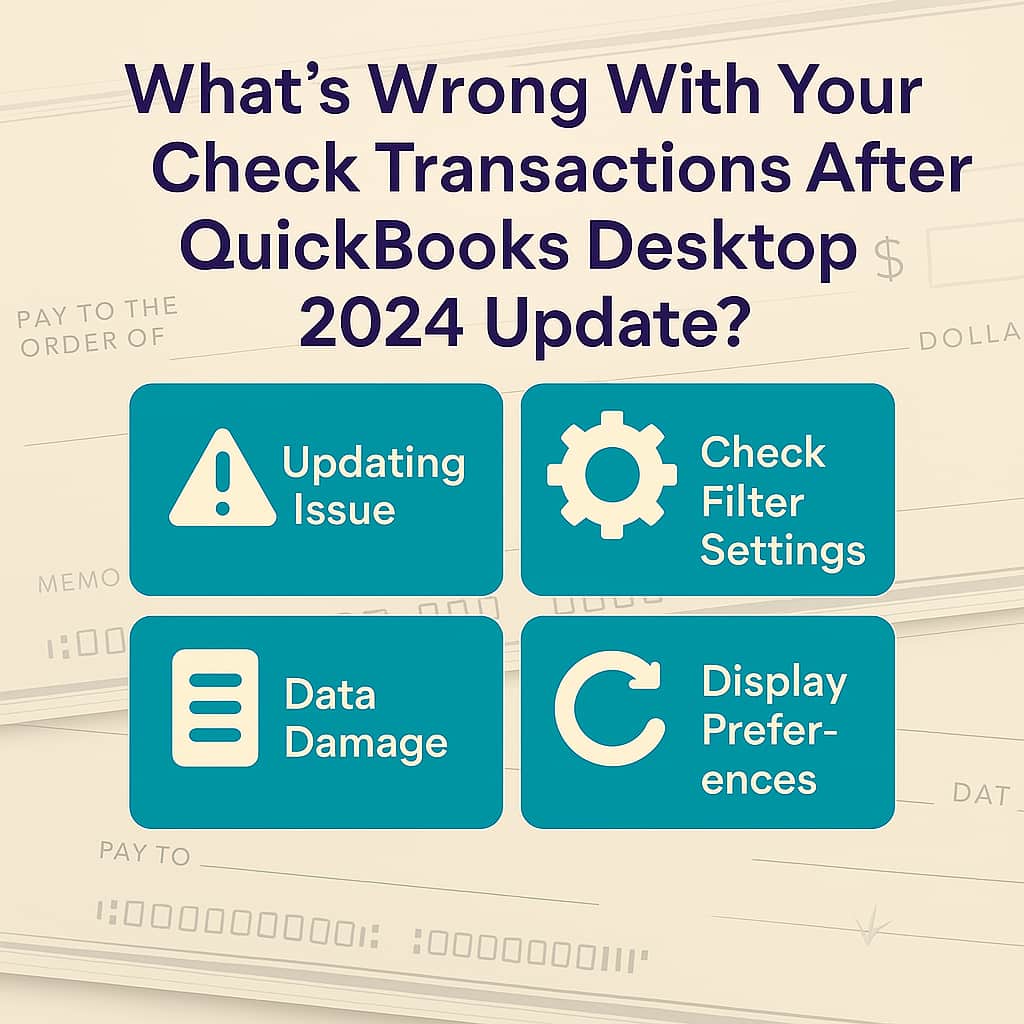
This issue often occurs due to display glitches, minor data corruption, or filters that unintentionally hide your entries.
Following are major causes leading to missing or blank cheque transactions in QuickBooks Desktop 2024:
Jennifer, if your check transactions still aren’t showing up after the usual repair steps, it could be a sign of deeper data issues or just a display glitch that needs a closer look. There are some advanced methods you can try to recover the missing data without putting your existing entries at risk.
Regular updates ensure access to the latest tools, automation, performance improvements and critical security patches that protect your financial data from vulnerabilities and cyber threats.
Running the Quick Fix My File and making use of QuickBooks File Doctor tool helps you to auto-detect and auto-fix data damage issues within QuickBooks.
Scan time depends on the file size and usually takes 10–15 minutes. Even if the scan result shows as unsuccessful, it may still resolve underlying issues. Once the scan completes, open QuickBooks and access your company file to verify the fix.
QuickBooks Desktop records program messages and errors—including information created by the Verify, Rebuild, and Condense Data tools—in a file called QBWin.log. Each QuickBooks version has its own QBWin.log. Every time you open QuickBooks, it renames the old QBWin.log file and creates a new one.
Access QBWin.log on Summit Hosting or other Hosted Environment
Let me show you how to generate the customized Customer Transaction Report you need. It gives you a clear view of all customer activity, so you can easily track payments, spot discrepancies, and stay on top of your accounts receivable.
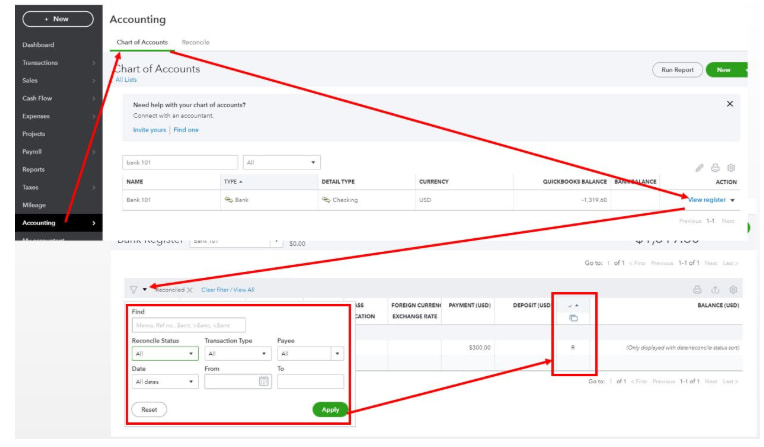
Checking the reconciliation status can help you find out if the missing or blank cheque entries were mistakenly marked as reconciled, filtered out by reconciliation settings, or damaged during the process—causing them to disappear from reports or registers.
QuickBooks Desktop has a feature called Auto Data Recovery (ADR) designed to recover all of your lost or corrupted data. It helps you to restore your lost file by:
Use the original Transaction Log file along with the ADR version of the company file to recover all recent transactions.

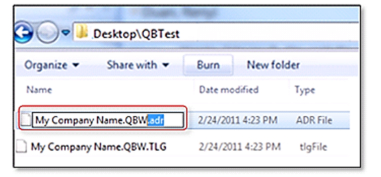
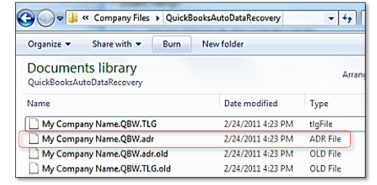
This method uses the ADR versions of both the .QBW and .TLG files to recover everything except the last 12 hours of transactions.
Jennifer, the “blank cheque entry” issue in QuickBooks Desktop 2024 is most likely due to a data inconsistency after the update—but in most cases, it’s completely fixable. Whether it’s a hidden display error, a corrupted file fragment, or an incomplete update process, the steps we’ve covered can help you recover your records without losing your current data.
Yes, this situation is frustrating — especially when it throws off your reporting, disrupts your vendor tracking, and leaves you questioning the reliability of your tools. But here’s what matters most: your data isn’t lost — it’s just hidden, mislinked, or temporarily unreadable. And the fact that you’ve already taken the right first steps means you’re ahead of the curve.
With the advanced tools, recovery options, and report customization methods we’ve walked through, there’s a very strong chance your data can be restored. Let me know if you need any help drafting an email to Intuit, preparing the ADR test environment or simply reviewing results from your QBWin.log, I’m right here and ready to assist you every step of the way.


