Excerpt:
If your bank account has vanished from QuickBooks Online but still shows in past reports, it’s likely due to a visibility glitch, sync failure, or accidental inactivation. This guide helps users quickly identify the root cause—whether it's a filter setting, browser issue, or disconnected bank feed—and provides precise steps to restore the missing account without disrupting ongoing financial tasks.
 Add As A Preferred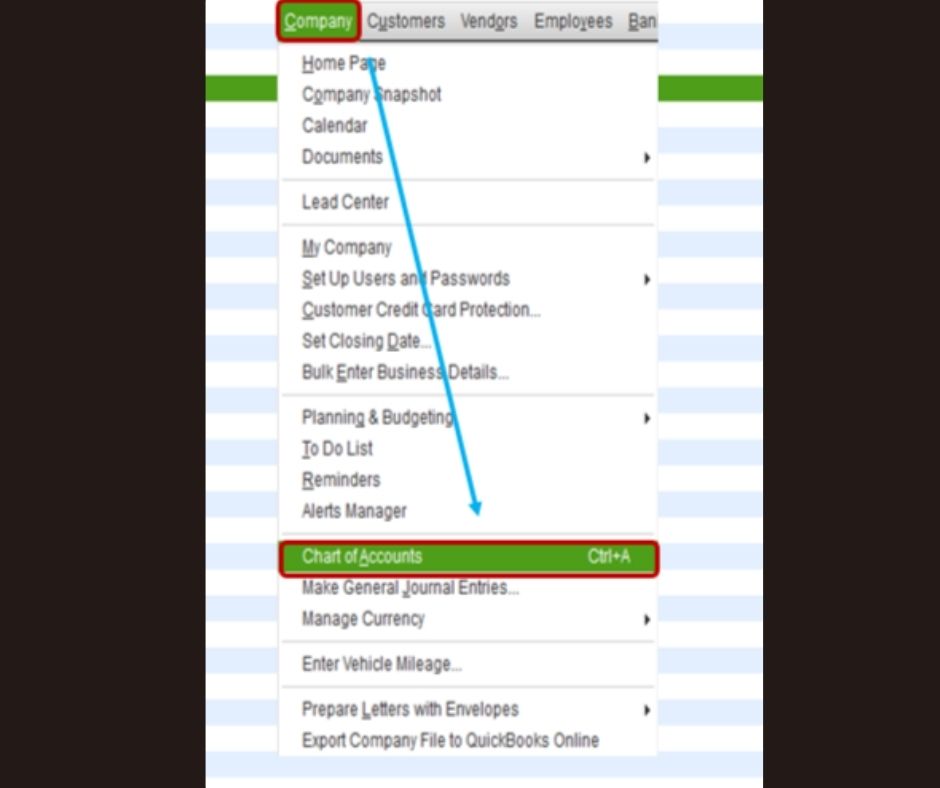
Not sure if this is a glitch or if I’ve done something without realizing, but I can’t find my checking account anywhere in QuickBooks Online. I’m Carrie Joe, and I’ve been handling all our business finances in QBO for months now without any major hiccups — until today.
I went in this morning to match a few recent bank transactions, and for some reason, my main checking account didn’t show up on the dashboard. At first I thought maybe I just scrolled past it, but it’s not in the bank feed, not in the Chart of Accounts, and not even showing up when I try to create a new transaction.
The weird part? If I run a report from last month, the data linked to the checking missing bank account is still there — like it exists in the background, but I just can’t access it directly anymore. I checked my settings, tried viewing inactive accounts, and even logged in from another browser. Still nothing.
There hasn’t been any recent cleanup, no merges, and I’m the only admin user, so this is starting to stress me out. Payroll is due tomorrow and I need to verify our balances before pushing anything out.
If anyone’s experienced this — where a bank account just stops appearing out of nowhere — I could really use some help figuring out what’s going on. I’m not sure if it’s a visibility thing, a data issue, or something went wrong with the banking connection. Either way, it’s messing with my day.
Hi Carrie Joe,
If your main checking account has suddenly disappeared from QuickBooks Online — not showing on your dashboard, in the bank feed, or even in the Chart of Accounts — despite still appearing in past reports, you’re definitely not alone.
You’ve already taken the right steps: checked account settings, viewed inactive accounts, ran past reports, switched browsers and you haven’t made any recent changes, merges, or deletions, so this issue seems to have appeared without warning.
In situations like this, it’s often less about something you’ve done and more about what’s silently broken or hidden in the background — be it a visibility glitch, sync issue, or a system-level disconnect between your account records and the bank feed.
Before payroll deadlines add more pressure, let’s break down what’s likely going on, why your account may be hiding, and exactly how to bring it back into view without disrupting your financial workflow.
Sometimes, accounts are accidentally marked as inactive, especially during account cleanup or bulk editing. Once inactive, the account is hidden from most views but still shows up in past reports and reconciliations. That’s why the data appears in reports, but the account itself seems to vanish.
If the bank connection briefly fails or the sync process stalls, QuickBooks might stop showing the account on your dashboard or in the banking section. It may still exist in the background but be disconnected from the live feed, making it invisible in daily workflows.
Sometimes filters like “active accounts only” — get applied unintentionally, or your browser cache might be interfering with how QuickBooks loads data. This can cause an account to “disappear” from the Chart of Accounts or transaction screens, even though it’s not technically gone.
While rare, corrupted account links or internal mapping issues between transactions and the bank account can prevent it from displaying correctly. These typically don’t affect past reports but can block current visibility or account access.
If your bank feed was recently updated or manually reconnected, QuickBooks may have duplicated or renamed the original bank account, leaving the old one disconnected and hidden. This can make it appear as if the original account vanished — when it was actually relabeled.
If your checking account has mysteriously vanished from QuickBooks Online but still shows up in past reports, it’s usually a sign of a visibility glitch, a syncing issue, or an account being unintentionally made inactive or hidden.
Let’s walk through a set of solutions step by step to help you locate and restore the missing account in your QBO dashboard and Chart of Accounts.
Before assuming the account is gone, double-check if it’s been marked inactive or hidden from the dashboard accidentally.
Sometimes the account is still active, just not easily visible. The Advanced Search tool can help confirm if it’s buried under filters or misfiled.
If you’re managing QuickBooks with multiple users or admins, ensure that your user role hasn’t lost access to certain accounts — even unintentionally.
If the account was connected to online banking, the sync may have broken. Here’s how to confirm and re-establish the connection.
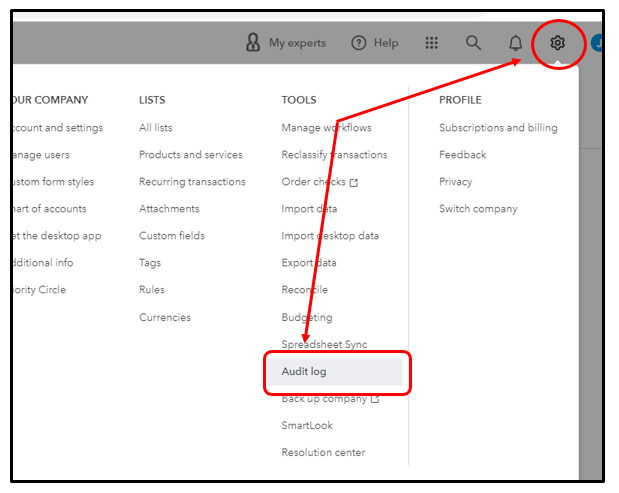
If the account was merged, deleted, or altered unintentionally, the Audit Log can help you identify what happened — and how to fix or reverse it.
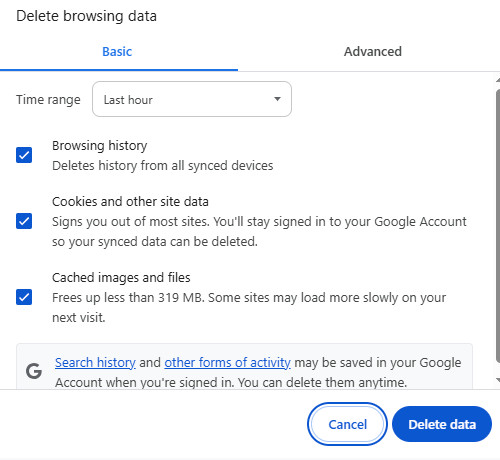
Sometimes display glitches in QuickBooks Online are caused by old cache files or browser extensions. If your checking account is still missing, try refreshing your session with a clean slate.
Yes, you can choose which checking account to use as default for specific functions like payroll, payments, or vendor transactions. To do this, go to Settings ⚙️ > Account and Settings > Payments/Expenses, and update the default account under each section as needed.
To connect your checking account to live bank feeds, go to the Banking tab, click Link Account, search for your bank, and sign in using your credentials. Once connected, you’ll be able to download and match transactions automatically in QuickBooks Online.
Yes, renaming an account in QBO will not change or erase its past transactions. Simply go to the Chart of Accounts, click Edit next to the account name, and update it. All previous entries will retain the financial data while reflecting the updated account name going forward.


