Highlights (Key Facts & Solutions)
- Primary Cause: Connection failures often occur because the Lowe’s Synchrony Bank Card, particularly commercial accounts, is not fully supported for seamless online banking synchronization with QuickBooks.
- Fixing Error 103: The most critical first step to resolving Bank Error 103 is to manually log in to the Synchrony Bank website using a private or incognito browser window to confirm credentials and check for bank alerts.
- Manual Import Workaround: If direct connection fails, users must download transactions in a compatible WebConnect format, such as QFX, QBO, OFX, or CSV, for manual upload into QuickBooks.
- Reporting Connection Failure: Unstable or broken connections should be reported to Intuit’s engineering team by using the “Request Support for your bank” link found within the QuickBooks Add Account screen.
- Browser Troubleshooting: Using a private browser prevents common issues caused by cache interference, cookie conflicts, or outdated auto-fill data.
- Official Support: For persistent security issues, users should call the official Synchrony Bank support line for Lowe’s cards, as their representatives can confirm account status or address mandated Multi-Factor Authentication (MFA) requirements.
Overview
Lowe’s Synchrony Bank Card Login is a crucial gateway for Lowe’s credit card holders to access their account information, manage their credit card finances, and take advantage of various benefits offered by Lowe’s credit card program. Lowe’s, one of the largest home improvement retailers in the United States, has partnered with Synchrony Bank to provide customers with credit cards tailored to their needs. Lowes Synchrony Credit Card issues occur sometimes because, currently, this is not supported by QuickBooks for online banking connections, and some of the activities, such as tracking records or online banking, are not supported using this card.
Are you facing a Lowes Synchrony Bank Card Login issue and finding it difficult to make a purchase? No worries; all you need to do is keep reading this blog until you reach the exact solution.
Synchrony Bank Card: A Comprehensive Summary
The Lowes Synchrony Bank card is a store credit card that offers multiple rewards and financing options to its users. Synchrony Bank, located in the United States and Canada, provides different banking services such as debit cards, credit card services, loans, online and mobile banking, certified deposits, and savings accounts.
Synchrony Bank issued Lowes Credit cards for people who want big savings on home improvement items and require financing alternatives to complete their purchases.
What are the Advanced Features of the Lowe’s Synchrony Login Platform?
Synchrony Bank issues Lowes Credit cards that offer extra perks and benefits on purchases from certain stores. Here’s a list of features you can avail of while registering on the Lowes Synchrony login platform.
Let’s have a glance:
- User-friendly interface with clear and concise menus.
- Conveniently and carefully access your account details online.
- View account balance, transaction history, available credit, and payment due date.
- Ability to make payments and set up auto-pay.
- Help users stay on top of their finances and easily manage their transactions.
- Industry-standard encryption and security protocols keep all users’ personal and financial information confidential.
- Review rewards and update personal information.
Why Do You Come Across Lowes Synchrony Bank Card Login Issue?
Lowes Synchrony Bank Card Login Issue usually occurs when QuickBooks does not currently support the card for online banking connections. The users cannot perform activities like tracking records or online banking if this card is not supported.
Lowes Credit Card
Lowes is an American retail company that provides credit card login services. It is designed in such a way that meets the daily needs of several customers.
Here’s a list of some Lowes Credit card options issued by Synchrony Bank:
- Accounts Receivable in Lowe’s
- Lowes Visa Rewards
- Lowes Business Account
- Lowes preload Discover card
- Lowes commercial account
- Advantage Card in Lowes
- lease to own in Lowes
Lowes Synchrony
Lowes Synchrony is a tie-up of the Lowes retail brand with synchrony. Synchrony is a bank that offers various services such as savings high return savings, IRA money markets, cd’s, money markets, IRA CD’s, etc. It provides all kinds of credit card services, including Synchrony Premier Master card, Synchrony Master cards, Synchrony World Master Card, and Synchrony Preferred Master card.
Synchrony Bank Card
All Synchrony bank premium customers receive a bank card where they can make banking transactions from any time and anywhere they need, as well as keep all the financial and expense-related records up to date. It also provides login credentials to all its customers who hold Synchrony Bank accounts. You can also check your balances, transfer funds, and deposit checks from your comfort zone. Banking always strives to keep up with customer needs and requirements.

Effective Methods to Troubleshoot Lowes Credit Card Login Issue!
Once you sync a bank account with QuickBooks, ensure the login information is correct and functioning appropriately in QuickBooks. If the problem still persists, and you are unable to log in, quickly try out the following fixes.
Here’s how:
Method 1: Send a Service Request to Add the Bank
When the Lowes Synchrony bank card login issue emerges, you must send the request to add this particular bank.
Here are the steps to do so:
Step 1: First of all, open QuickBooks and navigate to the dashboard.
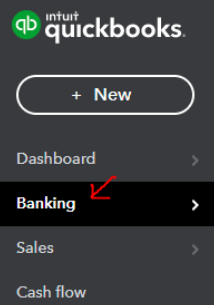
Step 2: Now, hover over the Banking tab in the left menu.
Step 3: Select the Add Bank Account option.
Step 4: After this, enter your URL or Bank name in the field displayed on your screen.
Step 5: Press the Enter key, and it will update the correct bank name.
Step 6: Once done, click on the Request Support for your bank button.
Step 7: You must enter the bank’s web address in (URL)
Step 8: At last, hit the Request tab to submit your request for assistance.
Method 2: Manually Import the Transactions
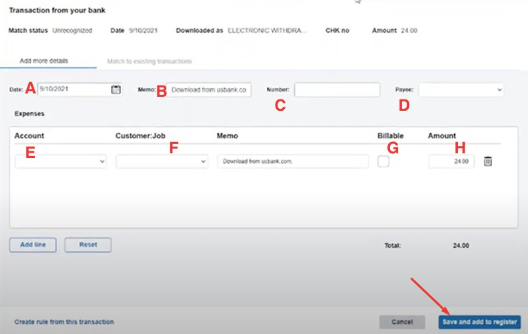
To manually import the transactions into the system using WebConnect, you must log onto the bank’s website and download a WebConnect file such as CSV, QFX, QBO, or OFX.
Follow the below-given steps to submit the file to QuickBooks:
Step 1: To begin with, choose the Banking menu on the left side of the screen.
Step 2: Next, select File Upload from the Update drop-down menu or click on Upload Transactions manually if there’s no bank connected to QuickBooks Online.
Step 3: Hit on Browse and then hover over the file you downloaded earlier.
Step 4: After that, choose Lowe’s Advantage and press the Next button.
Step 5: You must follow the on-screen prompts to map the fields.
Step 6: Click on the transactions that you want to import.
Step 7: When you’re ready, press Yes to confirm.
Step 8: Finally, hit the Let’s Go tab to complete the process.

Method 3: Fix Bank Error 103
Error 103 occurs when the user ID password is not right, or the bank may not accept it.
Let’s check how you can resolve this error:
- Step 1: Verify Credentials
- Step 2: Correct URL in QuickBooks
- Ensure you’re using the exact Synchrony Bank URL when linking the account.
- Step 3: Reconnect in QuickBooks
- Go to Banking > Edit Account Info > Reconnect Account, and enter the correct credentials.
- Step 4: Clear Browser Cache
- Clear cache/cookies, restart your browser, and retry.
- Step 5: Contact Support
- Call Synchrony Bank at their customer support number for any further assistance.
By following these steps, you can fix the issue and regain access.
How to Make a Single One-Time Online Payment in Synchrony Bank Lowe’s?
Below are the steps to make a one-time online payment in Synchrony Bank; let’s carry out each one.
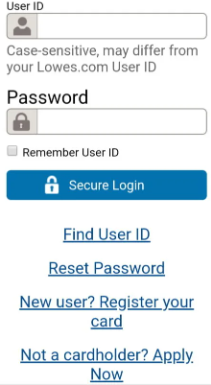
Initially, log onto Lowe’s Synchrony bank login account:
Step 1: Once you’re logged in, locate your Lowe’s credit card account and hit on it.
Step 2: Now, press the Make a Payment button to start the payment process. Then, enter the payment amount and select the payment date.
Step 3: Choose your payment method: a checking or savings account or a debit card. However, if you wish to set up automatic payments, you can do so at this point.
Step 4: You must check your payment details and click on the Submit Payment section.
Step 5: At last, your payment will be processed, and you’ll receive a confirmation message after the completion.
Steps to Fix Lowe’s Credit Card Synchrony Login Issue in Microsoft Edge!
Many users have reported Lowes Synchrony Bank Card Login issues using the Microsoft Edge browser. It often pops up with a message stating that access is denied. To rectify such login issues in Edge, you need to check out the steps as follows:
If you’re encountering login issues in Microsoft Edge, follow these steps to resolve them:
Step 1: Reset Browser Settings
- Open Edge and click the three dots in the upper-right corner.
- Go to Settings > Reset Settings > Restore settings to their default values.
- Confirm the reset and restart the browser.
Step 2: Clear Cache and Cookies
- In Edge, navigate to Settings > Privacy, Search, and Services.
- Under Clear browsing data, select Choose what to clear.
- Check cookies and other site data, as well as cached images and files, then click Clear now.
Step 3: Disable Extensions
- Go to Settings > Extensions.
- Turn off or remove unnecessary extensions, especially ad blockers, which may interfere with login.
Step 4: Check Network Connection
- Ensure you have a stable internet connection.
- Temporarily disable any VPN or firewall that might block access.
Step 5: Update Microsoft Edge
- Go to Settings > About Microsoft Edge.
- Download and install any available updates.
Step 6: Try Incognito Mode
- Open an incognito window (Ctrl+Shift+N) and attempt to log in.
Step 7: Switch to Another Device/Browser
- If issues persist, try logging in from a different device or browser.
These steps should resolve login problems in Microsoft Edge. Finally, restart your system and try accessing the same page once again.
Summing-Up!
Hopefully, the information given above will be useful to you. But if you are still facing any kind of issues with your software and need professional assistance regarding accounting, bookkeeping & accounting software-related issues, then feel free to get technical support with us at +1-802-778-9005, or you can email us at support@ebetterbooks.com
FAQs!
1. Why does my Lowe’s Synchrony Bank Card frequently fail to connect or stay connected for online banking in QuickBooks?
The frequent login or connection failure, especially with the Lowe’s Commercial Card and other Synchrony-issued accounts, is often due to compatibility challenges related to how the bank shares data with QuickBooks.
Key reasons for connection failure include:
- The bank changing its login URL or security protocols without updating the link used by Intuit’s service.
- The card account (particularly commercial accounts) is not fully supported for direct, real-time online banking synchronization.
- The bank only sending certain transactions (like payments) but omitting purchase details in the feed, leading to data inconsistencies in QuickBooks.
In these situations, QuickBooks will typically display errors like Bank Error 103 or similar login issues even if your credentials are correct on the Synchrony website.
2. What is Bank Error 103, and what is the single most important first step to fix it for my Synchrony Card?
Bank Error 103 is a common QuickBooks error code that indicates the user ID or password entered in QuickBooks does not match the credentials required by the bank’s website. It essentially stops QuickBooks from logging into the bank’s system.
The most important first step to fix Bank Error 103 is to manually log in to the Lowe’s Synchrony Bank website in a private or incognito browser window (e.g., using Ctrl + Shift + N in Chrome/Edge).
Steps to follow:
- Manually type the URL and credentials (avoid auto-fill).
- Ensure you successfully log in, check for any alerts, security updates, or required actions on the bank’s site.
- If you successfully log in there, return to QuickBooks, go to Banking > Edit Sign-In Info, and manually re-enter the exact same credentials.
3. What types of WebConnect files can I download from the Lowe’s Synchrony website for manual import into QuickBooks?
If the direct bank feed connection fails, the manual import method (WebConnect) is the official workaround. You must download a file from the Lowe’s Synchrony Bank website in a format compatible with QuickBooks.
The file formats generally supported by QuickBooks for manual transaction upload are:
- QFX (Quicken Financial Exchange)
- QBO (QuickBooks Online)
- OFX (Open Financial Exchange)
- CSV (Comma Separated Values)
The QBO or QFX formats are usually preferred as they contain more structured data, but the CSV file is the most common and universally available for download if the others are not offered.
4. How do I request that Intuit add or fix the bank feed for my specific Lowe’s Synchrony Credit Card account?
Since the Lowe’s Synchrony connection can be unstable, the recommended official method to report the issue directly to Intuit’s engineering team is by submitting a request within QuickBooks.
Steps to request bank support:
- Go to the Banking tab (or Transactions > Banking) in QuickBooks.
- Click Add Account.
- In the search bar, type the name of the bank (Synchrony Bank or Lowe’s).
- If the correct bank link is not found, select the option that says “Still can’t find your bank?” or “Request Support for your bank.”
- Enter the full, correct login URL for your specific Lowe’s Synchrony account (e.g., the URL you successfully log into).
- Hit the Request or Submit button to send the details to Intuit’s online banking team.
5. Why should I use a private or incognito browser window when troubleshooting login issues in QuickBooks?
Using a private or incognito browser window is a necessary troubleshooting step because it eliminates local data conflicts that can interfere with the secure connection process.
This mode prevents:
- Cache Interference: Old cached files or temporary internet data from corrupting the new connection session.
- Cookie Conflicts: Cookies from previous successful or failed sessions from interfering with the bank’s authentication process.
- Auto-Fill Errors: The browser’s saved passwords or auto-fill functions from accidentally entering outdated or incorrect credentials into the QuickBooks connection wizard.
If the connection works in incognito mode but fails in your regular browser, you must clear your regular browser’s cache and cookies.
6. What should I do if my login issue persists even after clearing the browser cache and confirming my credentials on the Synchrony website?
If Bank Error 103 or a general login failure persists after verifying your credentials and clearing your browser cache, the issue is likely rooted in the security connection between the bank and Intuit.
The next steps should be to:
- Check for MFA Enrollment: Log into the Synchrony Bank website and ensure you have completed any required Multi-Factor Authentication (MFA) or security setup.
- Update Connection in QuickBooks: Go to the Banking tab, select the account, and choose Edit sign-in info to deliberately re-enter your username and password, forcing QuickBooks to establish a fresh security token.
- Contact QuickBooks Support: If the error continues, contact the official QuickBooks Support team, as they may have an open investigation or a known issue for your specific Lowe’s card account.
7. Which official Synchrony Bank phone number should I use to verify my Lowe’s card account status or login details?
When troubleshooting a login or connectivity issue, you must contact the official customer support line for your specific card type to verify account status and credentials.
The official Synchrony Bank contact numbers for Lowe’s cards are:
- Lowe’s Consumer Credit Card / MyLowe’s Rewards: 1-800-444-1408
- Lowe’s Business Account: 1-800-444-1408 (same number often serves business inquiries)
- Lowe’s Accounts Receivable: 1-866-232-7443
Calling these numbers ensures you are speaking with an authorized representative who can confirm your User ID, verify if your account is temporarily locked, or advise on any bank-side security updates affecting third-party access.
Disclaimer: The information outlined above for “How to Fix Lowe’s Synchrony Card Login Issues in QuickBooks?” is applicable to all supported versions, including QuickBooks Desktop Pro, Premier, Accountant, and Enterprise. It is designed to work with operating systems such as Windows 7, 10, and 11, as well as macOS.