+1-802-778-9005
Home>>Become An Expert With QuickBooks Training & Certification Learn How to Add an Accountant to QuickBooks

Submit Your Details to Continue Reading

Highlights (Key Facts & Solutions)

  • Purpose: To grant external experts (accountants, bookkeepers) access to review, correct, and manage financial data for reports and compliance.
  • QuickBooks Online (QBO) Access:
    • Initiated only via a web browser interface (not the mobile app).
    • Methods: Use the My Accountant tab or the Gear icon > Manage Users > Accounting Firms tab.
    • Security: Requires a verification code sent to the owner’s phone number during the invitation process.
    • Acceptance: The accountant must use an existing or newly created Intuit User ID to accept the invitation.
  • QuickBooks Desktop (QBDT) Access:
    • Involves setting up a dedicated External Accountant user role via the Company menu.
    • Permissions: The External Accountant receives access to virtually all areas except customer credit card numbers.
    • Versions: The specific menu path for setup differs between Pro/Premier and Enterprise editions.
    • Admin Role: The administrator is responsible for setting the initial User ID and password for the accountant.
  • Management (Removal): To change an accountant, the Primary Admin must use the Manage Users settings in QBO to explicitly delete the old accountant’s access, instantly revoking their permissions.

Overview

Adding an accountant to QuickBooks is an essential feature for small business owners who require expert advice in handling their money.

The QuickBooks Accounting Firms feature, which Intuit has developed, is an effective tool for improving financial management.

It enables one to invite an accountant and work in unison with them.

It also comes with some special features that are essential in ensuring compliance with certain legal provisions.

When you connect an accountant to QuickBooks, they get to view all your financial information, invoices, expenses, and much more.

With this kind of access, they can correct mistakes, present correct figures, and keep everything in order.

How to Invite and Add an Accountant to QuickBooks Online and Desktop?

In QuickBooks, companies can have greatly substantial relationships with their accountants, tax preparers, or financial advisors. Connecting an accountant to QuickBooks enables them to work with your financial data, correct it, or provide you with reports and meet legal requirements. In this guide, we will describe the process of inviting an accountant to QuickBooks Online and QuickBooks Desktop, as well as provide instructions on working with accountant access.
How to Invite and Add an Accountant to the QuickBooks Online

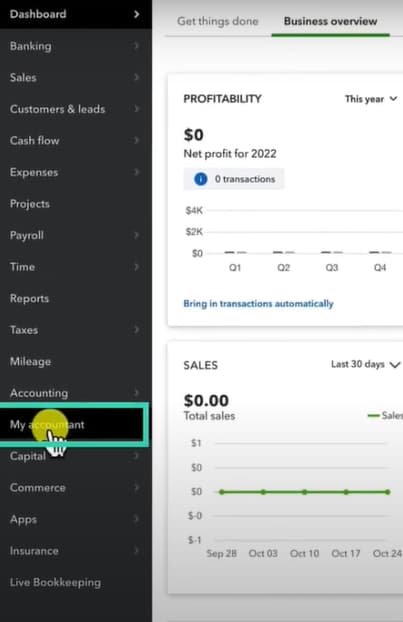
Method 1: Using the “My Accountant” Option

  1. Step: Log in to QuickBooks Online with your credentials.
  2. Step: Navigate to My Accountant.
Image showing how to access the 'My Accountant' option in QuickBooks
  1. Step: Enter the accountant’s email address you wish to add.
  2. Step: Click Invite.
  • For security reasons, a verification code will be sent to the phone number that you used during registration.
  1. Step: Once the accountant accepts the invitation, they will have access to your QuickBooks Online account.

Method 2: Using the “Settings” Option

  1. Step: Access QuickBooks Online by entering the login details.
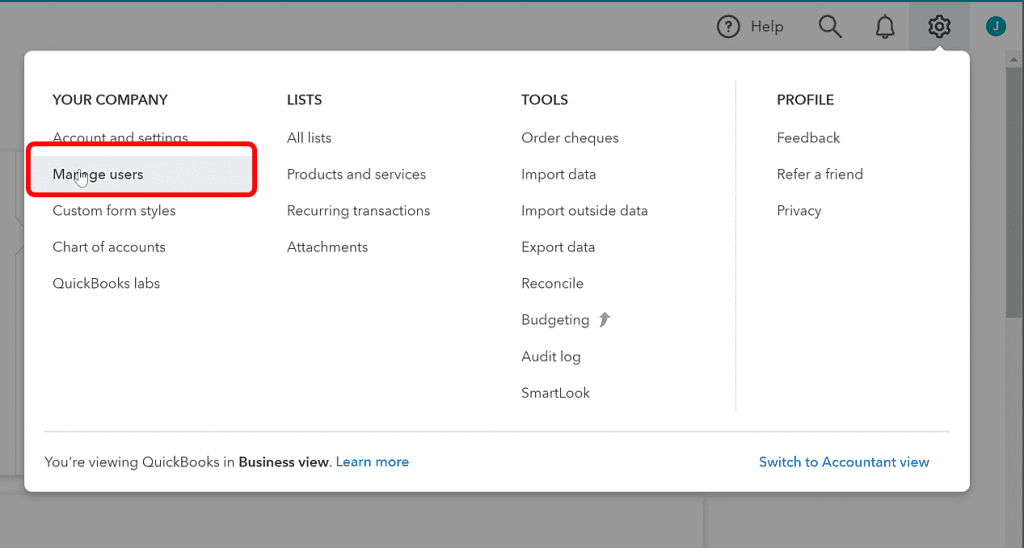
  2. Step: From the Dashboard, click the gear icon at the upper right corner of the screen.
Option to Choose The gear icon at the upper-right corner of the QuickBooks dashboard
  1. Step: Navigate to the “Your Company” tab and then click Select Manage Users.
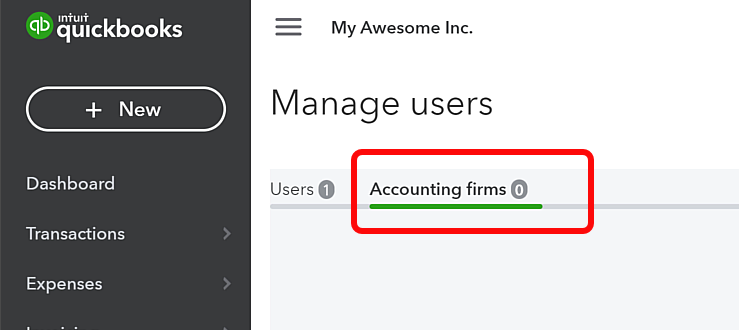
  • You will see two options: Users and Accounting Firms.
  1. Step: Choose Accounting Firms.
The option to select 'Accounting Firms' in QuickBooks settings
  1. Step: Click Invite and fill in the accountant’s details:
  • First Name
  • Last Name
  • Email Address
  1. Step: An invitation link will be sent to the accountant’s email. Once accepted, they will have access to QuickBooks Online.

Note:

  • The accountant must log in with their Intuit user ID and password. If they don’t have one, they need to create an account.
  • The invitation cannot be accepted through the QuickBooks mobile app.

How to Change Accountant in QuickBooks Online

  1. Step: Log into QuickBooks Online with your credentials.
  2. Step: From the Dashboard, click on the Gear icon at the top-right corner.
  3. Step: Select Manage Users under “Your Company.”
  4. Step: Highlight the name of the accountant you want to remove.
  5. Step: Confirm the deletion by clicking Yes when prompted.
  6. Step: To add a new accountant, use either the My Accountant or Settings method (outlined above).

How to Give Accountant Access to QuickBooks Desktop

QuickBooks Desktop provides different roles and permissions to the user while providing accountant access. This helps ensure that accountants can access different areas when preparing accounts as per their requirements without exposure to any sensitive data. 

Below, you will find the procedure for creating an accountant user.

General Steps to Add Accountant Access:

  1. Step: Sign in to QuickBooks Desktop with your admin login.
  2. Step: Go to the Company menu.
  3. Step: Select Set Up Users and Passwords.
  4. Step: Add the accountant’s information and assign their role.
  5. Step: An invitation link will be sent to the accountant’s email. Once accepted, they will have access to financial data.

Set Up an External Accountant User in QuickBooks Desktop

External accountants can access all parts of QuickBooks except consumer credit card details without requiring administration rights.
QuickBooks Pro/Premier:

  1. Step: To begin, you need to sign in to QuickBooks Desktop.
  2. Step: Navigate Set Up Users and Passwords and proceed with choosing Set Up Users.
  3. Step: Choose Edit User and add the following:
  • Name
  • (Optional) Password
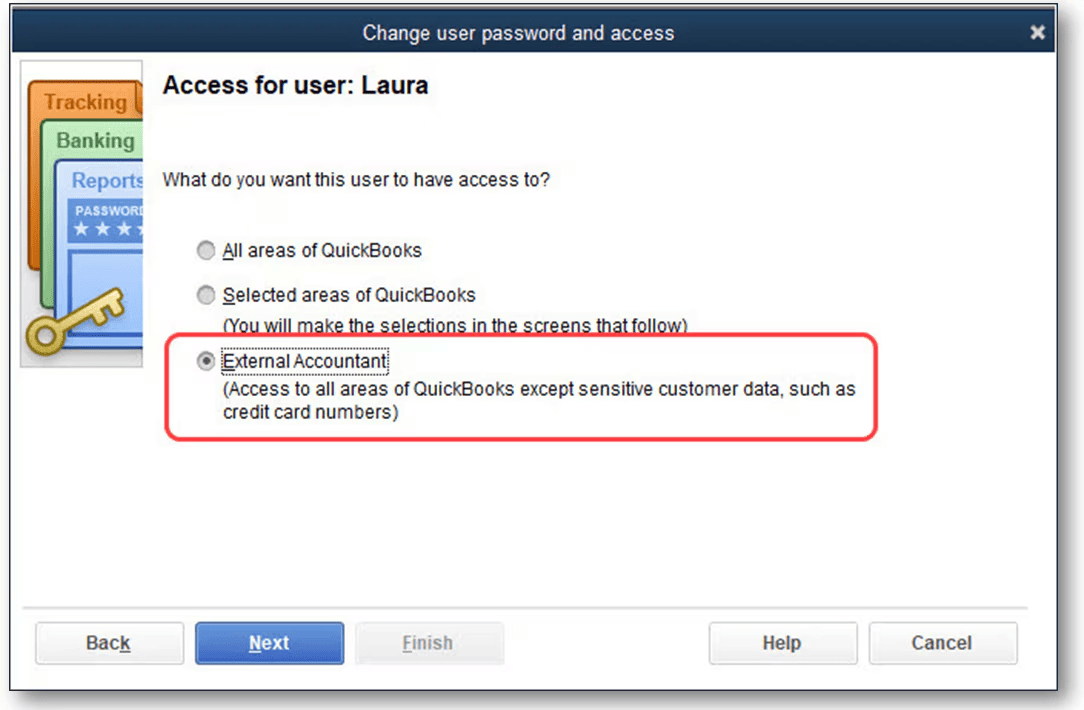
  1. Step: Go for the option of External Accountant.
Selecting the 'External Accountant' option in QuickBooks
  1. Step: Confirm by clicking Yes on the pop-up message asking if you want to grant access to all areas except customer credit card numbers.
  2. Step: Select Close.

QuickBooks Enterprise:

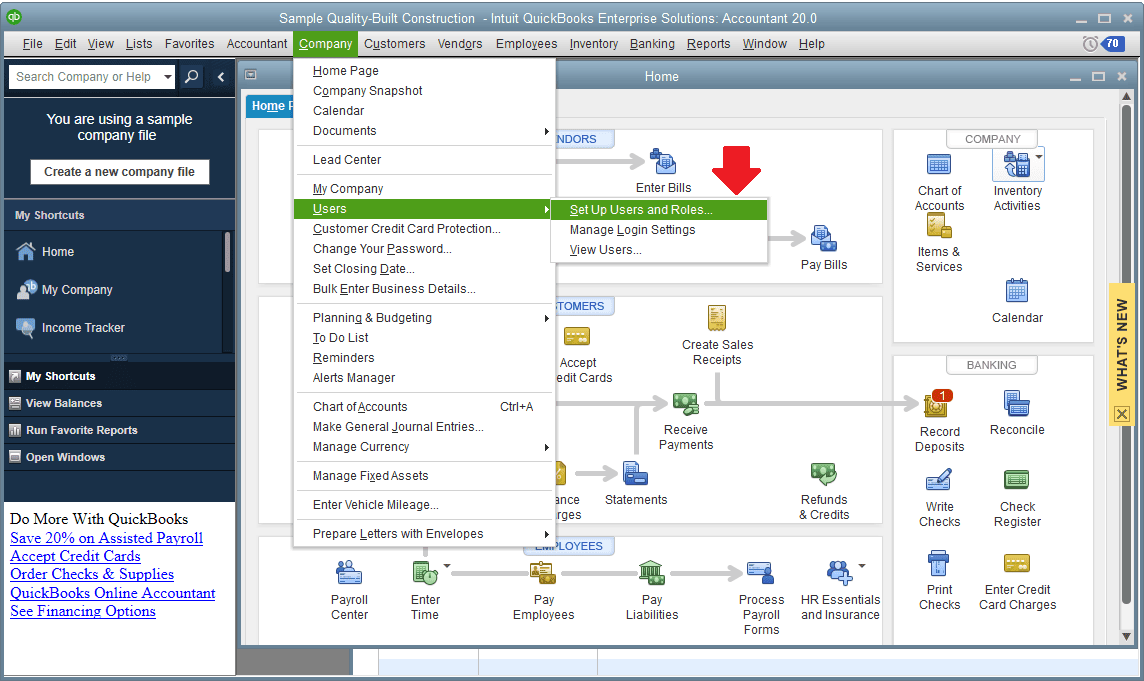
  1. Step: Enter the QuickBooks sign-in page and go to the QuickBooks Desktop login page.
  2. Step: Go to the company and choose the Tab that says, Users.
  3. Step: Go to set up users and roles.
Setup Users Roles window in Built Construction QuickBooks Enterprise Solutions Accountant 20.0
  1. Step: Under the “User List,” select New and enter:
  • User ID
  • (Optional) Password
  1. Step: Go to “Available Roles” and choose External Accountant.
  2. Step: Review the role description and select Add.
  3. Step: Enter the accountant’s email address and confirm by clicking OK.

Note: Each password is unique and set up by the admin. If left blank, a warning will appear asking if you want to save a user without a password. Confirm by selecting Yes if applicable.

The Bottom Line

QuickBooks’s Add an Accountant feature allows accountants to access your financial data, such as expense reports, invoices, etc., which they will correct and make necessary adjustments. However, the approach to adding an accountant to QuickBooks is different for both QuickBooks Desktop and QuickBooks Online. If you still have any questions or problems related to QuickBooks, contact us at 1-802-778-9005

FAQs!

1. What are the key limitations placed on the External Accountant role in QuickBooks Desktop (Pro/Premier/Enterprise)?

The External Accountant role is designed to grant broad access for tasks like review and adjustments while maintaining essential security restrictions, especially regarding financial instruments.

The accountant user, even without admin rights, receives access to virtually all areas except for one critical restriction:

  • Customer Credit Card Numbers: The accountant cannot view, modify, or access the full details of customer credit card numbers stored within the company file.

This restriction is the primary security safeguard when using the dedicated External Accountant user setup process in QuickBooks Desktop. The External Accountant also cannot access certain advanced payroll setup functions, which remain restricted to the Admin user.

2. Can I add an accountant to my QuickBooks Online account through the mobile app?

No, you cannot initiate or accept an accountant invitation through the QuickBooks mobile app. This process is restricted to the web browser interface to ensure security and proper access setup.

The two approved methods for adding an accountant to QuickBooks Online are:

  • My Accountant Tab: Navigating to the My Accountant tab on the dashboard, which is the most common method.
  • Settings Menu: Using the Gear icon > Manage Users menu and navigating to the Accounting Firms tab.

The accountant must use their Intuit User ID and log in via a web browser to accept the invitation link sent to their email.

3. What is the process for removing or changing an accountant who no longer needs access to my QuickBooks Online data?

Removing or changing an accountant is a necessary security measure performed within the administrative settings of QuickBooks Online. This instantly revokes their access to the company file.

The steps for removal (which must be performed by the Primary Admin) are:

  • Access Settings: Log in and click the Gear icon in the upper right corner of the dashboard.
  • Navigate to Users: Select Manage Users and then the Accounting Firms tab.
  • Remove User: Find the accountant you want to remove and, from the Action column, select Delete.
  • Confirmation: Confirm the deletion when prompted.

Once removed, you can use the My Accountant or Settings methods to invite a new accountant immediately.

4. Why does QuickBooks Online use a verification code sent to my phone when I invite an accountant?

QuickBooks Online uses two-factor authentication (2FA) for security when inviting an accountant to verify the business owner’s identity. This is especially true for products like QuickBooks Self-Employed and often occurs during the QBO process to verify the sender’s identity.

The purpose of the verification code is twofold:

  • Account Security: It confirms that the person initiating the invitation is the legitimate owner of the QuickBooks Online account, not an unauthorized third party.
  • Audit Trail: It creates a secure, verified record of the transaction, ensuring that sensitive financial data access is granted only with the owner’s explicit and confirmed permission.

This is a standard security procedure for granting high-level access to financial data.

5. What are the key differences when setting up an External Accountant user between QuickBooks Pro/Premier and QuickBooks Enterprise?

The fundamental purpose of the External Accountant role is the same across all QuickBooks Desktop versions (full access except for credit card numbers), but the setup paths differ due to varying user management systems.

The distinction lies in the menu where the role is assigned:

  • Pro/Premier: The user is added via Company > Set Up Users and Passwords > Set Up Users, and the External Accountant role is chosen directly through a simpler user setup wizard.
  • Enterprise: Enterprise uses a more robust roles and permissions manager. The role is assigned under Company > Users > Users and Roles, where the External Accountant role is selected from the “Available Roles” list and then added to the new user.

6. When inviting an accountant to QuickBooks Online, what must the accountant do if they do not already have an Intuit user ID?

The accountant must have an established Intuit user ID and password to access any QuickBooks company file. If they do not have one, the invitation process will prompt them to create one.

Steps for the accountant upon receiving the email:

  • Invitation Link: Click the unique invitation link in the email sent by the client.
  • ID Requirement: If the email address is not associated with an existing Intuit ID, the acceptance flow will direct them to a registration page.
  • Account Creation: They must create a free Intuit user ID using the email address the invitation was sent to.
  • Access Grant: Once the Intuit ID is created or logged in, they will be granted immediate access to the client’s QBO account.

7. Does the administrator need to set a specific password for the External Accountant user in QuickBooks Desktop?

Yes, the administrator (the company file owner) is responsible for setting the user ID and the initial password for the External Accountant user in QuickBooks Desktop during the setup process.

Key points about password setup:

  • Admin Control: The administrator initiates the user creation process and enters the initial User ID and (Optional) Password in the Set Up Users and Passwords menu.
  • Password Complexity: QuickBooks Desktop enforces minimum complexity requirements for passwords (8-16 characters, including uppercase, lowercase, special characters, and numbers).
  • Security: If the admin leaves the password blank, a warning prompt will appear asking if the admin wants to save a user without a password. The admin must confirm this choice.