Excerpt:
If you're facing QuickBooks error QBWC1085, it's likely caused by a corrupt or inaccessible QWCLOG.TXT file, preventing the Web Connector from functioning. This article provides straightforward solutions, including renaming the log file, verifying connections with third-party applications, or removing the Web Connector. By following these steps, you can resolve the issue and prevent future occurrences, ensuring smooth QuickBooks operations.
 Add As A Preferred
The QuickBooks Web Connector (QBWC) error QBWC1085 typically occurs when the Web Connector cannot access or write to its required logging file, QWCLog.txt, often due to corruption or a program lock. This failure prevents QuickBooks Desktop from synchronizing data with integrated third-party web applications.
Resolving this issue involves established methods, primarily renaming the corrupt QWCLog.txt file located in the C:\ProgramData\Intuit\QBWebConnector\log directory, which forces the Web Connector to create a clean replacement. Essential preparatory steps include creating a full company file backup and ensuring QuickBooks Desktop is fully updated, which mitigates data loss risk and rules out outdated software as the cause of the connection failure. If the Web Connector is no longer used, a quick resolution is achieved by removing it from the Windows Startup folder or uninstalling it entirely.
Highlights (Key Facts & Solutions)
QWCLog.txt, to a new name (e.g., QWCLogOLD.txt). This file is located at C:\ProgramData\Intuit\QBWebConnector\log.QWCLog.txt file, which records synchronization activities with external applications.MSConfig) helps verify authentication and prevent sync failures.QuickBooks Error QBWC1085 happens when there is a problem with the connection between QuickBooks and a third-party web application or service. This error is constantly related to the QuickBooks Web Connector, a tool used to sync data between QuickBooks Desktop and online services.
The error generally results from authentication failures, incorrect settings, or damaged log files within the Web Connector setup. As a result, users may experience interruptions while syncing transactions or exchanging data between QuickBooks and external applications.
QBWC1085 error appears with the message: “There was a problem with the log file. QuickBooks Web Connector will continue without the log file.” This indicates that the Web Connector is unable to access or write to the QWCLOG.TXT file, which records communication details between the two systems.
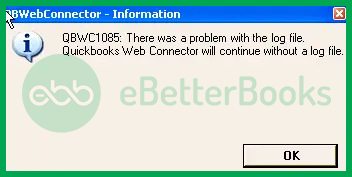
QuickBooks is a useful bookkeeping and accounting software developed by Intuit. It helps small and medium-sized businesses manage their financial data efficiently. However, like many complex software systems, it can generate operational errors such as QBWC1085 when certain components fail or become inaccessible.
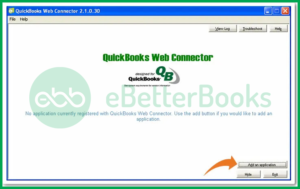
This error commonly arises when the QWCLOG.TXT file becomes corrupt or is locked by another program. The Web Connector depends on this file to facilitate data exchange with third-party applications.
When QuickBooks cannot write to it, the system displays an error message such as:
“QuickBooks was unable to write to the log file. QuickBooks will open without writing to the log file.”
Many QuickBooks users have gone through qbwc1085. Hence, we have listed all the reasons that can cause this error.
Quite often, QuickBooks users face difficulty in resolving their errors. We have listed the most effective yet simple methods to fix the error. However, if you get stuck, feel free to reach out to our error support team for QuickBooks Errors, such as this error.
Renaming the QWCLOG.TXT file resets the QuickBooks Web Connector’s logging process. This step removes corruption or access errors in the log file that prevent QuickBooks from syncing with external applications. It is one of the most effective ways to resolve the QBWC1085 error quickly.
Renaming the QWCLOG.TXT file can help you deal with this error.
It involves these steps:
Finally, restart the QB software and check if the error is fixed or not.
This method verifies that QuickBooks is properly linked with third-party applications through the Web Connector. It helps prevent synchronization failures that cause the QBWC1085 error when QuickBooks cannot authenticate data exchange during startup.
The user has to make sure that their company file is linked to the third-party offline/web-based applications they regularly use.
Try these steps to fix the bug with this method:
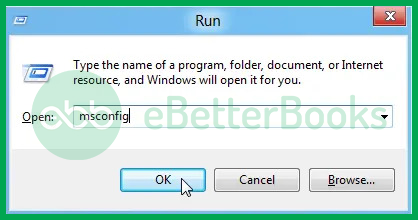
This manual renaming method applies when QuickBooks is actively connected to third-party programs. It resolves logging conflicts caused by a damaged or outdated QWCLOG.TXT file, allowing the Web Connector to re-establish normal communication.
Finally, reopen the web connector and reboot the system to check if the issue is fixed or not.
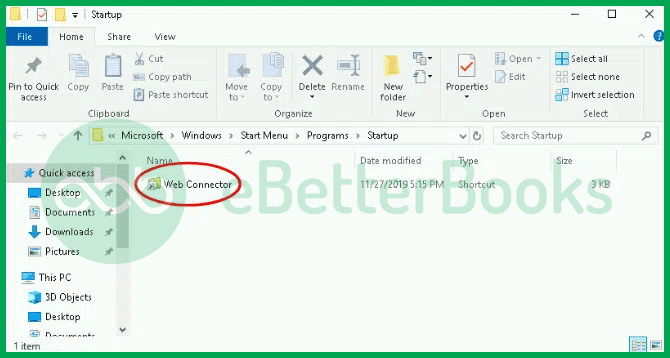
If QuickBooks is not integrated with any third-party application, removing the Web Connector from the startup folder can stop the QBWC1085 error from appearing. This approach is recommended when the Web Connector is no longer needed for synchronization.
Follow these steps to remove the Web Connector:
Finally, delete the connector file. Now, restart the system to verify if the error is resolved or not.
With this article, we tried our best to help you fix the qbwc1085 log file error. You can refer to the causes to avoid such bugs in the future while using QuickBooks.
If these solutions don’t help, feel free to reach out to our Error Support team at 1-802-778-9005 for technical assistance.
The error QBWC1085 deals with the connection between QuickBooks and external applications, and fixing it involves editing core configuration files and potentially the Windows Startup folder. Creating a backup (File > Back Up Company > Create Local Backup) ensures you can immediately restore your financial data if an unexpected issue—like a computer crash or an incorrect file deletion—occurs during the troubleshooting process. Data integrity is always the top priority.
QWCLog.txt file, and why does renaming it fix the error?The QWCLog.txt file is the primary logging file for the QuickBooks Web Connector. It records every interaction and synchronization attempt between QuickBooks Desktop and connected third-party web services. The QBWC1085 error occurs when this file becomes corrupt or is locked by another program, preventing the Web Connector from writing to it. Renaming it (e.g., to QWCLogOLD.txt) forces the Web Connector to automatically create a new, fresh log file the next time it runs, resolving the access conflict.
QWCLOG.TXT files in different folders. Which one should I rename?You should only rename the file located in the dedicated Web Connector log directory. For most users, the correct file path is: C:\ProgramData\Intuit\QBWebConnector\log. The Windows ProgramData folder is typically hidden by default, so you may need to enable “Show hidden files, folders, and drives” in your File Explorer options to see it.
Method 4 (removing the Web Connector from the Startup folder) is only a valid fix if your QuickBooks company file is not actively linked to any third-party applications (like a CRM or eCommerce sync tool). If the error returns, it means an external application is still expecting to sync. You must use Method 2 or Method 3 to resolve the log file issue instead of disabling the connector, as disabling it will stop essential data synchronization.
While the Web Connector may temporarily continue operating, running without the log file means you lose the ability to track synchronization history and diagnose future errors. If a transaction fails to sync between QuickBooks and your web app, the QWCLog.txt file is the only place to find the detailed error code or reason. Ignoring the error now can lead to untraceable data discrepancies later.
Intuit frequently releases updates for QuickBooks Desktop that include critical patches for the Web Connector component. These updates fix known bugs and improve communication stability with external services. Updating (Help > Update QuickBooks Desktop) ensures you are running the most stable version of the component, eliminating the possibility that the QBWC1085 error is caused by outdated or buggy software.
Yes, if you are absolutely sure you do not use any third-party application that syncs with QuickBooks Desktop, you can safely uninstall the Web Connector via the standard Windows Add or Remove Programs menu. This will prevent the QBWC1085 error from ever appearing again, as the core program files will be gone. Simply search for “QuickBooks Web Connector” in the list of installed applications and choose Uninstall.


