Excerpt:
QuickBooks Error 12029 occurs when the software fails to connect to the internet during updates, often due to firewall restrictions, connectivity issues, or browser misconfigurations. This article outlines practical solutions such as adjusting internet settings, configuring security certificates, troubleshooting firewall settings, and ensuring system time and date accuracy to resolve the error and restore smooth QuickBooks operation.
 Add As A Preferred
QuickBooks Error code 12029 is a network timeout error that occurs when QuickBooks Desktop fails to connect to Intuit servers during payroll or software updates. It belongs to the 12000‑series of errors, which are primarily caused by connectivity issues, misconfigured browser settings, or firewall restrictions.
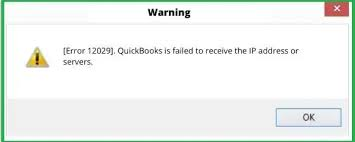
This error typically appears when QuickBooks cannot receive an IP address or when the server fails to respond within the allotted time. Users often encounter it while downloading payroll tax tables or updating QuickBooks Desktop. The error message displayed is:
“QuickBooks failed to receive the IP address or servers. Error 12029.”
Prevention is critical because payroll updates are directly tied to tax compliance. Without updates, tax tables become outdated, payroll calculations may be incorrect, and businesses risk penalties.
Before trying any fixes, answer these two questions. They tell you which section below actually applies to you — most people only need one of the three scenarios, not the whole article.
Below mentioned are the prerequisites for Quickbook error 12029:
| Prerequisite | Why It Matters |
| Update QuickBooks to latest release | Ensures compatibility with Intuit servers |
| Verify system date and time | Incorrect settings can block updates |
| Test internet connection | Confirms stable connectivity before troubleshooting |
Following are ways to identify error 12029:
The following table shows the preventive measures to be taken along with their benefit:
| Preventive Measure | Benefit |
| Keep QuickBooks updated | Avoids compatibility issues |
| Run QuickBooks as Administrator | Grants necessary permissions |
| Configure firewall/antivirus | Prevents QuickBooks executables from being blocked |
| Enable TLS 1.2 in Windows Internet Options | Ensures secure server communication |
Open QuickBooks Desktop and try to update the application without downloading a payroll update.
Go to:
Help → Update QuickBooks Desktop → Update Now → Get Updates
Once the update finishes, restart QuickBooks and try the payroll update again.
What this tells you:
If the regular QuickBooks update works but the payroll update still returns Error 12029, the problem is more specific to the payroll-update connection. Avoid changing Windows network settings unnecessarily and continue with the payroll-specific checks below.
Open QuickBooks Desktop and check that you are signed in to the correct Intuit account and that your payroll subscription is active.
Then go to:
Employees → Get Payroll Updates
Select Download Entire Update and start the update.
If the payroll service or subscription itself is not active, correcting the network settings will not resolve the underlying problem.
A failed or incomplete update can sometimes interfere with another update attempt.
In QuickBooks Desktop:
If the error continues, move to Scenario 2.
Use this scenario when Error 12029 occurs during regular QuickBooks updates or when QuickBooks cannot establish a connection.
Open Chrome or Microsoft Edge and visit a secure HTTPS website, preferably your bank’s sign-in page.
Your computer has internet access, so continue with the QuickBooks, Windows, firewall, and security checks below.
An incorrect system clock can interfere with secure connections and certificate validation. Intuit includes checking the system date and time among its QuickBooks update troubleshooting steps.
In Windows:
An outdated QuickBooks release can contain components that affect update and connectivity processes.
Open QuickBooks Desktop and go to:
Help → Update QuickBooks Desktop
Select Update Now, then select Get Updates.
After the update completes:
If QuickBooks itself is not responding properly during the update process, use the current QuickBooks Tool Hub.
Download and install the latest version of QuickBooks Tool Hub from Intuit.
Then:
Intuit currently recommends Quick Fix my Program as a general QuickBooks Desktop troubleshooting tool.
Note: Tool Hub is for Windows-based QuickBooks Desktop. Intuit currently recommends using the latest available Tool Hub version.
Your firewall, antivirus, endpoint security, VPN, or other security software can prevent QuickBooks from establishing the connection required for updates.
First, check whether your security software has recently:
Do not permanently disable your firewall or antivirus.
Instead, temporarily test the connection only according to your security software’s supported troubleshooting procedure. If the update works after a controlled test, configure an appropriate exception for the affected QuickBooks program components with your IT/security administrator or security-software documentation.
This is preferable to blindly opening ports or disabling Windows security.
A VPN or proxy can change how QuickBooks communicates with external services.
If you use a VPN:
If the update works without the VPN, the VPN/network administrator should review its filtering or routing rules.
For managed business networks, ask your IT administrator whether a proxy, firewall, content filter, or security gateway is blocking QuickBooks traffic.
If Quick Fix my Program does not resolve the problem, open QuickBooks Tool Hub and review the troubleshooting tools available for your version.
Do not run every Tool Hub utility simply because it is available.
Choose the tool according to the actual problem. For example, installation-related problems may require the installation diagnostic tools, while program-related problems may be better suited to Quick Fix my Program. Intuit separates these tools according to the type of QuickBooks problem being addressed.
If the same Error 12029 occurs on several QuickBooks computers connected to the same network, do not repeat the same computer-level repair on every machine.
The pattern suggests that you should investigate the shared network environment first.
Connect one affected computer to a different internet connection, such as a trusted mobile hotspot, where permitted by your organization’s IT/security policy.
Then try the QuickBooks update again.
This strongly suggests that something on the original network is interfering with the connection.
Ask your network administrator to check:
Return to the computer-level troubleshooting in Scenario 2 and continue with the QuickBooks and Windows checks.
For computers managed by a company network, Error 12029 may be caused by centralized security controls rather than the individual QuickBooks installation.
Give your IT administrator:
This information can significantly narrow down whether the problem is local or network-wide.
Do not start by uninstalling QuickBooks.
If:
then a damaged QuickBooks installation becomes more plausible.
At this stage, use Intuit’s current repair/reinstall procedure appropriate to your QuickBooks Desktop version rather than following an old third-party clean-install procedure.
After each troubleshooting step, retry the exact operation that originally produced Error 12029.
For example:
Payroll update failed → make one change → retry payroll update
or
QuickBooks Desktop update failed → make one change → retry QuickBooks update
This makes it easier to identify which change actually resolved the problem instead of applying several unrelated system changes at once.
After the update completes, the most important step is to immediately verify the installed version and tax table version. Open QuickBooks Desktop. Press F2 (or Ctrl+1) to open the Product Information window. Check the Payroll Tax Table Version to ensure it matches the latest number published by Intuit for the current period. Ensure the Release (R) number of your QuickBooks software has also been updated. This confirmation ensures the fix was permanent and the required files were fully validated and installed.
If you’ve completed the steps for your scenario above and the error persists after a restart, it’s reasonable to stop and escalate rather than keep working through every remaining step.
Have this ready before you contact support: your QuickBooks version/year, the exact error text, whether it’s affecting one computer or your whole network, and which steps above you’ve already tried — so you’re not repeating things you’ve already ruled out.
QuickBooks Error 12029 is a connectivity issue. By following the troubleshooting steps one can easily resolve the error. Start with basic internet and browser checks, progress to firewall and proxy adjustments, and escalate to advanced fixes like certificates, safe mode, and clean installs. Each step removes potential barriers between QuickBooks and Intuit servers, ensuring payroll and updates download successfully.
QuickBooks Desktop is a Windows application that uses the Windows core internet settings for background communication, specifically the WinINet API. This API is managed and configured through Internet Explorer’s (IE) Internet Options. Even if you use Chrome or Edge for browsing, the software relies on these IE settings to handle security certificates, SSL/TLS protocols (like TLS 1.2), and proxy configurations necessary to connect securely to Intuit servers.
QuickBooks Desktop connects to various Intuit servers for multiple services, including:
➜Payroll Updates (Tax Table Downloads)
➜Payment Processing (Merchant Services)
➜Licensing and Registration (Validation)
➜Software Updates (QuickBooks Maintenance Releases)
While the IP addresses may change, Intuit officially requires you to ensure the following domain is unblocked: *.quickbooks.com and *.intuit.com. You must also ensure that ports 80 and 443 (standard internet ports) and TCP Port 8019 (for multi-user mode communication) are not blocked by your firewall.
Note: Port 8019 specifically applies to multi-user hosting between computers on your network, not directly to this connectivity error — it’s included here for completeness if you’re also troubleshooting multi-user mode.
TLS (Transport Layer Security) 1.2 is a modern security protocol that ensures secure communication over a computer network. Intuit and other major online service providers require the use of TLS 1.2 to protect data transmitted during updates, payments, and licensing checks. Error 12029 is often caused because the Windows or Internet Explorer settings were not configured to use TLS 1.2, causing the connection handshake with Intuit’s secure servers to time out or fail validation.
Error 12029 is primarily a system and network-level error, not a user-specific one. If the error is due to a blocked firewall port, an incorrect system clock, or missing TLS 1.2 configuration on the host computer (where the update is attempted), it will usually prevent any user on that system from completing the payroll or software update. If the error is specific to a remote desktop environment, the same network rules apply to the server instance running QuickBooks.
After the update completes, the most important step is to immediately verify the installed version and tax table version.
➜Open QuickBooks Desktop.
➜Press F2 (or Ctrl+1) to open the Product Information window.
➜Check the Payroll Tax Table Version to ensure it matches the latest number published by Intuit for the current period.
➜Ensure the Release (R) number of your QuickBooks software has also been updated.
This confirmation ensures the fix was permanent and the required files were fully validated and installed.
No. SSL 2.0 and SSL 3.0 are outdated, insecure protocols that modern QuickBooks and Intuit’s servers don’t rely on. Enabling them won’t fix Error 12029 and only weakens your system’s security. QuickBooks requires TLS 1.2, which is a separate setting in the same Internet Options window.
Partially. Tool Hub’s general repair tools (like Quick Fix My File) can help clear conflicts that contribute to update failures, but its Network Issues tab and Database Server Manager are built for multi-user/company-file errors (H202, H303, H505) — not for internet connectivity to Intuit’s servers. For Error 12029 specifically, the TLS, firewall, and connection steps above are more directly relevant than Tool Hub’s network tools.


