Excerpt:
QuickBooks Error PS033 occurs when updating payroll or opening the company file, often due to issues like damaged CPS folders, corrupt tax tables, or system settings. This guide provides step-by-step solutions such as downloading the latest tax table, renaming the CPS folder, adjusting User Account Control (UAC) settings, and troubleshooting in Safe Mode. These fixes help resolve the error and restore smooth payroll processing.
 Add As A Preferred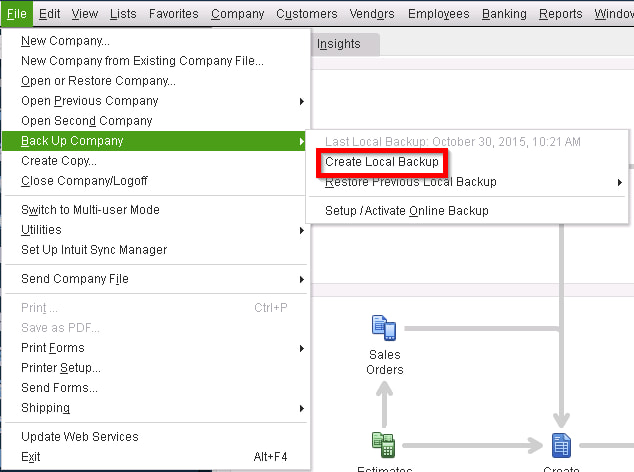
A payroll update failure that prevents users from downloading the latest tax table or accessing their company file is commonly known as QuickBooks Payroll Error PS033. It occurs when QuickBooks cannot read payroll setup files, often due to corruption or misconfiguration.
The error is usually triggered by a damaged CPS folder, invalid payroll subscription details, outdated QuickBooks Desktop versions, or incorrect service key/EIN information. In some cases, compatibility issues between QuickBooks and Windows can also cause PS033.
PS033 typically shows up when users attempt to download payroll updates or open their company file. It interrupts payroll processing and blocks access to employee information, making it a critical issue to resolve quickly.
The error often appears with a dialog box stating: “QuickBooks can’t read your payroll setup files.”
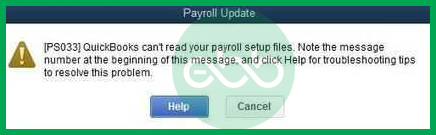
This message indicates that QuickBooks is unable to validate or access the payroll data required for updates.
Payroll updates are essential for compliance with IRS and state tax laws. If PS033 is not resolved, businesses risk inaccurate paycheck calculations, rejected tax filings, and potential penalties. Preventive measures such as keeping QuickBooks updated, verifying billing information, and maintaining backups help minimize the chances of encountering this error again. Payroll updates ensure compliance with tax laws and accurate paycheck calculations. Regular updates, verified billing, and backups help prevent recurrence.
Several factors can trigger this error:
You may recognize PS033 if:
Payroll Error PS033 requires to be prevented because:
| Level | Step | Action | Suggested Time Limit |
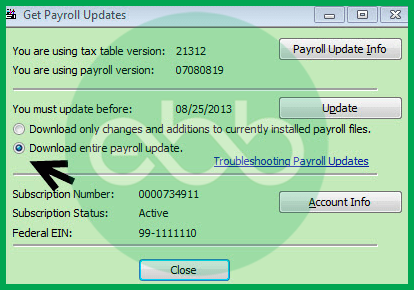
| Basic | Download Latest Payroll Updates | Open QuickBooks Desktop → Employees > Get Payroll Updates → Select Download Entire Update → Click Update. | 5–10 minutes |
| Verify Payroll Subscription & Billing | Ensure payroll subscription is active and billing details are correct. | 5 minutes | |
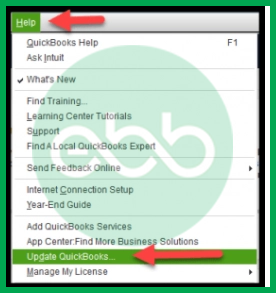
| Update QuickBooks Desktop | Install the latest QuickBooks release to avoid compatibility issues. | 10–15 minutes | |
| Intermediate | Rename the CPS Folder | Close QuickBooks → Navigate to C:\Program Files\Intuit\QuickBooks 20XX\Components\Payroll\CPS → Rename to CPSOLD → Reopen QuickBooks and update payroll. | 10 minutes |
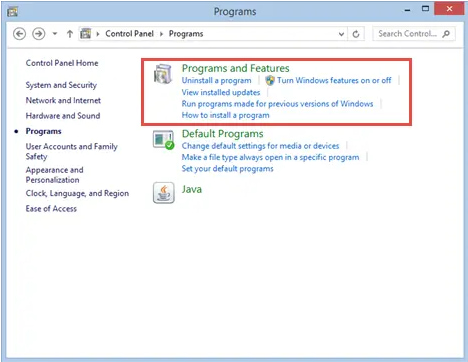
| Repair QuickBooks Desktop | Run repair from Control Panel to fix damaged installation files. | 15–20 minutes | |
| Check Compatibility | Verify QuickBooks Desktop version is supported on your Windows OS. | 5–10 minutes | |
| Backup Company File | Create a backup before advanced troubleshooting. | 10 minutes | |
| Advanced | Disable User Account Control (UAC) | Control Panel → User Accounts → Change UAC Settings → Set to Never Notify → Restart QuickBooks → Re‑enable after troubleshooting. | 10 minutes |
| Reboot and Troubleshoot in Safe Mode | Run Verify Data Utility (File > Utilities > Verify Data). If issues are found, run Rebuild Data Utility. Save backup before rebuilding. | 20–30 minutes |
1. Download Latest Payroll Updates
Outdated payroll updates are one of the most common triggers of PS033.
2. Verify Payroll Subscription & Billing
Inactive or invalid subscriptions can block payroll updates.
Running an outdated version of QuickBooks often causes payroll errors.
4. Rename the CPS Folder
A damaged CPS folder can prevent QuickBooks from reading payroll setup files.
5. Repair QuickBooks Desktop
Corrupted installation files can trigger PS033.
6. Check Compatibility
Unsupported versions of QuickBooks may not work properly with your Windows OS.
7. Backup Company File
Before moving to advanced troubleshooting, always safeguard your data.
8. Disable User Account Control (UAC)
UAC settings can sometimes block QuickBooks from accessing payroll files.
9. Reboot and Troubleshoot in Safe Mode
Corrupted company files can trigger PS033, and Safe Mode helps isolate issues.
QuickBooks Payroll Error PS033 is often caused by damaged CPS files, invalid subscription details, or compatibility issues. By following a structured troubleshooting flow starting with basic updates, moving to intermediate fixes like renaming the CPS folder, and finally applying advanced measures such as disabling UAC or rebuilding company data you can usually resolve the error.
If the problem persists, escalate to QuickBooks Support for advanced assistance. Preventive measures such as keeping QuickBooks updated, verifying billing monthly, and maintaining backups will help minimize the risk of encountering PS033 again.
Errors like PS033 can be triggered by validation failures, which often point back to your core payroll credentials.
The Service Key links your QuickBooks Desktop software to your paid Intuit payroll subscription, enabling you to download tax tables and process payroll. The EIN (Employer Identification Number) is required to correctly identify your business for tax filings. If either is incorrect or mismatched with the Intuit servers, the payroll service will fail its validation check.
Verification Steps: You should check your service status directly in the software:
➜Close all company files and restart your computer.
➜Open QuickBooks Desktop.
➜Go to the Employees menu ➜ My Payroll Service➜ Manage Service Key.
➜Verify that your Service Name and Status show as Active.
➜You can select Edit to verify the service key number against your official Intuit records.
Since Error PS033 is often a validation issue, confirming your subscription is crucial. In QuickBooks Desktop, go to the Employees menu, hover over My Payroll Service, and select Account/Billing Information (or Manage Service Key). You will need to sign in to your Intuit account online to check the status and billing details of your payroll subscription. The status should display as Active or Current. An expired subscription will prevent any updates.
You can confirm your version’s support status in:
Help ➜ QuickBooks Desktop Updates ➜ Update Now or on Intuit’s “Supported Versions” product lifecycle page.
Unsupported versions frequently lead to payroll update restrictions that users encounter around PS-series errors.
While there is no official schedule, it’s considered a best practice to run the Verify Data utility monthly (or quarterly) to preemptively detect any minor data inconsistencies. You should immediately run the Rebuild Data utility anytime the Verify Data tool reports that issues were found. Maintaining data integrity helps prevent file corruption from escalating to errors like PS033, which rely on a stable company file.
Yes. Intuit recommends using the QuickBooks Tool Hub as the primary diagnostic starting point for most technical errors, including those in the PSXX series. The Tool Hub’s Quick Fix My Program feature automatically runs various program component repairs and system diagnostics that can resolve common causes of update and validation issues before you manually attempt steps like renaming the CPS folder.
The CPS folder contains payroll setup files required for payroll verification. Any corruption or version mismatch in this folder prevents QuickBooks from completing payroll validation and triggers Error PS033.
Yes, outdated or invalid tax table files interrupt payroll verification because QuickBooks cannot authenticate payroll calculations using outdated data.
Yes, when QuickBooks cannot validate payroll setup files, it may temporarily restrict payroll-related company file operations until the error is resolved.
Updating QuickBooks Desktop replaces outdated program files and aligns payroll components with the latest release, preventing validation conflicts that cause Error PS033.
Yes, renaming the CPS folder allows QuickBooks to create a new, error-free folder during the next update attempt, which resolves file corruption issues.
Yes, incorrect payroll service key entries, EIN values, or subscription credentials disrupt payroll authentication and contribute to Error PS033.


